Wednesday, 16 September 2026
Home News Politics Business
🇹🇷 TR | 🇬🇧 EN
cctvfirmware logo
Random Post
  • Home
  • Categories
    • DVR General
    • IPC General
    • NVR General
    • Smart Home
  • Setup
    • How To
    • Guide
    • Password Tools
  • Firmware
    Recent PostsView All →
    Alternative open firmware for your IP camera
    Jun 30

    Alternative open firmware for your IP camera

    Blackvue Firmware Download and Upgrade Guide
    Feb 18

    Blackvue Firmware Download and Upgrade Guide

    how to reset password wifi cameras
    Feb 03

    Locked Out? The Definitive Guide to Resetting WiFi Security Camera Passwords

  • Mobile
    Recent PostsView All →
    Tuya Spatial App How-To Guides
    Dec 13

    Tuya Spatial App How-To Guides

    VicoHome 4G Camera Setup Guide
    Dec 06

    VicoHome 4G Camera Setup Guide

    p6scloud p6spro fimrware software tools
    Aug 25

    p6scloud p6spro fimrware software tools

  • Software
    Recent PostsView All →
    How to use Ebitcam PC Client
    Dec 21

    How to use Ebitcam PC Client

    LG LVI510 VMS Setup and User Guide
    Sep 04

    LG LVI510 VMS Setup and User Guide

    Annke Software Firmware download
    Aug 26

    Annke Software Firmware download

  • Forum
REKLAM
Firmware Guide Software

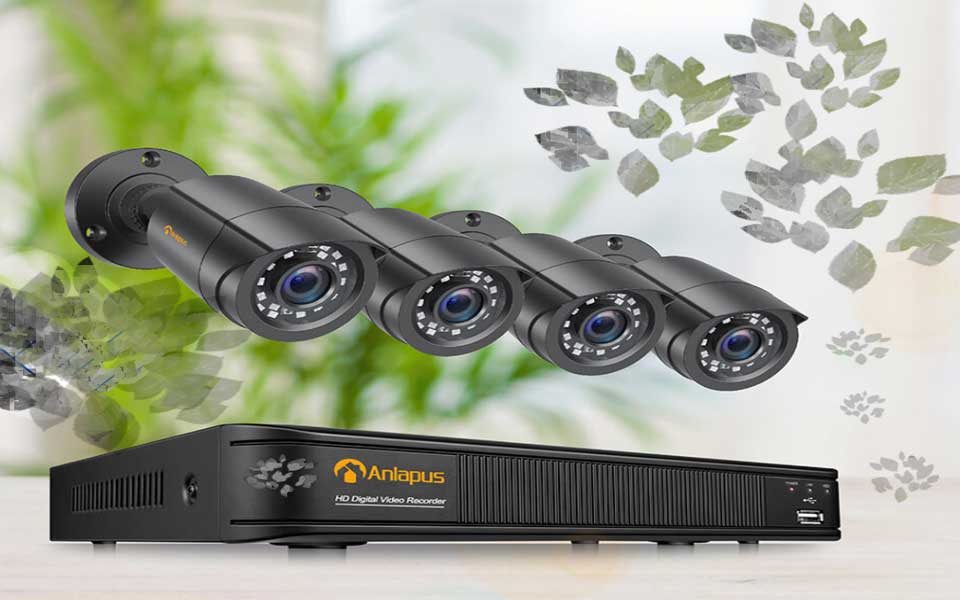
Anlapus Firmware Software Manual Download

By CCTV Firmware February 3, 2023 4 min read
Anlapus Firmware Software Manual Download
Views: 61Anlapus Firmware Software Manual DownloadREKLAM This upgrade file applies for the KLG16TV(2MP) DVR.  You can find your DVR’s model number on the...
REKLAM

Views: 61

Anlapus Firmware Software Manual Download

REKLAM

This upgrade file applies for the KLG16TV(2MP) DVR. 

You can find your DVR’s model number on the label at the bottom of your DVR.

If your DVR’s label is lost, please go to DVR’s Main Menu – Information – System to take a photo to us, we will send the correct upgrade file to you.

The below is the detail steps to upgrade the DVR:

(1). You needn’t open the upgrade file, please directly download the upgrade file

and save it to your U-disk.

(Please save the upgrade file rootfs-3531dv100 in the root directory, not save it under

any other folders.)

Note:  it is better to use a 16GB or smaller flash drive with a Fat32 format.

Do not use MICROSOFT EDGE when you do the download, it makes the file to a text file, so the device can’t read a text file.

(2). The file’s name should be rootfs-3531dv100, can not be have any changes,

if the file’s name change to rootfs-3531dv100(1), the upgrade will be failed.

(3). Before starting to upgrade, please unplug the power supply,

then plug the U-disk and mouse into the DVR’s back USB ports, and plug the power supply.

(4).  It can upgrade automatically as long as it has electricity, the upgrade process need

to last several minutes, please be patient.

After upgraded, Please go to the DVR’s main menu – information – System to check the version.

Read Next : Swann DVR NVR Device Latest Firmware

If the upgrade was failed, we suggest you change another U-disk or USB port to try.

Please don’t worry, if this can’t help you, please feel free to contact us.

Table of Contents

Toggle
    • Anlapus Firmware Software Manual Download
  • Upgrade Files
  • Instruction Manual
  • Software
  • App Download Center
  • Manual for the 4 in 1 Dome Camera
    • You can download the multilingual manual (English/Spanish/German/French) for your 4 in 1 dome camera. Please check the model number on the label of your 4 in 1 dome camera and choose the corresponding one. If your 4 in 1 dome camera is not listed, please contact us.
    • Manual for the 4 in1 Camera
  • Manual for Wireless NVR
    • You can download the multilingual manual (English/Spanish/German/French) for your wireless camera system. Please check the model number on the label of your NVR and choose the corresponding one. If your NVR is not listed, please contact us.
    • Applies for the following model
    • Manual for Wireless NVR

Anlapus Firmware Software Manual Download

Upgrade Files

  • MPH04T Upgrade files
  • M1H04T4 Upgrade files
  • KLG16TV V1.6.3 Upgrade files
  • M1H08T4 Upgrade files
  • MQ08P V1.7.1 Upgrade files
  • (N)MPH08T4 Upgrade files
  • (N)MPH08T4 V1.6.2 Upgrade files
  • MPG04TV V.1.6.1 Upgrade files
  • (N)MMG08TV V.1.6.3 Upgrade files
  • (M)QQ08P PoE NVR upgrade file
  • MQ08W 8CH NVR
  • (M)NPG08TV(1MP)V.1.5.3 Upgrade file rootfs-3520dv400
  • (M)NMG08TV(2MP)V.1.5.3 Upgrade file rootfs-3521dv100
  • (M)NLF08TV(5MP) V.1.6.1 Upgrade file rootfs-3531dv100
  • (M)NLF08TV (8MP)V.1.6.1 Upgrade file rootfs-3521dv100
  • (M)NKG08TV(1MP) V.1.6.1 Upgrade file rootfs-3520dv300
  • (M)NIG08TV(2MP) V.1.6.1 Upgrade file rootfs-3521a
  • KMG16TV(1MP) V.1.5.3 Upgrade file rootfs-3521dv100
  • KLG16TV(2MP) V.1.6.1)Upgrade file rootfs-3531dv100

Instruction Manual

  • Manual for the 4 in 1 Dome Camera
  • Manual for the 4 in 1 Bullet Camera
  • Manual for Battery Camera_A3
  • Manual for Battery Camera_A5PC10-W
  • Manual for Wireless Camera
  • Manual for Wireless NVR
  • Manual for POE NVR
  • Manual for DVR
  • Instruction Manual

Software

  • App Download Center
  • AVSS Download Center

App Download Center

1.Scan the QR code to download the APP.

 

_____.png

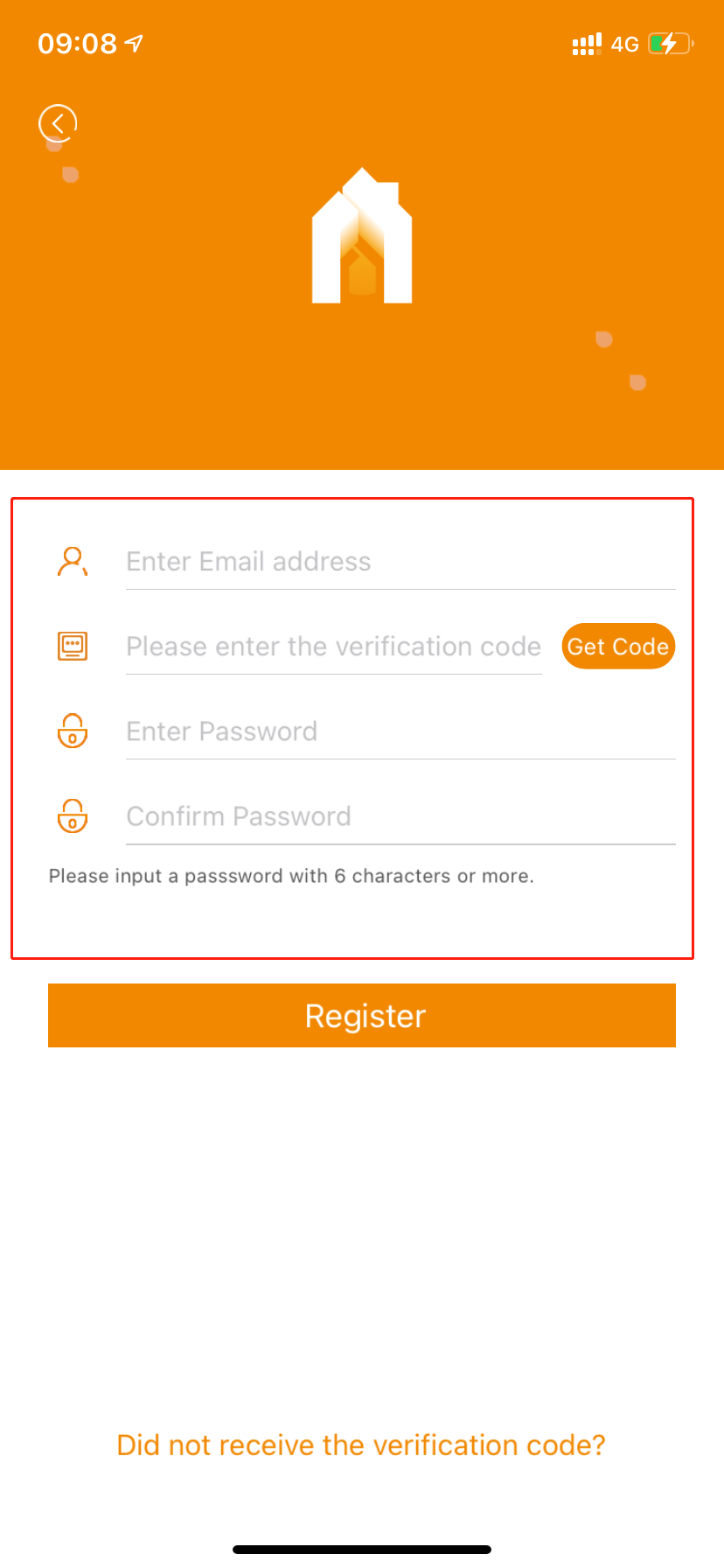
2.Click “Register ”and then follow the guide to register an account.
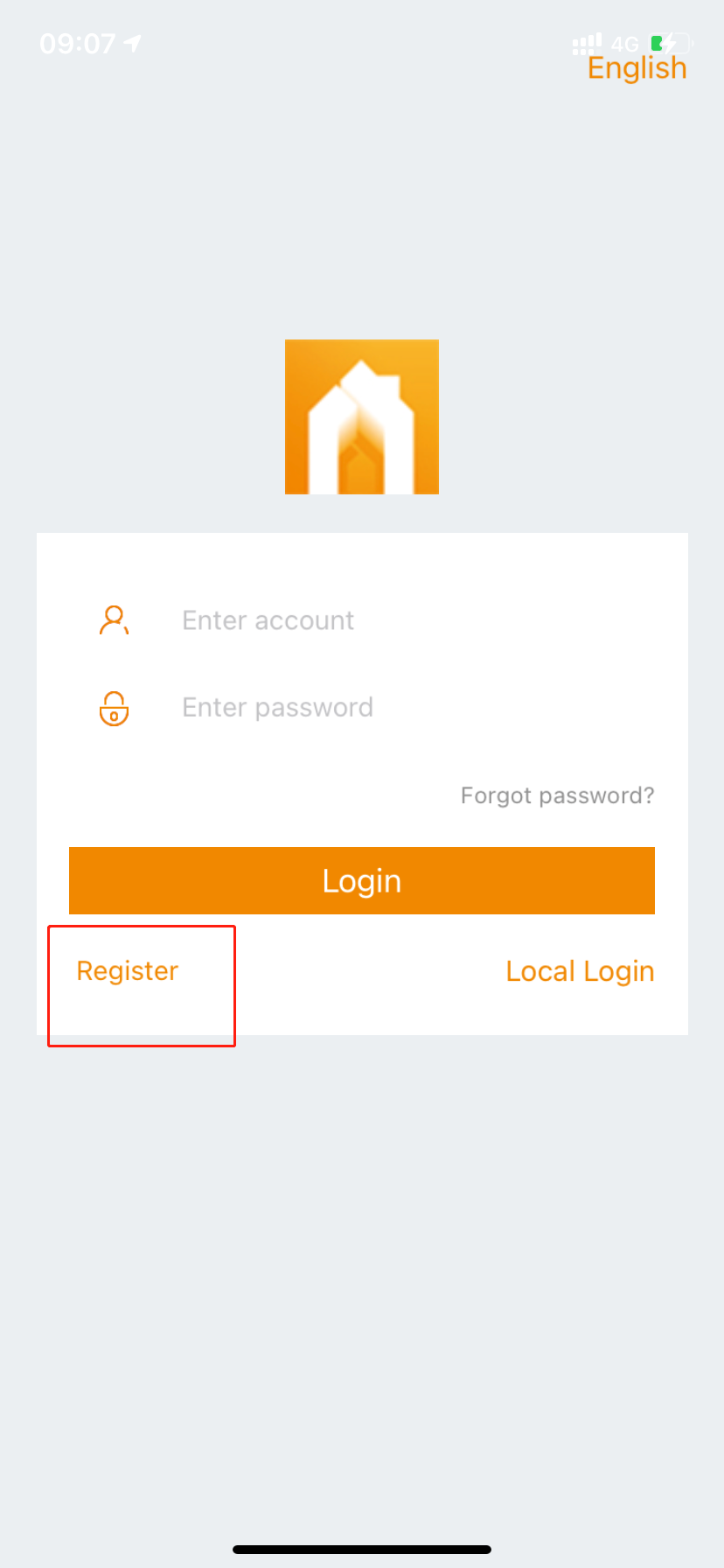


1.jpg2.jpg


3.Enter your account and password and then click “Login”
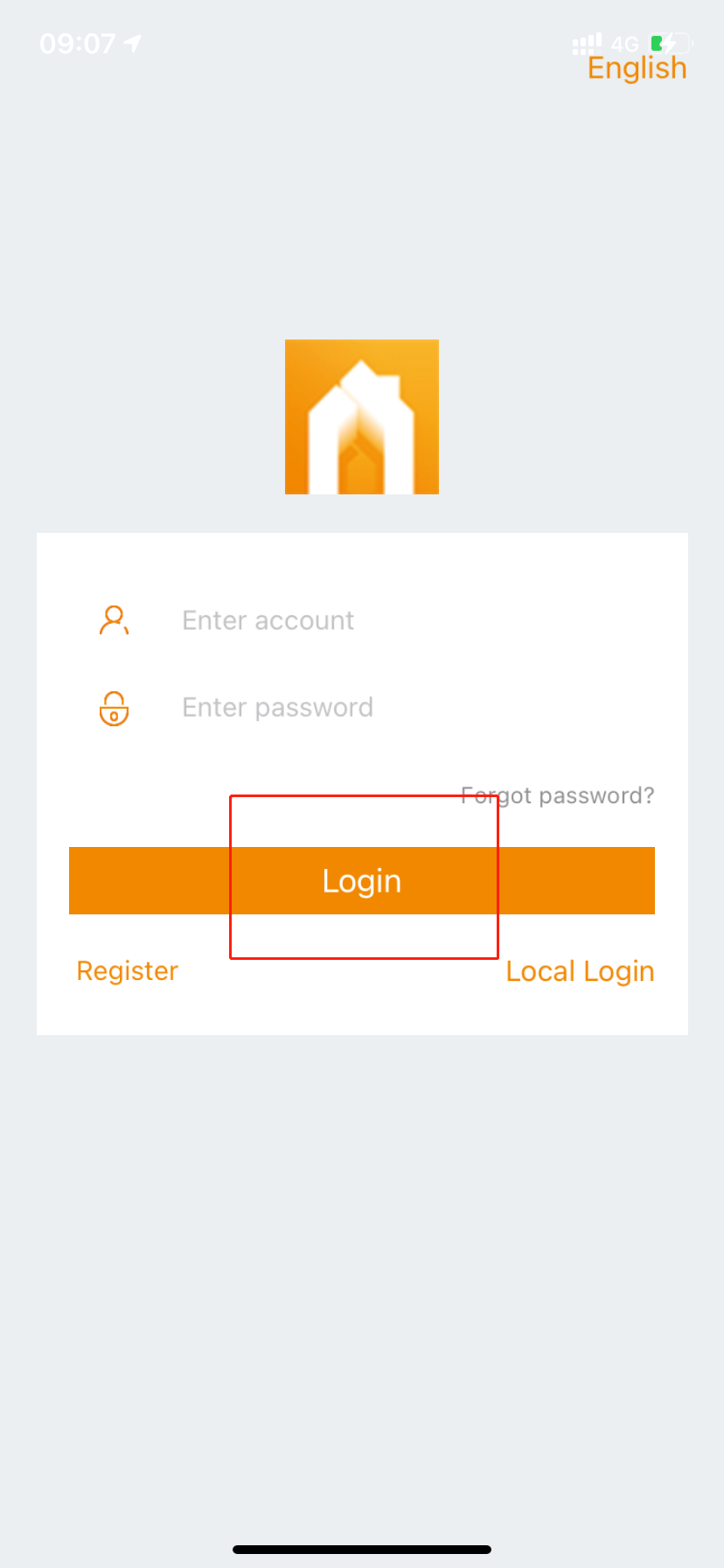


3.jpg


4.Once you’re logged in, you would see a picture like this and then you could add the cameras to your APP.
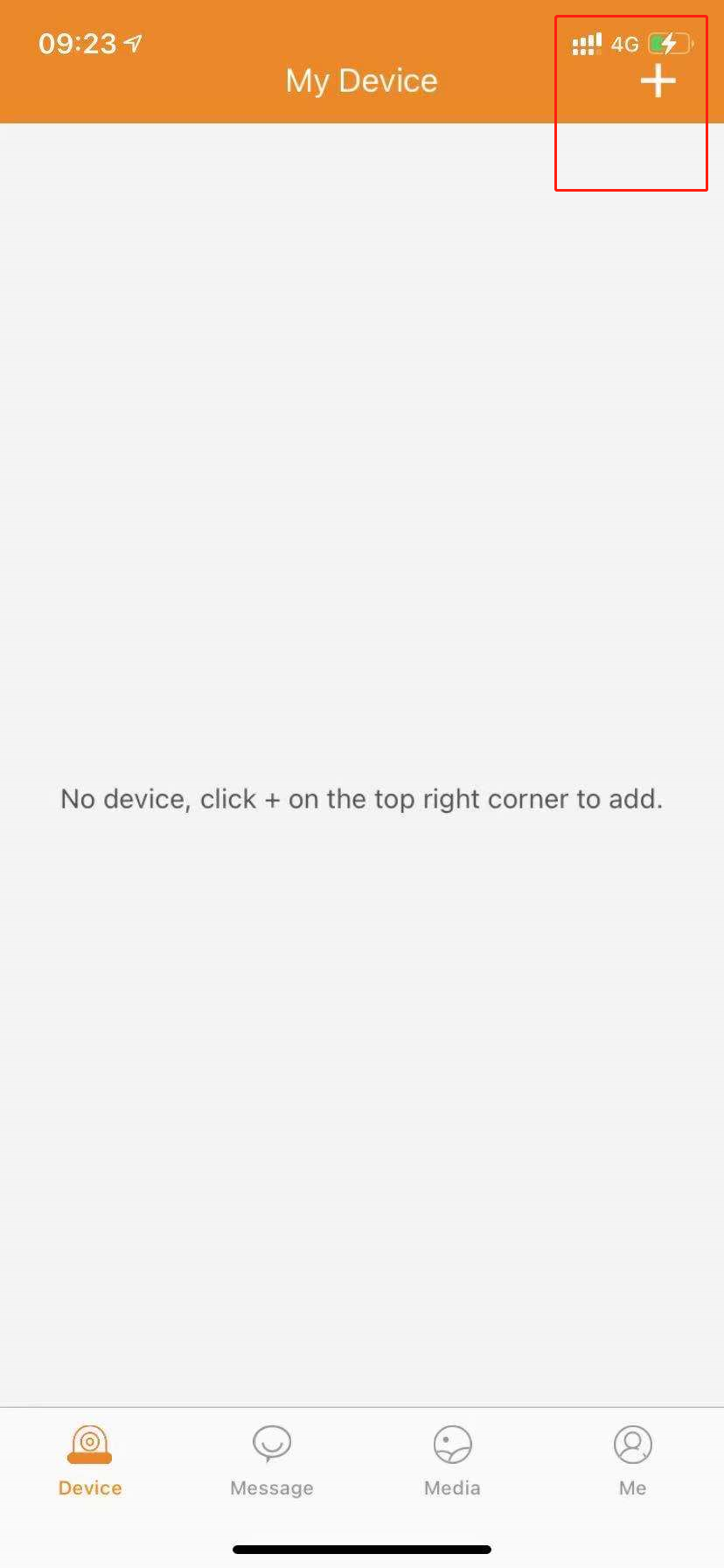
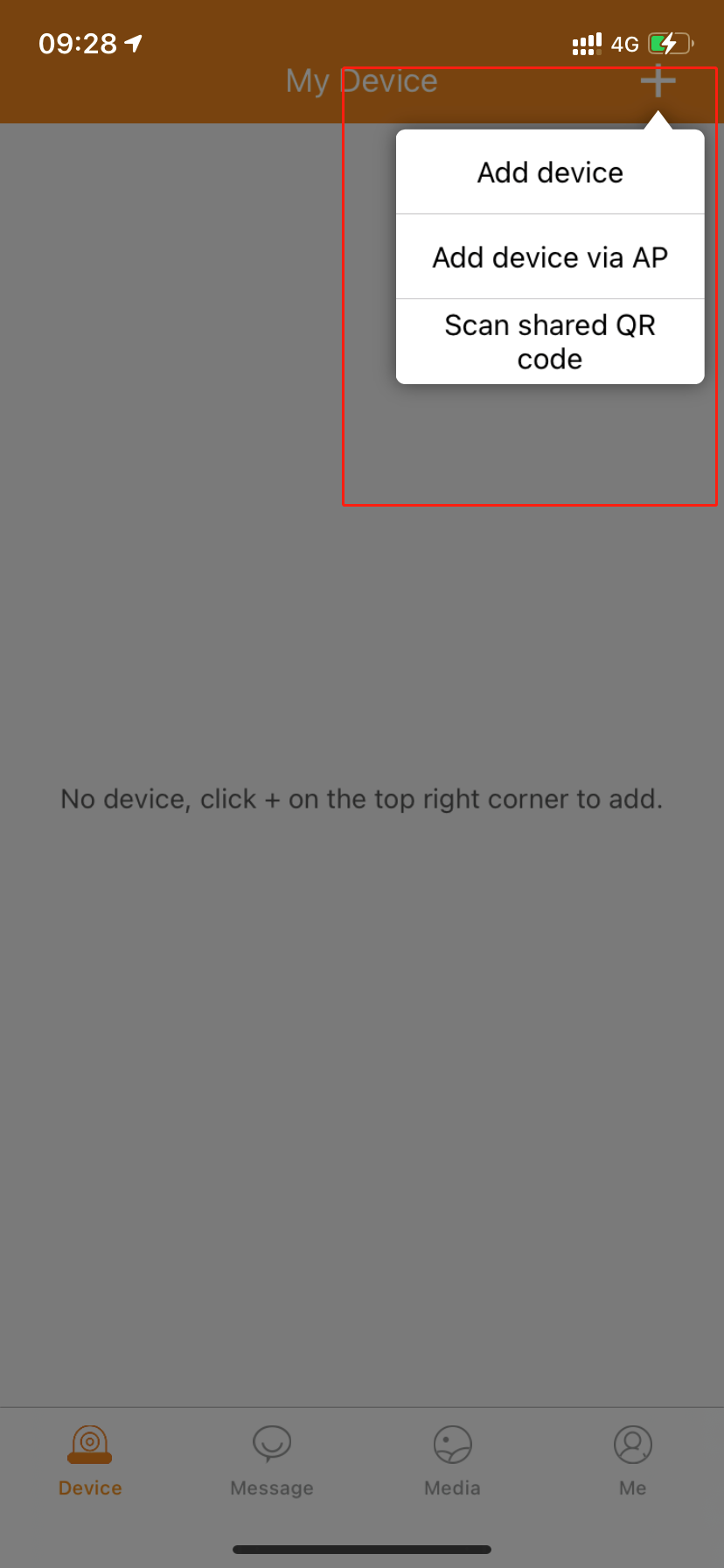


4.jpg5.png


If you have any more questions , please contact us.

Manual for the 4 in 1 Dome Camera

You can download the multilingual manual (English/Spanish/German/French) for your 4 in 1 dome camera. Please check the model number on the label of your 4 in 1 dome camera and choose the corresponding one. If your 4 in 1 dome camera is not listed, please contact us.

Manual for the 4 in1 Camera

Dome Camera

Manual for Wireless NVR

You can download the multilingual manual (English/Spanish/German/French) for your wireless camera system. Please check the model number on the label of your NVR and choose the corresponding one. If your NVR is not listed, please contact us.

Applies for the following model

PQ08W

Manual for Wireless NVR

Download

This upgrade file works for the KLG16TV.

You can find your NVR’s model number on the label at the bottom of your NVR.

(1). Attach is the upgrade files, after you download the files, please save the upgrade files rootfs-3531dv100 and logo-startup and update in the root directory, not save it under any other folders.

(2). You needn’t open the files, please directly download the upgrade file and save it to your U-disk.

Note:  it is better to use a 16GB or smaller flash drive with a Fat32 format.

(3). The files’ name should be rootfs-3531dv100 and logo-startup and update , can not be have any changes,

if the files’ name change to rootfs-3531dv100(1) or logo-startup (1), the upgrade will be failed.

(4). Before starting to upgrade, please remove the mouse and unplug the power supply,

then plug the U-disk into the DVR’s USB port, and plug the power supply.

(5).  It can upgrade automatically as long as it has electricity, the upgrade process need

to last several minutes, please be patient.

After upgraded, Please go to the DVR’s main menu – information – System to check the version.

If the upgrade was failed, we suggest you change another U-disk or USB port to try.

If the upgrade is successful, you can change the channel name and set the WIFI function.

Please don’t worry, if this can’t help you, please feel free to contact us.

REKLAM
Yazar

CCTV Firmware

Tüm yazıları
Paylaş X Facebook WhatsApp Link Kopyala
Öneriler

Benzer yazılar

Security Camera Mounting Methods
August 21, 2026

Security Camera Mounting Methods

Read Full Story
Alternative open firmware for your IP camera
June 30, 2026

Alternative open firmware for your IP camera

Read Full Story
Petcube Cam 360 Setup User Guide
March 30, 2026

Petcube Cam 360 Setup User Guide

Read Full Story
Önceki Ganzsecurity Firmwares Sonraki xmartO Firmware Download
Anlapus FirmwareappCameraCamerasDeviceDome CameraDownloadDVRFAT32firmwareflashflash driveguideInstructionlatest firmwareLOGONVRnvr devicepanpasswordpoePoE NVRPowerQR codeSoftwaretestUpdateUpgradeWirelesswith
0 comments

Leave a Reply Cancel reply

Your email address will not be published. Required fields are marked *

Recent Comments

  • Mohmmed on V5.00.R02.V4.02.R12. IP CAMERA FIRMWARE DOWNLOAD
  • Claire Badke on How to connect a Hikvision IP camera to a Dahua NVR
  • Cayleb Bikambo on The Definitive Guide to Troubleshooting CCTV Systems: Restoring Security and Clarity
  • ABID SHAH on TKH Security Firmware Software Download
  • Božena Blažková on Security Camera That Connects to Phone Without WiFi

Categories

  • DVR General
  • Firmware
  • Guide
  • How To
  • IPC General
  • Mobile
  • NVR General
  • Password Tools
  • Smart Home
  • Software
  • Top List
  • Troubleshooting
  • Uncategorized

About Me

powered by: M.Salih ASLAN Our Network: evham.net - dvrdestek.com - nvripc.com - dvraid.com - dvrcms.com - xvraid.com

Makale Kontrolleri

Featured Story

Security Camera Mounting Methods
August 21, 2026

Security Camera Mounting Methods

Alternative open firmware for your IP camera
June 30, 2026

Alternative open firmware for your IP camera

REKLAM
CCTVFirmware.Com – DVR NVR IPC Firmware

Security Systems Firmware Files

Get the briefing in your inbox.

Sections

  • World
  • Politics
  • Business
  • Culture

Company

  • About
  • Team
  • Jobs
  • Contact

Follow

  • X / Twitter
  • Instagram
  • YouTube
  • LinkedIn
© CCTVFirmware.Com – DVR NVR IPC Firmware. All rights reserved.
  • About
  • Best Deals
  • Contact
  • Gizlilik Politikası
  • Hakkımızda
  • Home Page
  • HTML Sitemap
  • İletişim
  • Kullanım Şartları
  • Privacy Policy
  • Sample Page
  • Tools