Views: 156
Alternative open firmware for your IP camera, OpenIPC is a rapidly developing open source alternative firmware for popular IP cameras from an open community. Historically, OpenIPC firmware only supported SoC manufactured by HiSilicon, but as the development continues, the list of supported processors expands. Today, it also includes chips from Ambarella, Anyka, Fullhan, Goke, GrainMedia, Ingenic, MStar, Novatek, SigmaStar, XiongMai, and is expected to grow further.
More information about the project is available in our website and on the wiki.

Support
OpenIPC offers two levels of support.
Please consider subscribing for paid commercial support if you intend to use our product for business. As a paid customer, you will get technical support and maintenance services directly from our skilled team. Your bug reports and feature requests will get prioritized attention and expedited solutions. It’s a win-win strategy for both parties, that would contribute to the stability your business, and help core developers to work on the project full-time.
If you have any specific questions concerning our project, feel free to contact us.
Participating and Contribution
If you like what we do, and willing to intensify the development, please consider participating.
You can improve existing code and send us patches. You can add new features missing from our code.
You can help us to write a better documentation, proofread and correct our websites.
You can just donate some money to cover the cost of development and long-term maintaining of what we believe is going to be the most stable, flexible, and open IP Network Camera Framework for users like yourself.
You can make a financial contribution to the project at Open Collective.
.
Available Installation Methods
Unfortunately IP camera manufacturers aren’t yet shipping hardware with OpenIPC preinstalled, so to install OpenIPC onto a camera which is still using factory firmware images, one of the following methods must be used:
OpenIPC firmware installation using Coupler.
Instructions for using Coupler can be found in the project’s documentation.
OpenIPC firmware installation via TFTP and UART, step by step.
Step 1. Determine the System on Chip.
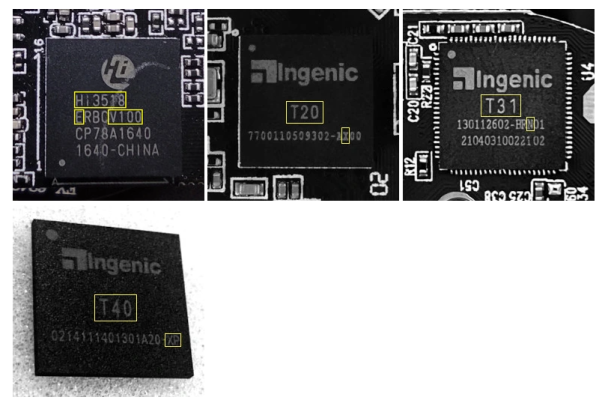
The SoC includes the CPU core of the camera, as well as all the necessary peripherals such as the camera and network interfaces. For various reasons (including the limited onboard storage space on most IP Cameras), the OpenIPC project currently builds separate firmware binaries for each SoC model. You must identify the SoC which your camera uses, so that you can use the correct firmware binaries. This can be done by reading the markings on the SoC IC package on the camera’s main PCB (see example photo below), or by using software such as ipctool to identify the SoC model from the vendor firmware.
Alternative open firmware for your IP camera
Hisilicon Hi3518EV100, Ingenic T20, T31 and T40 SoCs marking. Relevant symbols highlighted with yellow.
Step 2. Install and set up a TFTP server.
TFTP stands for Trivial File Transfer Protocol. As the name implies, it is a very simple protocol intended for transferring files over a local computer network. TFTP does not support authentication. Its code is so tiny and simple that TFTP-clients are widely used in thin-clients and embedded systems for retrieving bootable images from a designated boot server on the local network.
If you have Linux…
…then it’s easy. Pre-compiled and ready-to-use binary package for your distro most likely already exists in distro’s repo, and you only need to install it and set it up.
sudo apt install tftpd-hpa
sudo sed -i ‘/^TFTP_OPTIONS/s/”$/ –create”/’ /etc/default/tftpd-hpa
sudo systemctl restart tftpd-hpa.service
Note: some users reported issues (connection timeouts) when using tftpd-hpa with recent versions of Ubuntu. In that case, you can try with an alternative TFTP server.
Step 3. Connect to UART port of your camera.
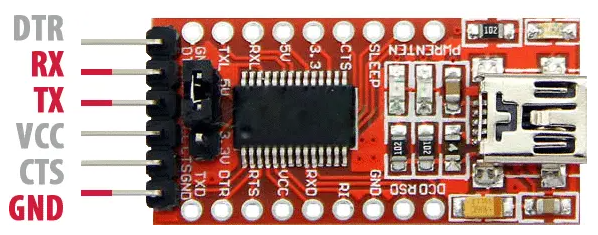
In order to make a connection to UART port you will need a serial port adapter for your PC.
.
Before you connect that adapter to you camera, make sure that it’s working voltage is set to 3.3 volt! Sometimes, you only need to flip a jumper to achieve that. But in some cases you might need to solder a wire, a zero Ohm resistor, or make a connection between two contacts with a blob of solder. Some adapters support only 5 volt. In that case, you will need an additional logic level converter connected between the adapter and UART port on your camera.
One of the contact pads you will need to connect you adapter to is GND (ground). It is easy to discover using a multimeter in continuity mode. Put one of the leads onto a well-known exposed ground pads. Usually, these are large open copper contact areas around mounting screw holes, USB port housing, SD card slot metallic walls. Use another lead to slightly touch control pads until you see or hear a notification from your multimeter that the circuit is closed. That means, you found the ground. Now, you need to find two more: RX and TX, both used for receiving and transmitting data, respectively. Start with TX. It transmits series of characters and quite easy to spot.
Be aware that you are looking for a contact with 3.3v potential between it and the ground. Test possible connection points with a multimeter and mark those showing 3.3 volt. This way you won’t have to test everything, and you save yourself from hitting say a 12 volt connector intended for infrared LED array or whatnot.
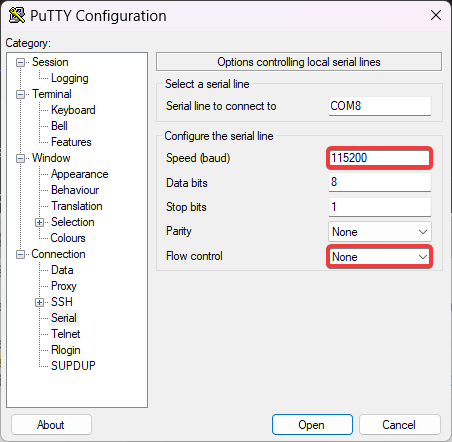
Connect GND pin on your camera to GND pad of the adapter, connect USB connector of the adapter to a USB port on your PC, start a terminal emulator application and connect to your adapter. Set your terminal settings to 115200 bps baudrate, 8 bits, no parity, 1 stopbit, no flow control.
Here’s a few command lines for various terminal programs with session logging. Pick your poison.
screen
Start a sessions with
screen -L -Logfile ipcam-$(date +%s).log /dev/ttyUSB0 115200
Use Ctrl-a followed by \ to exit the session.
minicom
Start a sessions with
minicom -b 115200 -8 –capturefile=ipcam-$(date +%s).log –color=on -D /dev/ttyUSB0
Use Ctrl-a followed by x to exit the session.
picocom
Start a sessions with
picocom -b 115200 –databits 8 –parity n –stopbits 1 –flow n –logfile=ipcam-$(date +%s).log /dev/ttyUSB0
Use Ctrl-a followed by Ctrl-x to exit the session.
PuTTY
If you opt for a GUI terminal, namely PuTTY, this is how it should look like:
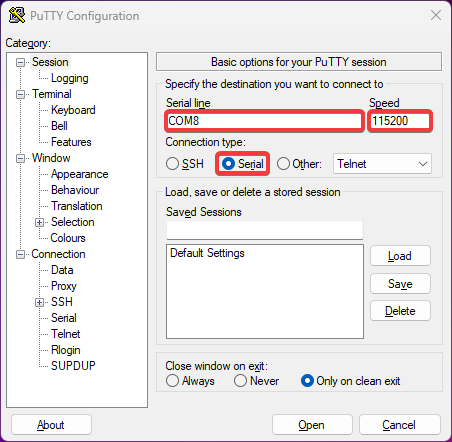
Then, connect RX pin on the adapter to a possible TX contact of UART port on your camera. Power the camera with its standard power adapter. If you had a lucky guess then you’ll start seeing booting log in your terminal window. In some cases, if you see garbled text on you screen instead of booting kernel, you might need to change the connection speed to 57600 bps and try again.
If your screen remains blank, try another UART contact, and then another, until you hit the proper one.
After you found the TX pad, connect it to RX pin on your adapter. Yes, it is a cross-connection. Whatever transmits goes into a receiver and vice-versa. Now, put a heavy object — a railroad nut, an antique tin solder, a shot of vodka (full) — on any letter key of your computer keyboard and start connect remaining TX pin of your adapter to different pads on the camera until you see it backfeeding to the terminal. As it happens, you have successfully completed a UART connection to you camera. Now you may drink the vodka.
NB! Usually, there is a fourth contact on a UART connector marked VCC. It is used for powering camera during initial programming by manufacturer. We strongly advise not to power your camera though that pin, but use the OEM power connector for this purpose.
Step 4. Get access to the bootloader.
Reboot the camera and try to interrupt its boot sequence in order to access bootloader console by pressing a key combination on your computer keyboard, between the time the bootloader starts and before Linux kernel kicks in. Key combinations differ from vendor to vendor but, in most cases, it is Ctrl-C, less commonly — Enter, Esc, * or just any key. Carefully read text appearing on screen while booting, you might see a hint there. Some cameras require more exotic combinations not revealed in booting logs. You may try to look them up on the internet, or ask on our Telegram channel. Chances are, we have already dealt with such a camera and know the combo.
If you succeeded and got a command prompt then congrats, you’ve got access to your camera’s bootloader.
From this point on, we strongly advise you to keep a record of everything you do. Enable session logging in your terminal. Even better, create a text file on your computer and write down all commands you run and how system responses to them.
Step 5. Determine the flash memory size.
Most IP cameras nowadays are equipped with 8 or 16 MB NOR or NAND flash memory. You can check the type and size of the chip installed on of your camera in the bootloader log output. You’ll see something like this:
U-Boot 2010.06-svn (Oct 21 2016 – 11:21:29)
.
Check Flash Memory Controller v100 … Found
SPI Nor(cs 0) ID: 0xс2 0x20 0x18
spi_general_qe_enable(294): Error: Disable Quad failed! reg: 0x2
Block:64KB Chip:16MB Name:”MX25L128XX”
SPI Nor total size: 16MB
Another example:
U-Boot 2013.07 (Feb 27 2019 – 02:05:08)
.
DRAM: 64 MiB
MMC: msc: 0
SF: Detected EN25QH64
Which shows the flash memory model (EN25QH64) that you can look up online to find a data sheet. Also, 64 in the model number hints for a 64 Megabits memory, which is equivalent to 8MB. Similarly, 128 would be equivalent to 16MB.
You should also be able to identify the model of the flash memory by looking up at the board, but this is usually a difficult task because the chips are very small and may not come with clear markings.
Step 6. Save the original firmware.
After you get access to the bootloader console, run help to get a list of available commands. Check if you have tftp among them. If you do, then saving the original firmware should be a breeze. You only need to set up access to your TFTP server from step 2.
NB! If your bootloader does not have tftp, you can still make a copy of the original firmware. Read here for more.
Check the system environment using printenv command. Look for ipaddr, netmask, gatewayip and serverip parameters. The first three set IP address, netmask of your camera, and the IP address of the network gateway for accessing local network. The fourth parameter is an IP address of your TFTP server. Assign the values by setenv command (use IP addresses and netmask corresponding to your local network), then save the new values into environment with saveenv command.
setenv ipaddr 192.168.1.253
setenv netmask 255.255.255.0
setenv gatewayip 192.168.1.1
setenv serverip 192.168.1.254
saveenv
To dump the original firmware, you need to save the contents of camera’s flash memory to a file. For that, you must first load the contents into RAM. Here’s how you do that. Initialize the Flash memory. Clean a region of RAM large enough to fit whole content of flash memory chip. Read contents of the flash from into that region, then export it to a file on the TFTP server.
Please note, that flash type, size and starting address differ for different cameras! For exact commands please use automatically generated instructions for your hardware, consult data sheets, or seek help on our Telegram channel.
Step 7. Install OpenIPC firmware.
Prelude.
No two camera models are alike. Different camera models consist of different sets of components. The most important of them, the central processor and the image sensor, directly affect the image quality and the range of functions inherent in a particular camera. Unlike desktop computer CPU, camera’s processor handles so many functions that it got a specific name — System-on-Chip or SoC, for short.
But even seemingly less significant components can set limitations on the camera and its firmware capabilities. For example, different cameras may have different flash memory chips installed. Some cameras may have 8MB of flash memory, while others may have 16MB or more. More flash memory can fit more software code and allow the camera to run additional services that are not available on cameras with less flash memory. So we decided to build two versions of our firmware: the basic version (Lite) for cameras with 8 MB of flash memory and the advanced version (Ultimate) with additional features for cameras with 16 MB flash memory.
As said before, firmware installation routine differs for different cameras. There are different memory addresses and different environment parameters, so before proceeding, determine what kind of SoC is in your camera, what sensor, what flash memory chip and what amount of memory is has.
Below we describe the procedure for installing the OpenIPC Lite firmware on a camera with 8 MB of flash memory, as an example. Even if your camera has larger flash memory, do not skip this text. Read it carefully to understand the principle and the sequence of operations. We will provide specific commands for different cameras in the second part of this section.
Preparing the firmware and the TFTP server.
Go to https://openipc.org/supported-hardware, find your SoC in the table of supported hardware. Make sure there is a downloadable binary file for that SoC. Hopefully there is a pre-compiled firmware file for your processor — download it onto your PC.
If you followed step 2, you’ve got your own TFTP server serving files from /srv/tftp directory. Extract files from the bundle you just downloaded into that directory.
sudo tar -C /srv/tftp/ -xvf openipc.*.tgz
Preparing the camera for flashing.
So, we have a guinea pig, a camera with hi3518ev100 SoC, equipped with a OV9712 sensor, 64 MB of RAM and a 8MB NOR flash memory.
Connect to the camera via the UART port and access the bootloader console. Set the component parameters to the appropriate environment variables. Set environment variables for loading the Linux kernel and the root file system of the new firmware. Set environment variables for the camera to access local network, where ethaddr is the original camera MAC address, ipaddr is camera’s IP address on the network, gatewayip is the IP address of a router to access the network, netmask is the subnet mask, and serverip is am IP address of the TFTP server from step 3. Save updated values to flash memory.
Installation.
For exact commands please use automatically generated instructions for your hardware, consult data sheets, or seek help on our Telegram channel.
NB! Pay attention to the messages on the terminal screen! If any of the commands throws an error, find out what went wrong. Maybe you made a typo? In any case, do not continue the procedure until all previous commands succeed. Otherwise, you might end up with a bricked camera!
Step 8. First boot.
If all previous steps are done correctly, your camera should start with the new firmware. Welcome to OpenIPC!
After the first boot with the new firmware you need to clean the overlay partition. Run this in your terminal window:
firstboot
.
How to install HTTPS certificates on your camera
Make sure your camera is accessible from the Internet on both port 80 (HTTP) and port 443 (HTTPS). You might need to set up port forwarding on your router for that.
Create an ACME account:
on camera:
uacme -y -v new
Give your camera a FQDN
Secure HTTP (Hypertext Transfer Protocol Secure, HTTPS) cannot be issued to a bare IP address, you need a Fully Qualified Domain Name (FQDN) for your camera. That is how your camera will be accessed over HTTPS.
Create an account with any Domain Name Register and register a domain name, e.g. mysuperduperdomain.com.
Set up a DNS zone for that domain name and create a record for your camera in that domain zone.
DNS Records
mysuperduperdomain.com
—————————————
Type Host IP Address TTL
A ipc-001 75.123.45.555 600
where 75.123.45.555 is your public IP address.
Set up port forwarding if your camera is behind NAT.
Add port forwarding from port 80 of WAN interface to port 80 of your camera’s local IP address.
75.123.45.555:80 => 192.168.1.10:80
If you have several devices on your network serving public HTTP requests then add your camera domain name to HTTP proxy.
Issue a certificate for your domain:
on camera:
uacme -y -v -h /usr/share/uacme/uacme.sh -t EC issue ipc-001.mysuperduperdomain.com
Set up a local DNS record override
You can add an override record to /etc/hosts file on your machine
echo “192.168.1.10 ipc-001.mysuperduperdomain.com” >> /etc/hosts
or you could create a record on your local DNS server like pi.hole so that anyone using that DNS server could have secure access to the camera, too.
Restart majestic and test access
Open your favorite web browser and go to https://ipc-001.mysuperduperdomain.com/
Adding usb driver to your firmware
Since most cameras have very little flash memory, OpenIPC firmware images don’t contain many drivers, as they can easily be 1.5MB+ per driver. This means that in many cases, you will have to add the usb driver to your firmware image.
Step 1: preparing the build environment
You will need a Linux environment. First download the OpenIPC firmware repository:
git clone https://github.com/OpenIPC/firmware.git openipc-firmware
cd openipc-firmware
Install packages required for building:
sudo make deps
Step 2: determine the driver package
For example, I want to add USB support for sigmastar335 – this is “path to your folder”/openipc-firmware/br-ext-chip-sigmastar/board/infinity6b0/
open configuration file:
infinity6b0-ssc009a.config
look for the lines:
#
# also be needed; see USB_STORAGE Help for more info
#
add a line
CONFIG_USB_STORAGE=m
look for the lines:
#
# SCSI device support
#
CONFIG_SCSI_MOD=y
add a line
CONFIG_SCSI_MOD=m
CONFIG_CD_MOD=m
look for the lines:
# CONFIG_RAID_ATTRS is not set
CONFIG_SCSI=y
add a line
CONFIG_SCSI=m
Build your firmware
Return to the root directory of the openipc firmware directory openipc-firmware/. Run make and select the configuration you have edited in the previous step.
Alternatively, you can run make BOARD=<your_config>, where <your_config> is the name of the config file you have just edited, minus the _defconfig
Example: you want to build lite for ssc335:
make BOARD=ssc335_lite
When the build is complete, you will find the output in the output/images/ directory:
./rootfs.ssc335_lite.cpio
./openipc.ssc335-nor-lite.tgz
./rootfs.squashfs.ssc335
./rootfs.ssc335.tar
./uImage.ssc335
You can now use rootfs.squashfs.* and uImage.* with sysupgrade or your preferred update mechanism.
After launching, you need to run the commands modprobe sd_mod and modprobe scsi_mod
This is an open project, so you can help, too.
We try to collect, organize and share as much information regarding different aspects of the project as we can. But sometimes we overlook things that seem obvious to us, developers, but are not so obvious to end-users, people who are less familiar with nuts and bolts behind the scene. That is why we set up this wiki and let anyone having a GitHub account to make additions and improvements to the knowledge base.
How to contribute.
Sign in into your GitHub account, or get yourself one if you don’t have it yet. It’s free.
Go to the wiki repository and fork it.
.
Make changes (correct a typo, add another record into a table, or write a new article) and commit them to your own fork of the repository.
From your repository, create a pull request, so we could review and incorporate your changes into our version of the wiki.
.
Small corrections, typos.
It is even easier to deal with small corrections while using GitHub. Spotted a typo? Have an idea of a better wording? Noticed a broken link? Just hit this pencil-looking button and make corrections.