

Views: 0
Keeping your devices updated with the latest firmware is not merely a recommendation; it’s a critical aspect of maintaining optimal performance, enhancing security, and unlocking new functionalities. Firmware, often referred to as the “brain” of your hardware, is a type of software embedded directly into a device, dictating how it operates. Over time, manufacturers release updates to fix bugs, patch security vulnerabilities, improve stability, and introduce new features. However, finding the most current and correct firmware for your specific device can sometimes be a daunting task, fraught with potential pitfalls if approached incorrectly. This comprehensive guide will illuminate the most reliable methods for locating the latest firmware, ensuring your devices remain secure, efficient, and up-to-date.
- Understanding Firmware and Its Importance
- The Prerequisite: Know Your Device Inside Out
- How to Find This Information:
- Method 1: The Manufacturer's Official Website (Most Reliable)
- Finding the Support Section
- Navigating Product Pages
- Locating Firmware Downloads
- Subscribing to Manufacturer Updates
- Method 2: Device-Specific Software & Apps (Integrated Solutions)
- Automatic Update Features
- Companion Software for PCs/Smartphones
- In-App Firmware Checks
- Method 3: Community Forums & Third-Party Resources (Use with Caution)
- When to Consider Forums
- Risks and Verification
- Identifying Reputable Sources
- The Firmware Update Process: A General Guide (Once Found)
- Common Pitfalls to Avoid When Searching for Firmware
- Conclusion
- ❓ Frequently Asked Questions
📌 Key Takeaways & Highlights
- Prioritize Official Sources: Always seek firmware directly from the manufacturer’s official website or through their dedicated device software/apps to ensure authenticity and compatibility.
- Know Your Device: Accurately identify your device’s exact model number, hardware revision, and current firmware version before searching to avoid installing incorrect updates.
- Backup Before Updating: Create a full backup of your device’s data and settings whenever possible before initiating a firmware update to prevent data loss.
Understanding Firmware and Its Importance
Firmware is the low-level software that provides control, monitoring, and data manipulation of the hardware. Unlike operating systems (like Windows or macOS), firmware is typically stored in non-volatile memory chips within the device itself. From your router and smart TV to your smartphone and computer’s SSD, almost every electronic device relies on firmware to function.
The reasons for keeping firmware updated are manifold:
- Security Enhancements: Firmware updates frequently include patches for newly discovered security vulnerabilities, protecting your device from potential exploits and cyber threats.
- Bug Fixes: Manufacturers continuously identify and resolve software bugs that can lead to crashes, freezes, or unexpected behavior, improving overall device stability.
- Performance Improvements: Updates can optimize device operations, leading to faster processing, improved battery life, or more efficient resource management.
- New Features and Functionality: Sometimes, firmware updates introduce entirely new capabilities or enhance existing ones, extending the lifespan and utility of your device.
- Compatibility: Newer firmware can ensure compatibility with other devices, services, or evolving industry standards.
Neglecting firmware updates can leave your devices vulnerable, reduce their efficiency, and prevent you from utilizing their full potential.
The Prerequisite: Know Your Device Inside Out
Before embarking on your quest for the latest firmware, the single most critical step is to accurately identify your device. Installing the wrong firmware can “brick” your device, rendering it permanently inoperable.
To avoid this, you need to know:
- Exact Model Number: This is crucial. For example, “Linksys WRT3200ACM” is different from “Linksys WRT1900AC.”
- Hardware Revision: Many devices have multiple hardware revisions (e.g., v1, v2, v3) even within the same model number. Firmware is often specific to a hardware revision.
- Current Firmware Version: Knowing what you currently have helps confirm if a newer version is available and sometimes dictates the update path (e.g., you might need to install an intermediate update first).
- Serial Number: In some cases, especially for enterprise-grade equipment or devices with specific regional variations, the serial number might be required to access the correct firmware.
How to Find This Information:
- Device Labels: Look for stickers on the bottom, back, or inside the battery compartment of your device.
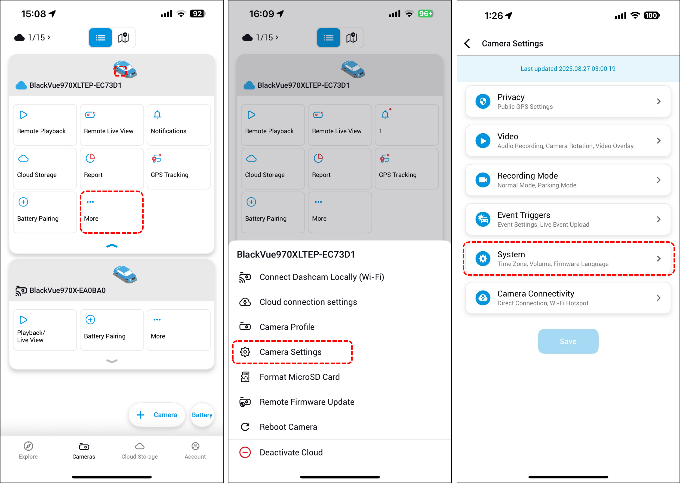
- Device Settings/Information Menu: Most electronic devices (smartphones, routers, smart TVs, network cameras) have a “System Information,” “About Device,” or “Firmware Version” section within their settings.
- User Manual: The original manual usually lists the model number and where to find other relevant information.
- Companion Software: If your device has a desktop or mobile companion app, it often displays this information.
Method 1: The Manufacturer’s Official Website (Most Reliable)

The manufacturer’s official website is, without a doubt, the most authoritative and secure source for firmware updates. This method ensures you receive genuine, tested, and compatible software designed specifically for your device.
Finding the Support Section
Navigate to the official website of your device’s manufacturer. Look for sections typically labeled “Support,” “Downloads,” “Drivers & Software,” “Customer Service,” or “Help.” These are usually found in the main navigation menu or the footer of the website.
Navigating Product Pages
Once in the support section, you’ll often find a search bar or a product category browser.
- Search by Model Number: Enter the exact model number of your device into the search bar. This is usually the quickest way to pinpoint your product’s dedicated support page.
- Browse by Category: If searching doesn’t yield results, browse through product categories (e.g., “Networking,” “Smartphones,” “Cameras,” “Printers”) until you find your device type, then select your specific model.
Locating Firmware Downloads
On your device’s specific product support page, look for a “Downloads,” “Firmware,” “Software,” or “Drivers” tab or section. Here, you should find a list of available firmware versions.
- Check Release Notes: Always read the accompanying release notes or changelog. These documents detail what’s new, what bugs have been fixed, and any specific instructions or warnings related to the update.
- Verify Compatibility: Double-check that the firmware version you intend to download is explicitly listed for your exact model number and hardware revision.
- Download the Latest Version: Download the newest stable version available. Beta versions are usually marked as such and should generally be avoided unless you’re an advanced user willing to test potentially unstable software.
Subscribing to Manufacturer Updates
Many manufacturers offer email newsletters or RSS feeds for product updates. Subscribing to these can be an excellent way to be proactively notified when new firmware versions are released for your devices, saving you the hassle of manual checking.
Method 2: Device-Specific Software & Apps (Integrated Solutions)
Many modern devices come with dedicated software applications (for desktop or mobile) that serve as a central hub for management, diagnostics, and updates. These integrated solutions often provide the most streamlined and user-friendly way to find and install firmware.
Automatic Update Features
Some devices, particularly smart home gadgets, smartphones, and routers, have built-in automatic update features. When enabled, the device periodically checks for new firmware and prompts you to install it, or in some cases, installs it automatically.
- Check Device Settings: Look in the device’s system settings for “Software Update,” “Firmware Update,” or “System Update” options.
- Enable Auto-Updates: If available, consider enabling automatic updates for convenience, but always ensure you understand the implications (e.g., potential reboots).
Companion Software for PCs/Smartphones
For many peripherals (e.g., gaming mice, keyboards, webcams, printers, external SSDs), cameras, and even some networking equipment, manufacturers provide companion software.
- Install the Official Software: Download and install the official software provided by the manufacturer for your device.
- Check for Updates within the App: Within the application, there’s usually a dedicated section (e.g., “Settings,” “About,” “Update”) where you can check for and apply firmware updates. Examples include Logitech G Hub, Razer Synapse, Canon EOS Utility, Samsung Magician for SSDs.
In-App Firmware Checks
For devices like smart TVs, streaming sticks, or network-attached storage (NAS), the firmware update mechanism is often integrated directly into the device’s user interface. You navigate through the on-screen menus to find the “System,” “Settings,” or “About” section and initiate a check for updates.
Method 3: Community Forums & Third-Party Resources (Use with Caution)

While official channels are always preferred, there are niche cases where firmware might be harder to find, especially for older, discontinued devices or highly specific hardware. In such situations, community forums and reputable third-party tech sites might offer assistance.
When to Consider Forums
- Discontinued Products: If a manufacturer no longer actively supports a product, its official download links might disappear.
- Niche Devices: For open-source hardware or devices with extensive modding communities, unofficial firmware (like custom ROMs for phones or OpenWRT for routers) might be available.
- Troubleshooting: Sometimes, specific firmware versions are recommended by community experts to resolve particular issues not addressed by the latest official release.
Risks and Verification
**Exercise extreme caution when using non-official sources.**
- Malware Risk: Unofficial firmware can be tampered with to include malware, backdoors, or other malicious code.
- Bricking Risk: Incorrect or corrupted firmware from unofficial sources is a leading cause of bricked devices.
- Voiding Warranty: Installing unofficial firmware almost always voids your device’s warranty.
Identifying Reputable Sources
If you must venture into third-party territory:
- Well-Established Forums: Look for large, active forums dedicated to your specific device or brand (e.g., XDA Developers for Android devices, specific subreddits, manufacturer-specific community forums).
- Cross-Verify Information: Don’t trust a single post. Look for multiple users confirming the authenticity and safety of a particular firmware file.
- Checksums/Hashes: Reputable sources often provide MD5, SHA1, or SHA256 checksums for their files. Compare these with the downloaded file’s checksum to ensure it hasn’t been corrupted or tampered with.
- Read User Experiences: Pay close attention to feedback from other users who have installed the firmware.
| Feature / Method | Key Advantages | Requirements |
|---|---|---|
| Manufacturer’s Website | Highest reliability, guaranteed authenticity, full support, detailed release notes, latest official versions. | Accurate model/serial number, internet access. |
| Device-Specific Software/App | User-friendly, often automated, integrated verification, seamless installation experience. | Compatible device software/app, internet access, device connected to PC/network. |
| Community Forums / Third-Party | Access to older/niche firmware, custom options, peer support for troubleshooting. | Advanced user knowledge, extreme caution for verification, understanding of risks. |
The Firmware Update Process: A General Guide (Once Found)
Once you have successfully located and downloaded the correct firmware file, the update process itself needs to be handled carefully. While specific steps vary by device, here’s a general guide:
- Verify Download Integrity: Before proceeding, if the manufacturer provides a checksum (MD5, SHA256), use a tool (like `certutil` on Windows or `md5sum`/`sha256sum` on Linux/macOS) to verify that your downloaded file matches the provided checksum. This ensures the file wasn’t corrupted during download or tampered with.
- Read Installation Instructions: Every firmware update comes with specific instructions, usually found in the release notes or a dedicated “how-to” guide on the manufacturer’s support page. Read these thoroughly before starting. Do not skip steps.
- Backup Your Data: This is paramount. Before any major software change, back up all critical data from your device. While firmware updates usually don’t wipe user data, an unexpected error could lead to data loss.
- Prepare Your Device:
- Power: Ensure your device is fully charged or connected to a stable power source. An interruption during the update can brick the device.
- Connections: If updating via a computer, use a reliable USB cable or a stable wired network connection (for network devices like routers). Avoid Wi-Fi for critical updates if a wired option is available.
- Close Other Applications: On a computer, close all unnecessary applications to prevent conflicts.
- Initiate the Update: Follow the manufacturer’s instructions precisely. This might involve:
- Copying the firmware file to a USB drive and inserting it into the device.
- Using a dedicated software tool on your computer to flash the firmware.
- Initiating the update directly from the device’s internal settings menu.
During the update, **DO NOT** power off the device, disconnect it, or interrupt the process in any way. Be patient; it can take several minutes.
- Post-Update Verification: After the update is complete (the device may reboot multiple times), verify that the new firmware version is correctly reported in the device’s settings. Test key functionalities to ensure everything is working as expected.
Common Pitfalls to Avoid When Searching for Firmware

Even with the best intentions, mistakes can happen. Be aware of these common pitfalls:
- Downloading from Unofficial Sources: As reiterated, this is the biggest risk. Stick to manufacturer websites.
- Installing Incorrect Firmware: Using firmware for the wrong model or hardware revision is a guaranteed way to brick your device. Always double-check.
- Ignoring Release Notes: Critical warnings, specific update paths (e.g., “must update to X.X before Y.Y”), or important configuration changes are often detailed in release notes.
- Interrupting the Update Process: Power loss or accidental disconnection during a firmware flash is almost always catastrophic.
- Assuming “Newer is Always Better”: While generally true, sometimes a specific firmware version might introduce an undesirable change or a bug that affects your particular use case. Reading reviews and release notes can help identify these rare instances.
Conclusion
Finding the latest firmware for your device is a fundamental aspect of responsible device ownership. It’s a proactive measure that safeguards your technology, enhances its capabilities, and extends its operational life. By prioritizing official manufacturer channels, meticulously identifying your device, and adhering to proper update procedures, you can navigate the world of firmware updates with confidence and precision. Remember, a well-maintained device is a secure, efficient, and enjoyable device. Make regular firmware checks a staple of your digital maintenance routine, and ensure your technology is always operating at its peak.
❓ Frequently Asked Questions
Updating firmware is crucial for several reasons: it patches critical security vulnerabilities, fixes bugs that can cause performance issues or crashes, improves device stability, and often introduces new features or enhances existing ones, ultimately extending the device's lifespan and utility.
No, absolutely not. Firmware is specifically designed for particular hardware models and often for specific hardware revisions within a model. Installing firmware from a different model or an incorrect hardware revision will almost certainly "brick" your device, rendering it permanently inoperable. Always verify your exact model and hardware revision.
If your device becomes unresponsive or "bricked" after a firmware update, immediately contact the device manufacturer's support. Do not attempt further actions without their guidance, as you might void any remaining warranty or worsen the situation. They may offer specific recovery procedures or advise on repair/replacement options.