Views: 253
Sricam How to setup camera WiFi hotspot and QR Connect
1.How to setup camera by WiFi QR Connect
Before starting setup
Make sure of the followings:
– Your router supports the 2.4GHz frequency band (802.11b/g/n). Some models don’t support 5G WiFi.
– Your smartphone has connected to Wi-Fi that the camera will connect with.
– Your router’s DHCP is enabled. Before starting setup Android iOS Step3. Add the camera to network
– For Videos of how to setup IP Cameras please visit Website: https://www.youtube.com/embed/r1rg0Qix1_Q
Step1. SriHome App Installation
Method 1: Search“SriHome”on Google Play or iOS App Store.
Method 1: Scan the QR code to download “SriHome” App.

Step2. Create account & Login on SriHome App
Step3. Add the camera to network
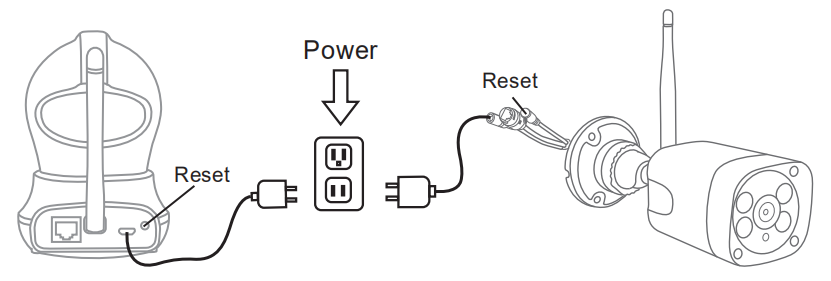
1. Power on the camera
Camera will make continuous ‘beep’ sounds after 30 seconds.
Note: If no ‘beep’ sound, keep pressing the “Reset” button for 5 seconds until you hear a ‘clash’ sound.
2. Add the device on the App
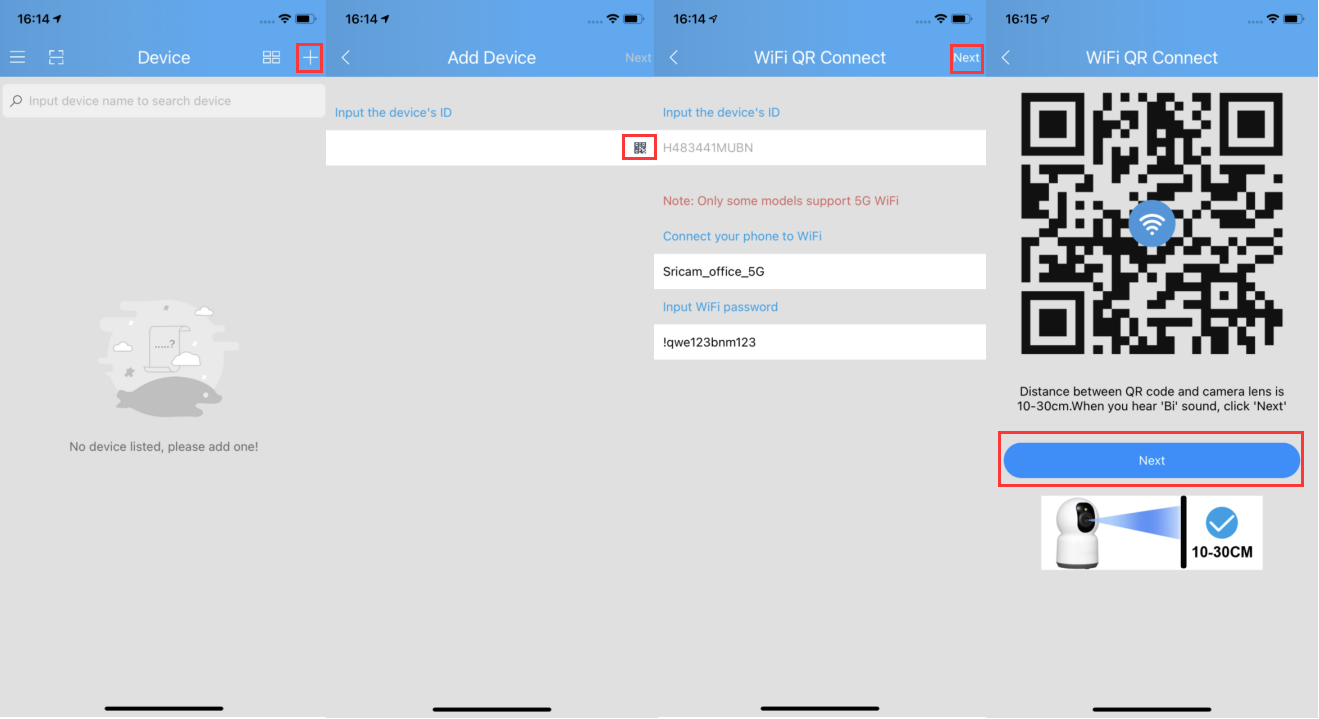
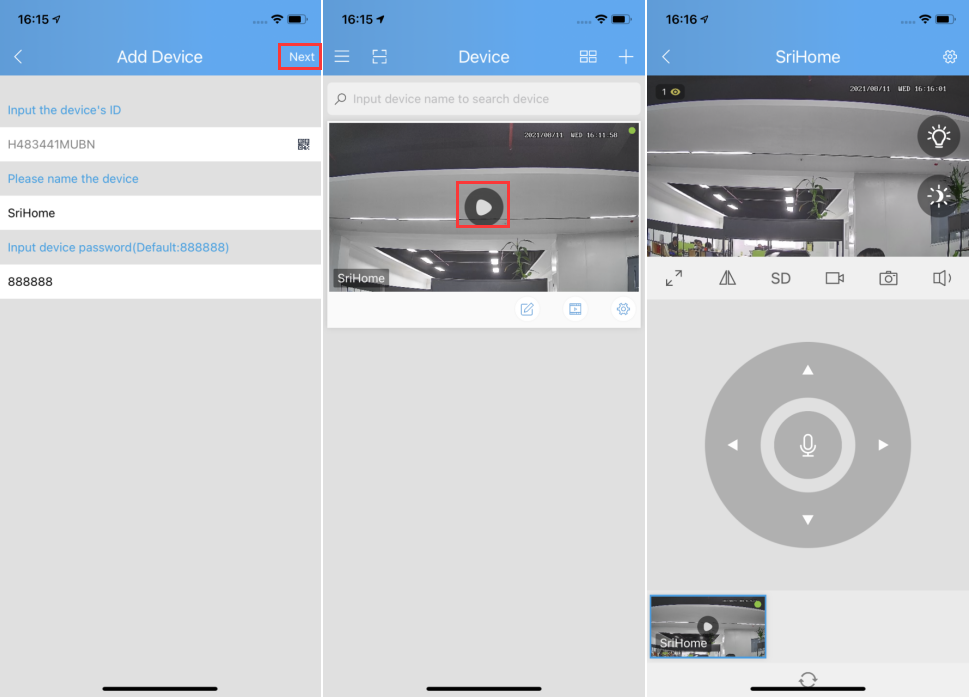
When you hear the continuous ‘beep’ sounds, enter SriHome App and do as follows:
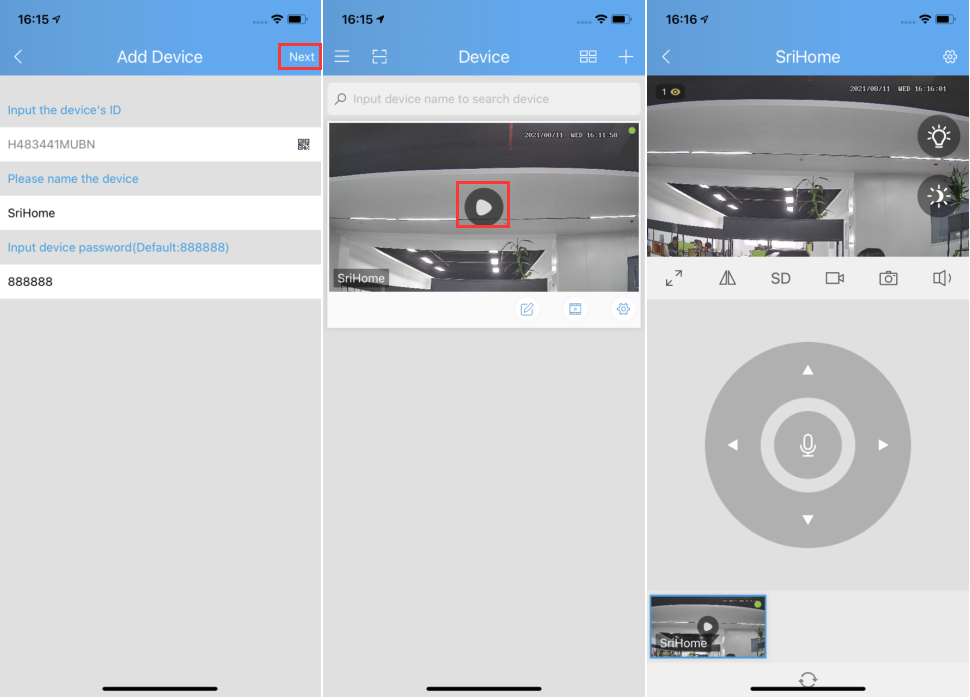
Trouble shooting:
– If you fail to add device on App, please make sure of the followings:
1. Before adding device, you can hear continuous ‘beep’ sounds from the device. (If there is no sounds, RESET device)
2. Enter correct Wi-Fi password.
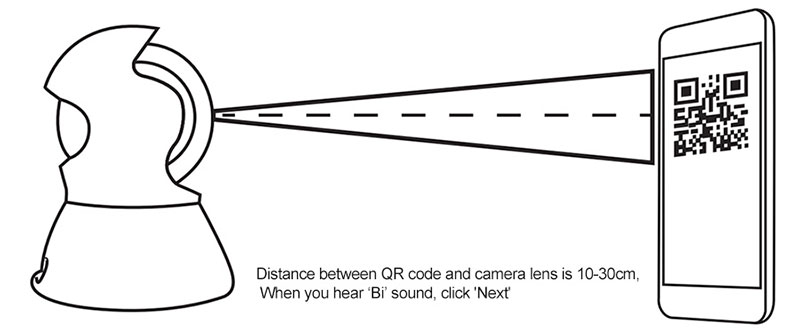
3. When you hear ‘Bi’ sound from device, click ‘Next’ in step 1-3.
– If you fail to setup your device via WiFi QR Connect for many times, you can try to setup camera via WiFi Hotspot Connect.
Sricam How to setup camera WiFi hotspot and QR Connect

Read Next :
2.How to setup camera by WiFi hotspot
Before starting setup
Make sure of the followings:
• Mount the antenna and make it vertical.
• All IP Camera support 2.4G HZ WIFI,only some IP cameras don’t support 5GHZ Wi-Fi.
• The router has enabled DHCP to obtain IP address automatically.
• Your smartphone, camera, and router should be within about 8 feet during setup.
Video operation: https://youtu.be/u7r5e_D0X1E
Connect & Add Camera
1). Connect your Phone to the camera’s WiFi Hotspot
Power on the camera, then press and hold the RESET button for 3-5 seconds to restore factory
settings. After one minute, the camera will generate a WiFi Hotspot:
Camera’s WiFi SSID: IPC_******, WiFi Password: 12345678
2). Go to the phone’s Wireless & Networks settings, and connect your phone to the camera’s WiFi Hotspot.
Note: When the Phone tips: “The current WLAN network cannot access the Internet. Switch to
another network?” Please select “Cancel”.
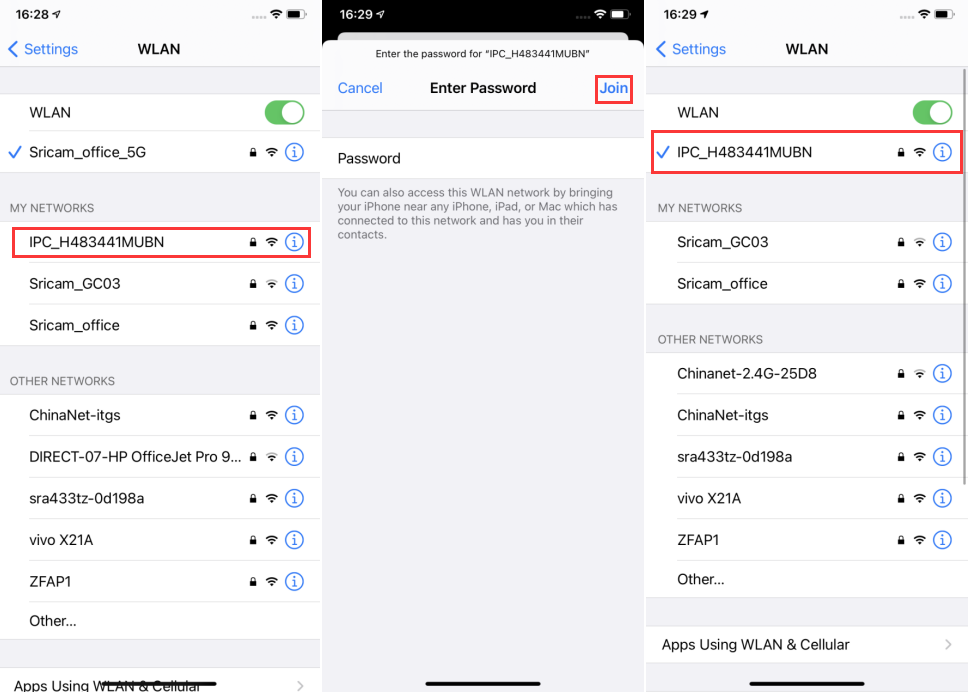
Add the camera on App
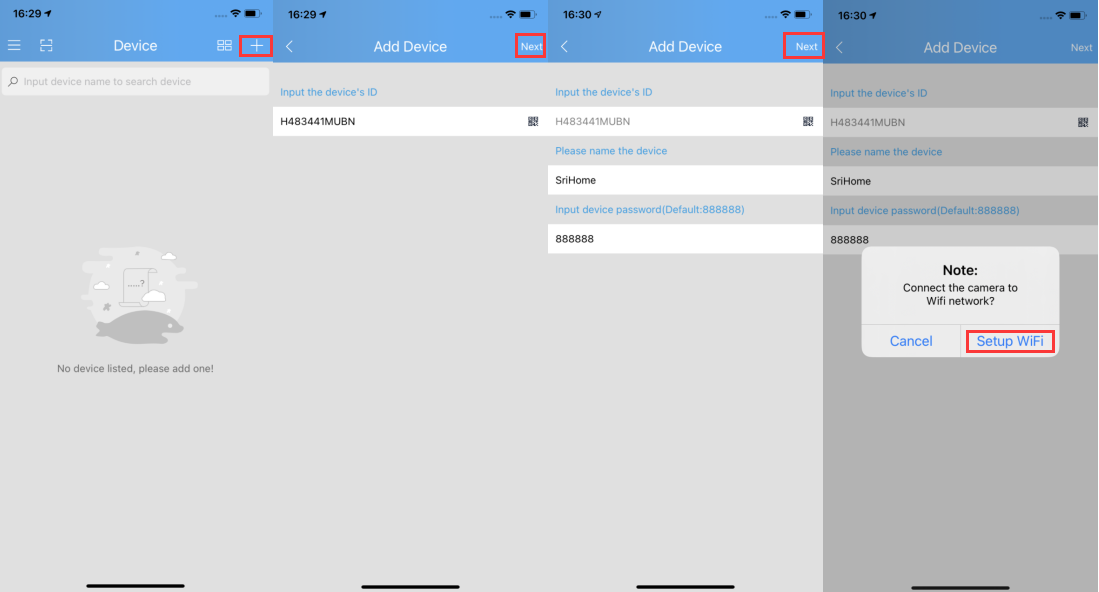
1). Run “SriHome” APP, Tap “+” button.
2). Input the camera ID: “A00*******” (Auto or manually)
3). Input the name of device: Give your camera a name e.g. home, office…….
4). Input the device password: Default password is 888888
5). Tap “Next” button to set wireless network (as figure3-6 to 3-9).
6). When added successfully, the camera will show on the Devices List.
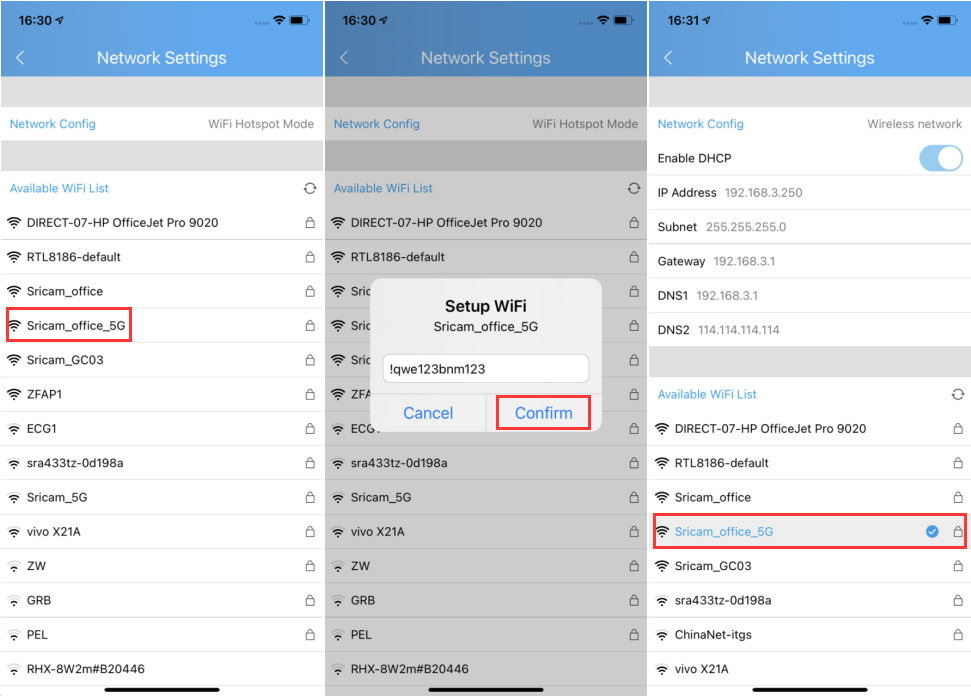
Unplug the camera from power, then relocate the camera to anywhere within range of the WiFi network that you connected the camera to.
Products Setup Operation video
 SriHome 3MP Outdoor Waterproof IPCam SH039B
 SriHome AI Tracking Holder Operation Video SH007
 SriHome/Sricam 16CH QHD NVR NVS003
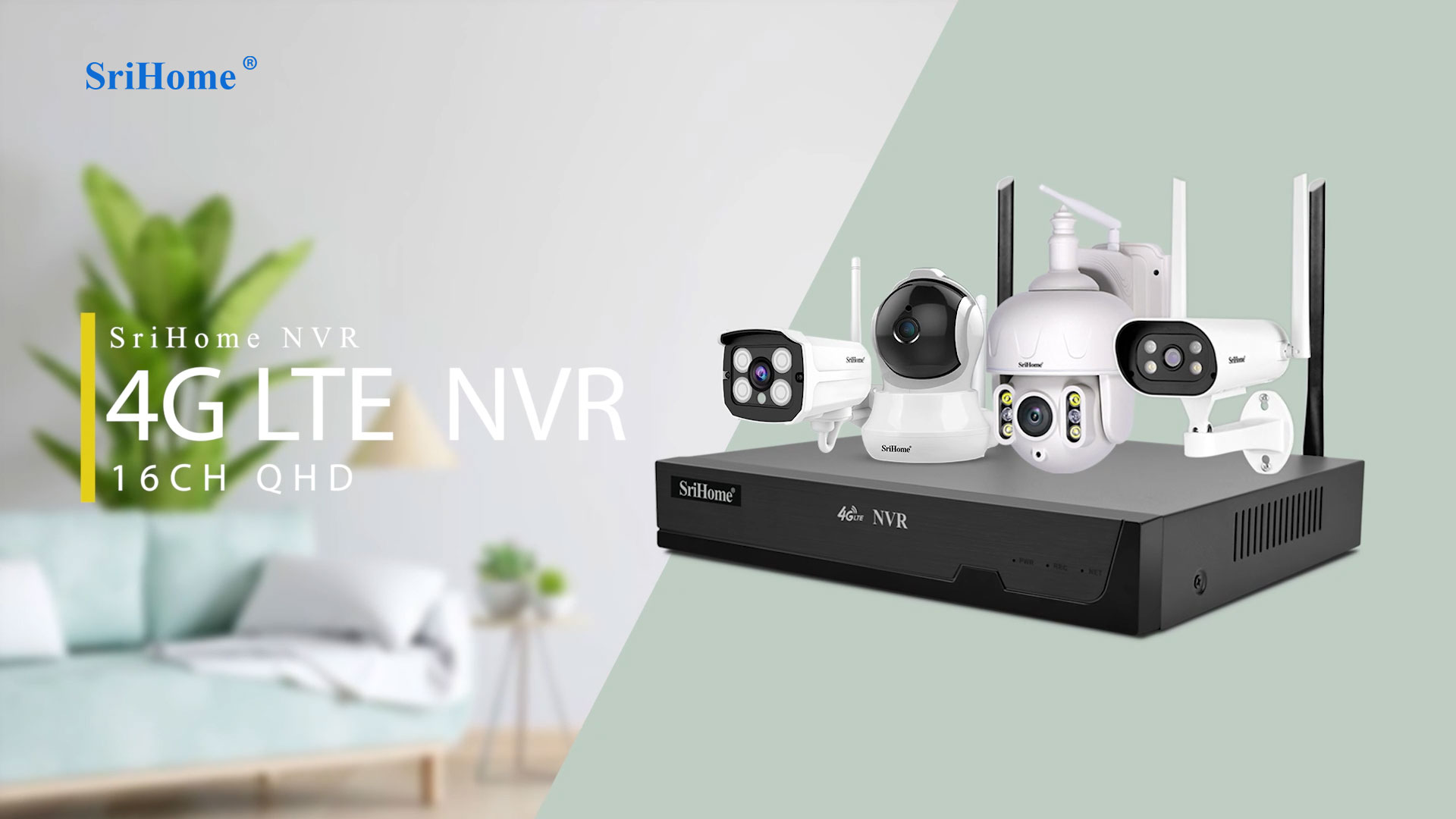 SriHome/Sricam 4G LTE 16CH QHD NVR NVS007
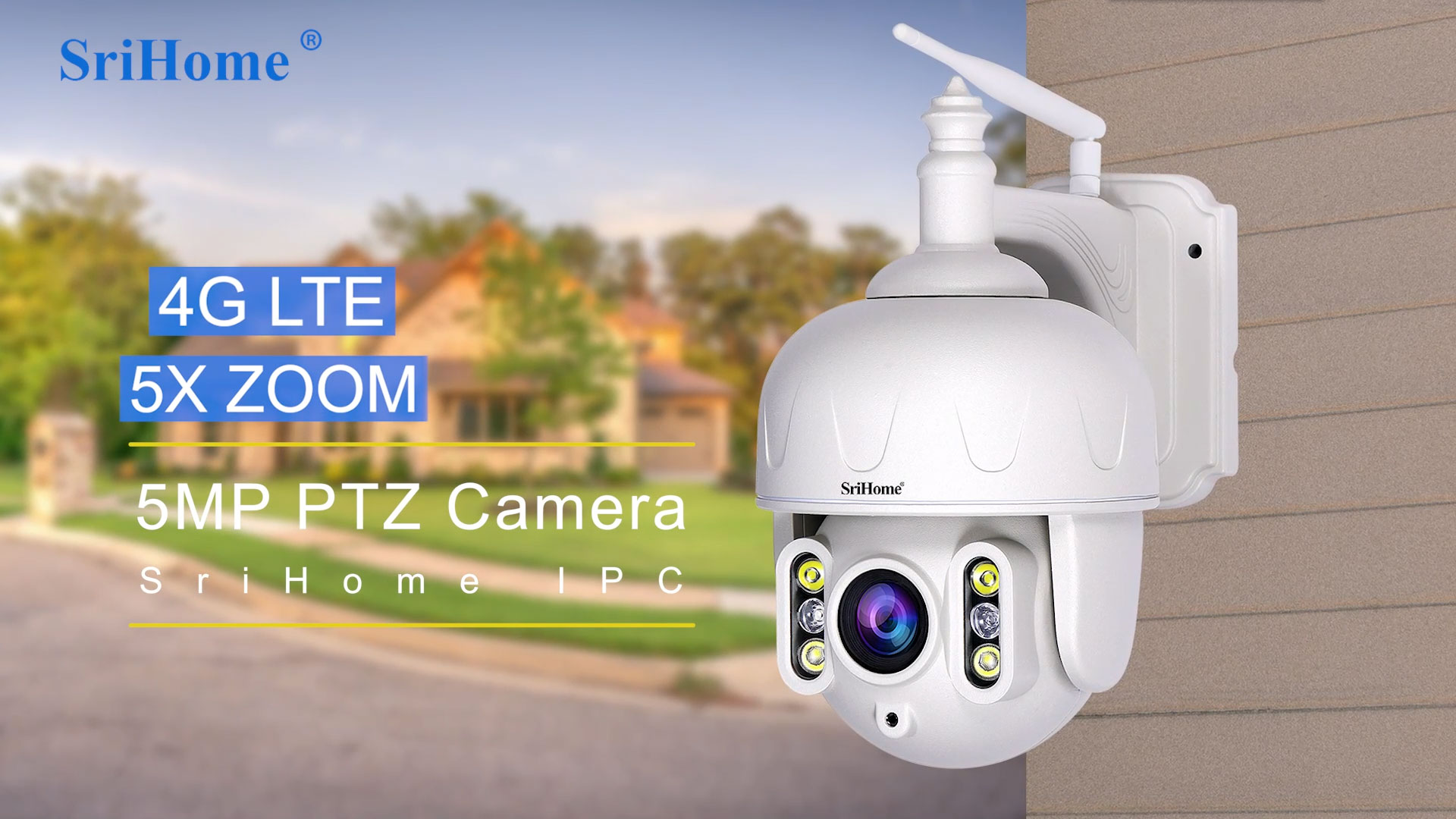 SriHome/Sricam 4G LTE 5X 5MP PTZ Camera SH028E
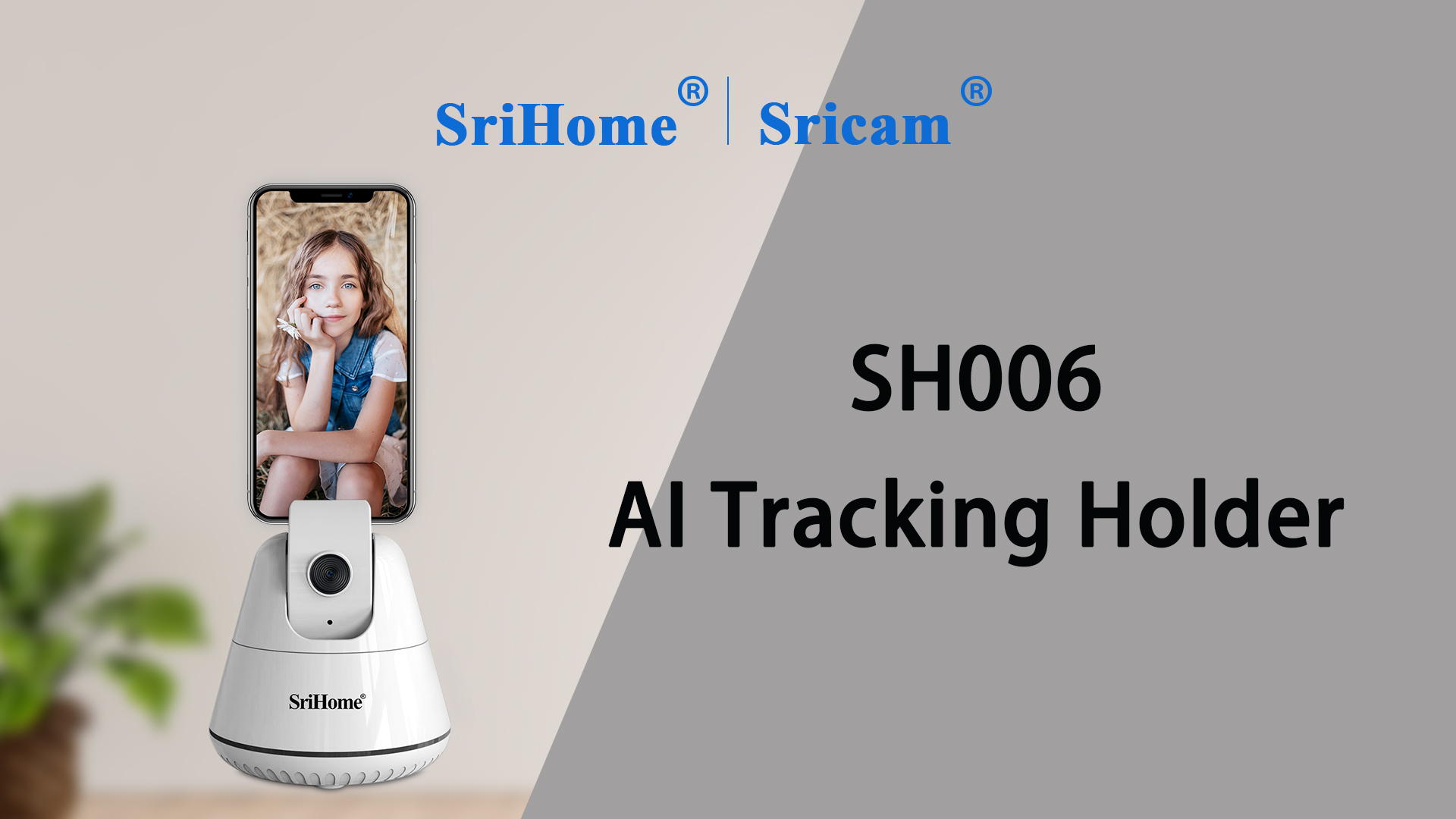 SriHome AI Tracking Holder Operation Video SH006
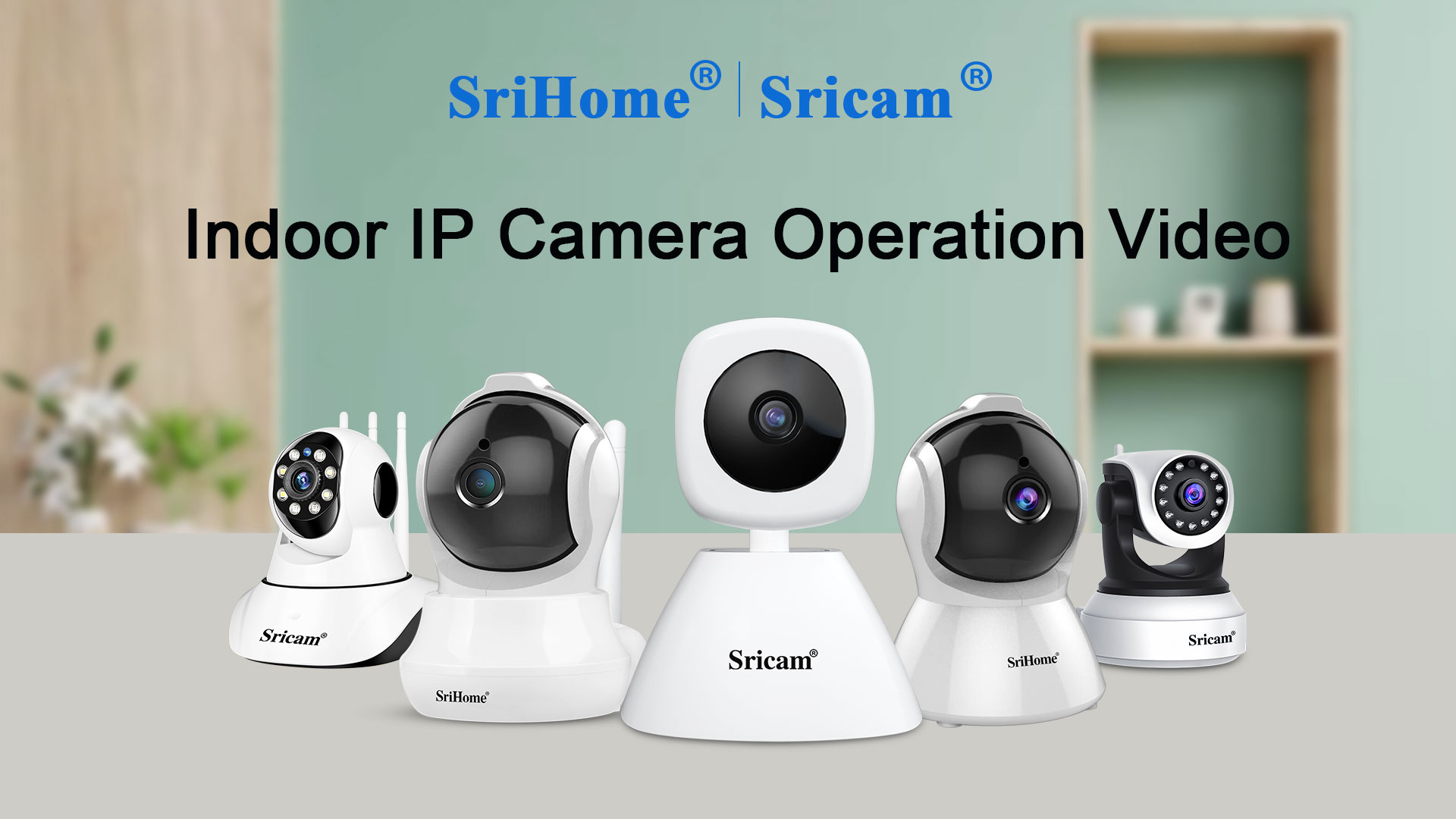 SriHome/Sricam Wifi Indoor IP Camera SH025
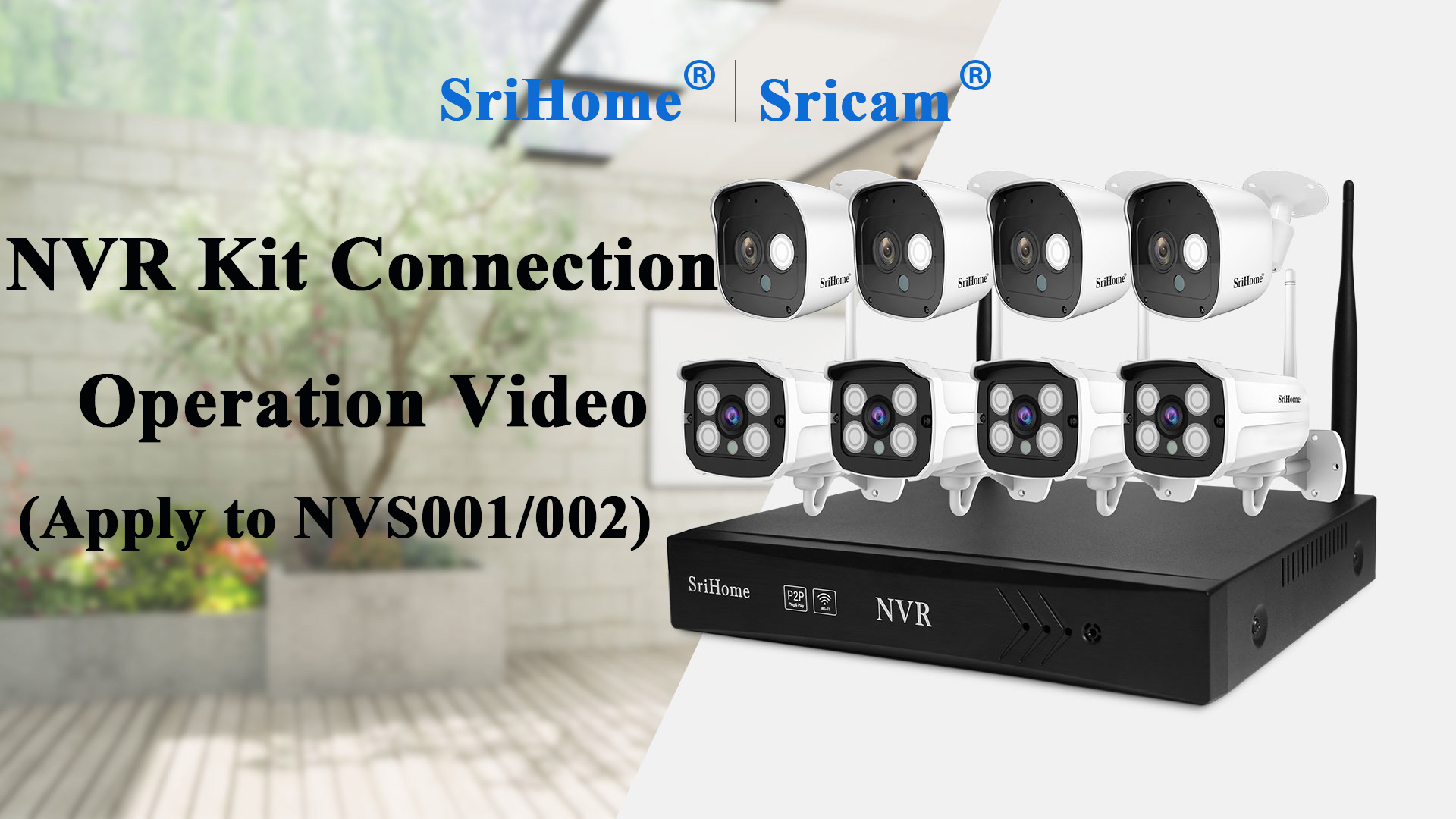 SriHome/Sricam NVR WiFi Kit Operation Video
 SriHome/Sricam Indoor IP Camera
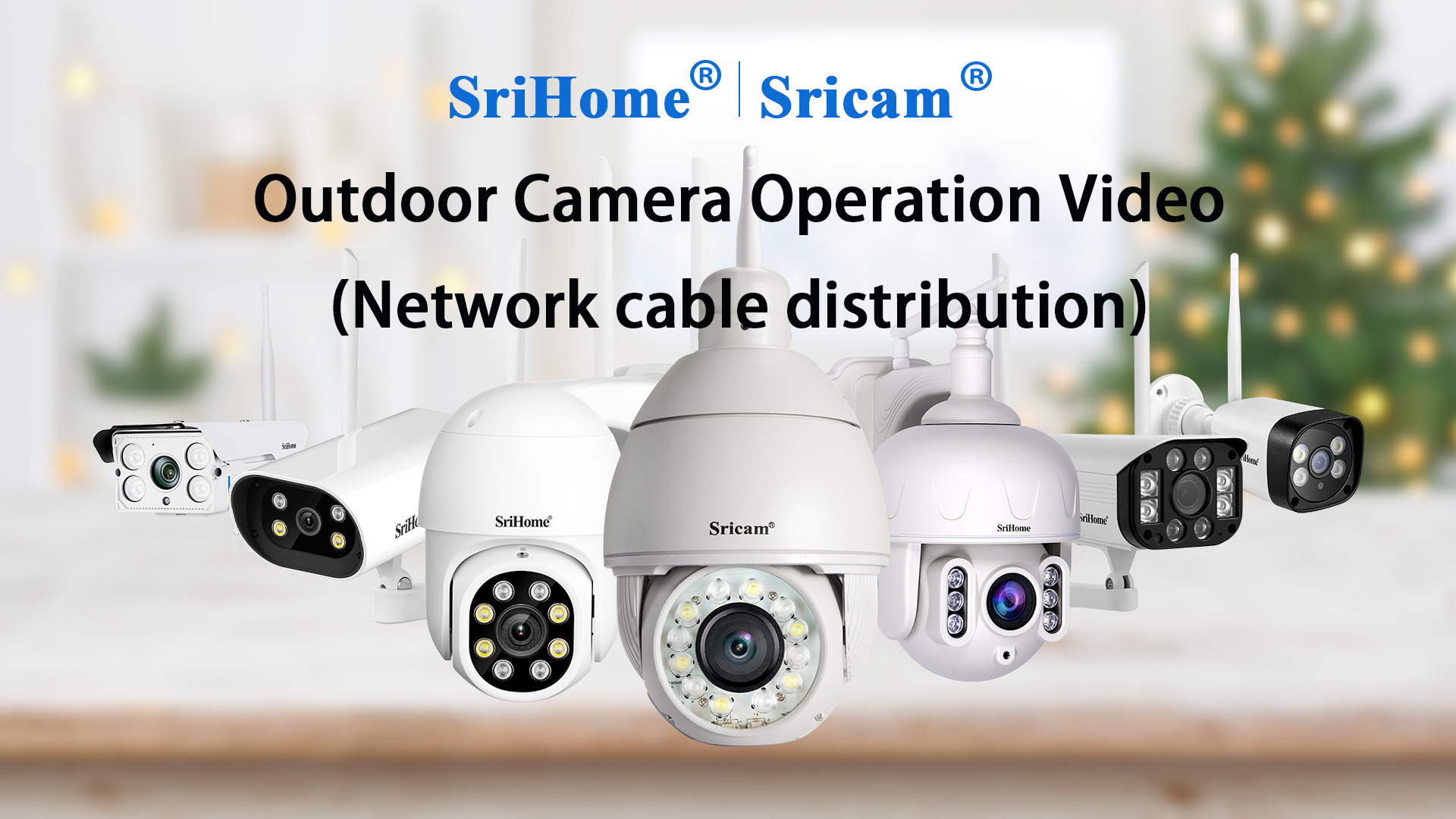 Outdoor Camera(network cable distribution)
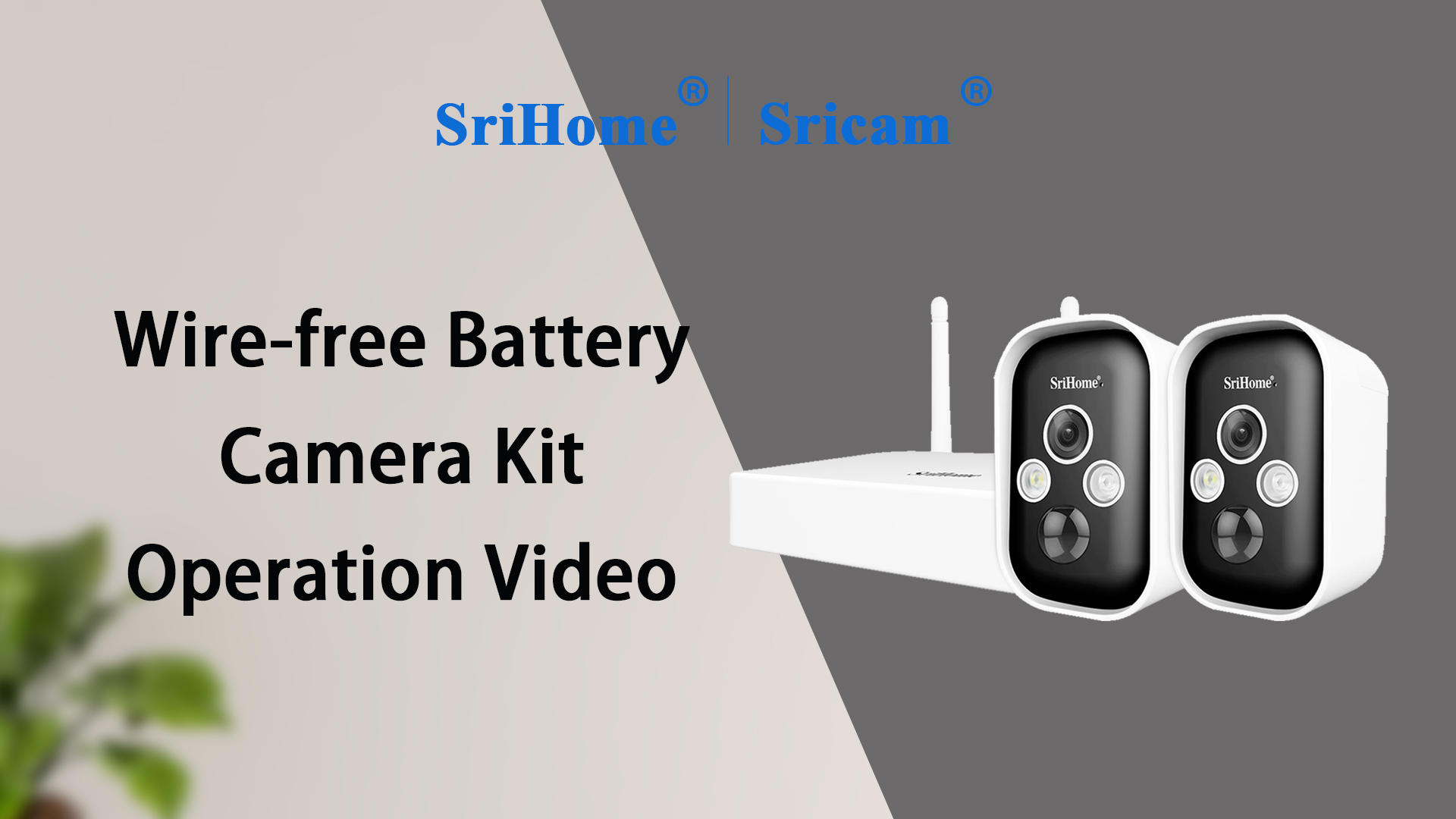 SriHome/Sricam Wire-free Battery Camera Kit SH033
 Outdoor Camera(QR code distribution network)
Common Setup operation videos
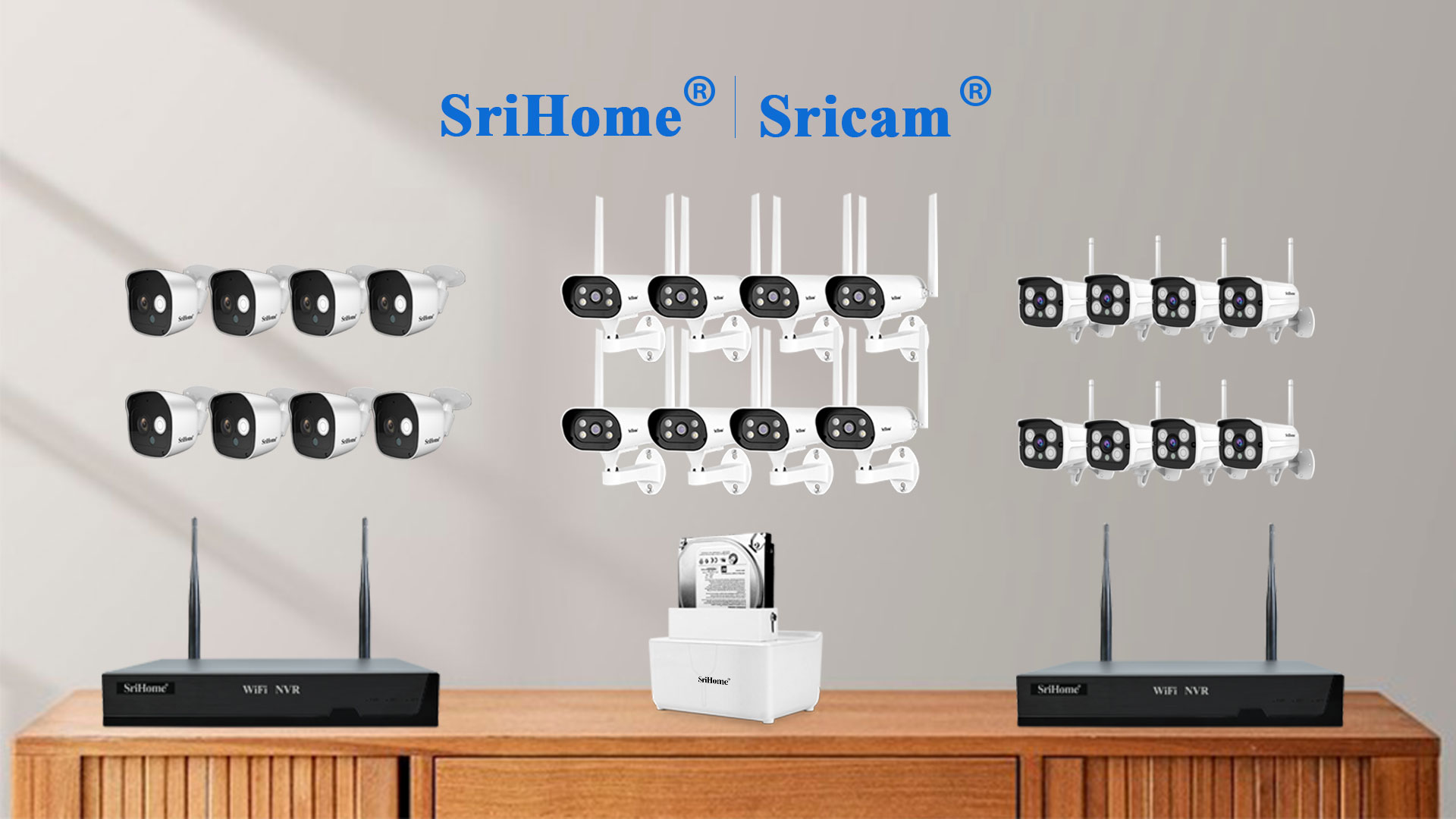 Add Camera-NVR WiFi Kit(NVS001/NVS002/NVS004)
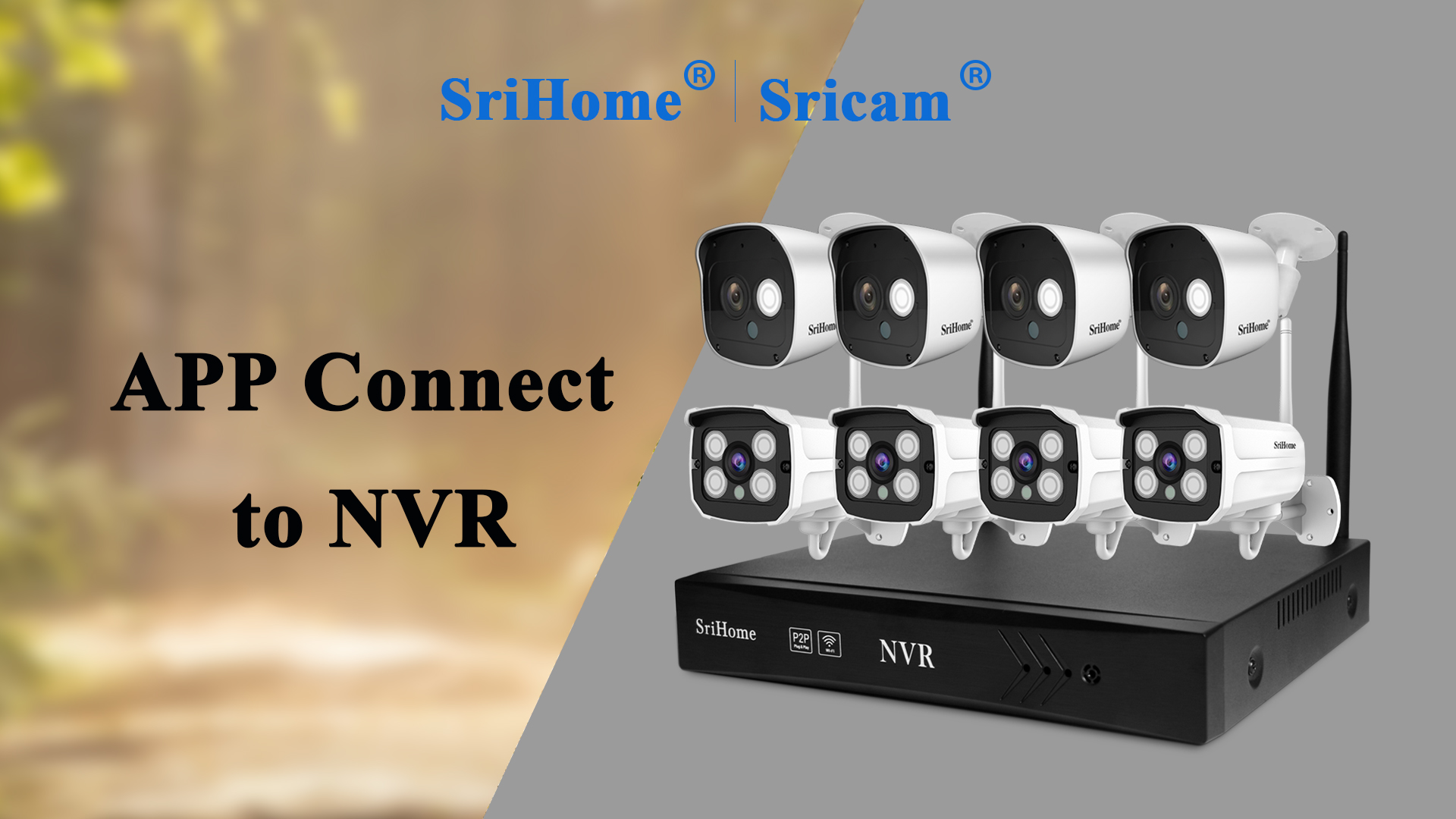 SriHome/Sricam APP Connects to NVR
 SriHome/Sricam IPCam Alarm Setup
 SriHome/Sricam IPCam AP Hotspot Connect
 How to add visitors /Share Cameras
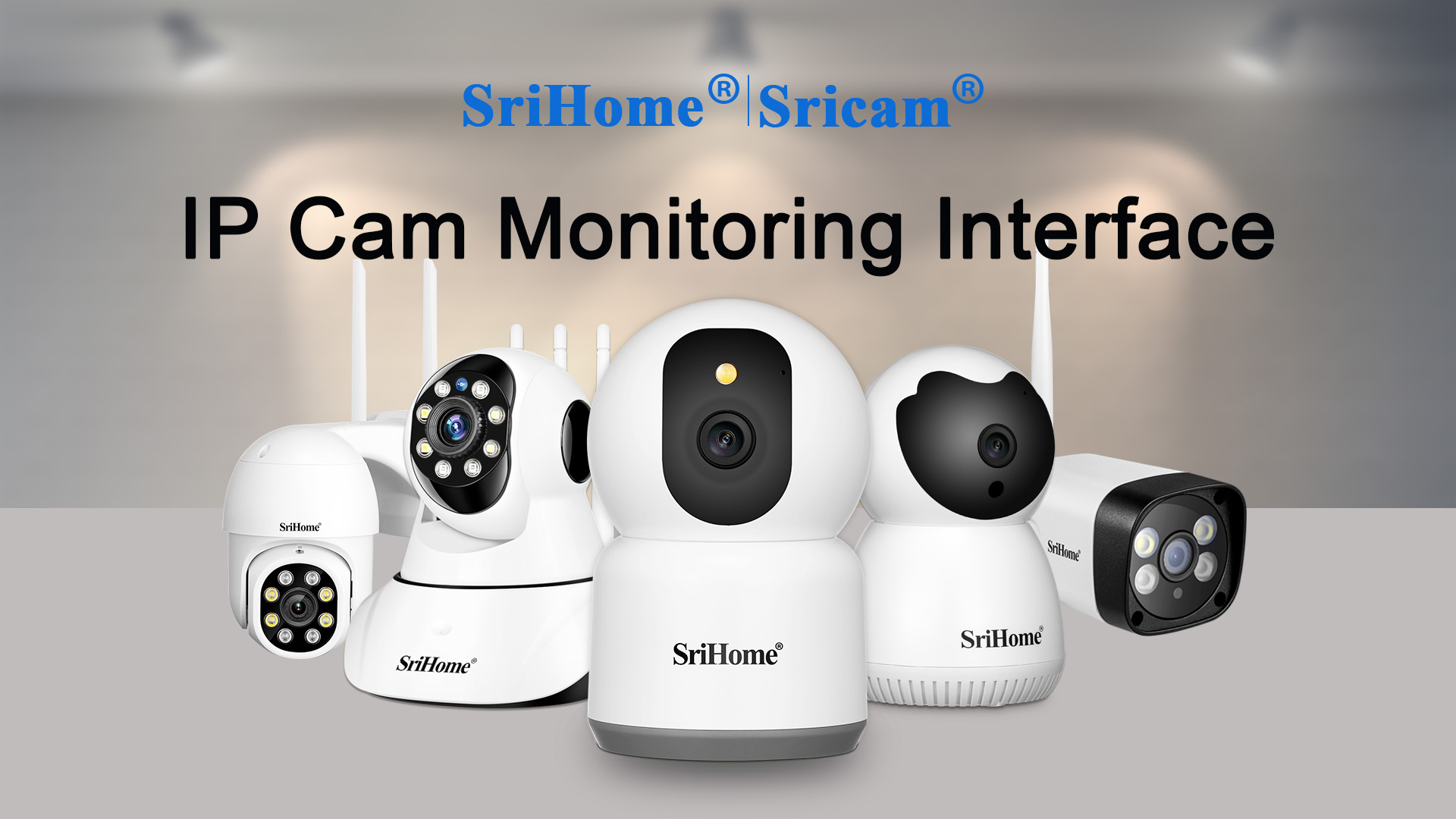 SriHome/Sricam APP Monitoring Interface
Product Promotion Videos
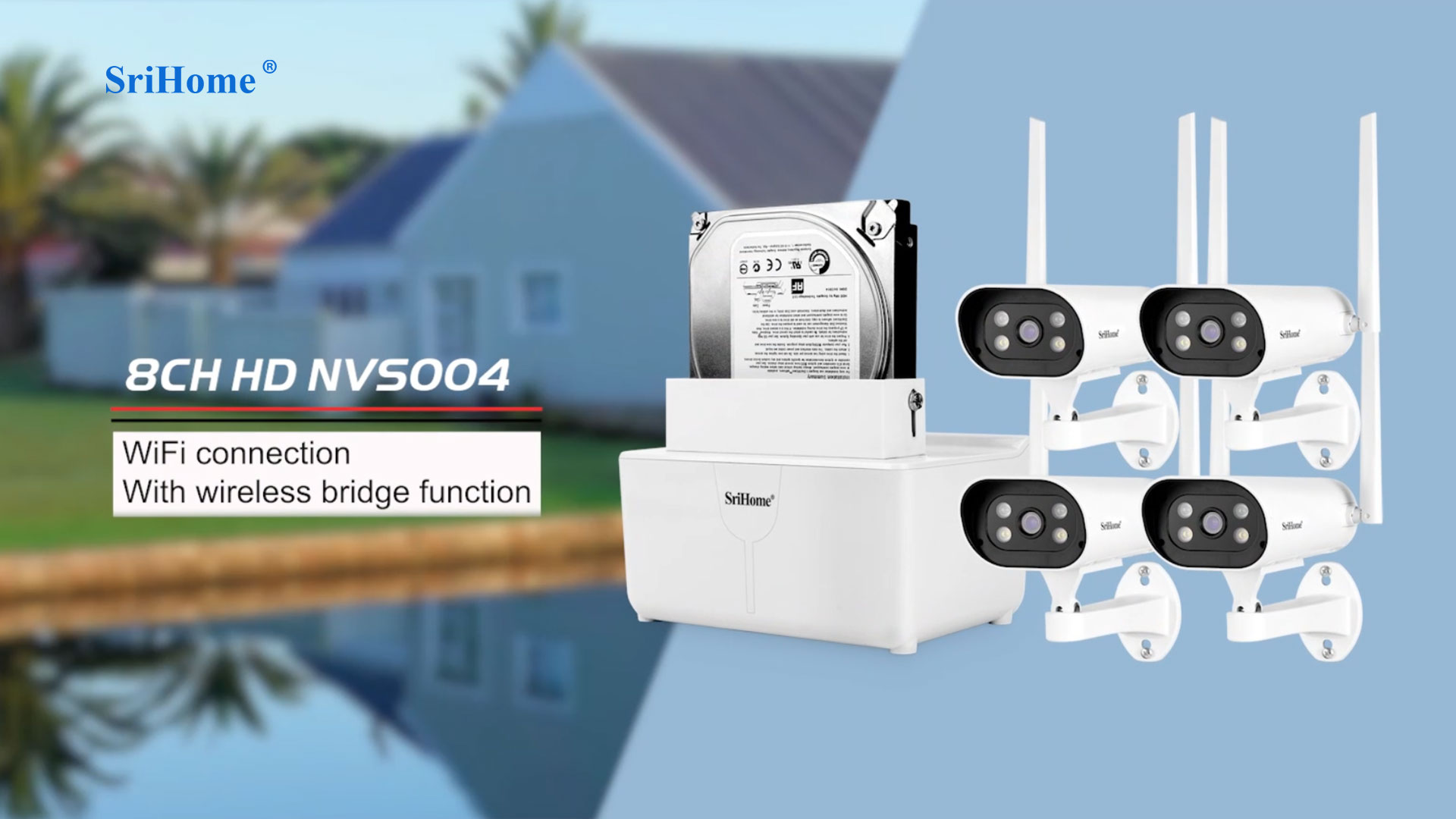 SriHome/Sricam 2MP 8CH NVR WiFi Kit NVS004
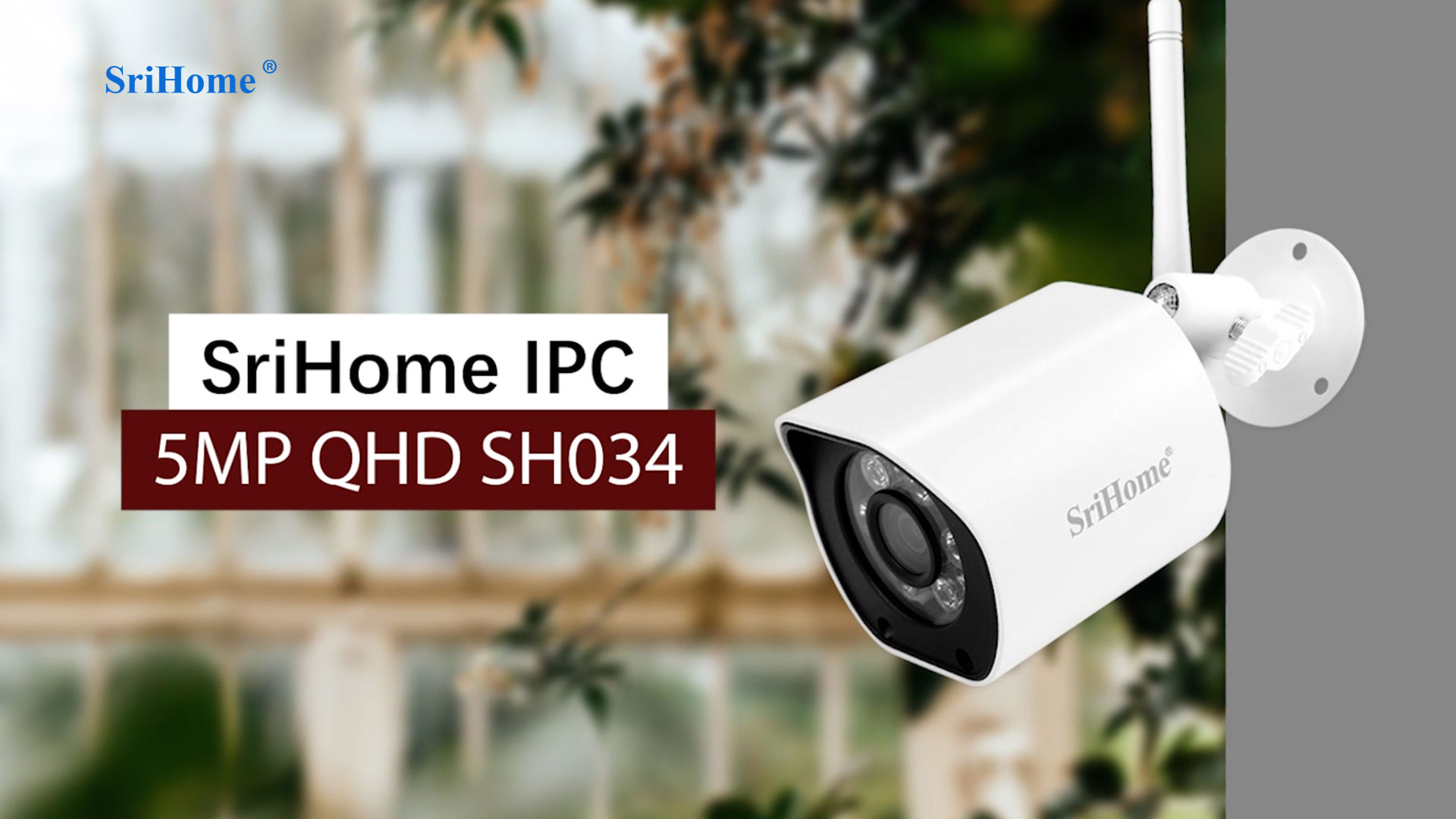 SriHome 5MP 2.4G/5G WIFI Outdoor Camera SH034
 SriHome 3MP Outdoor Waterproof IPCam SH039B
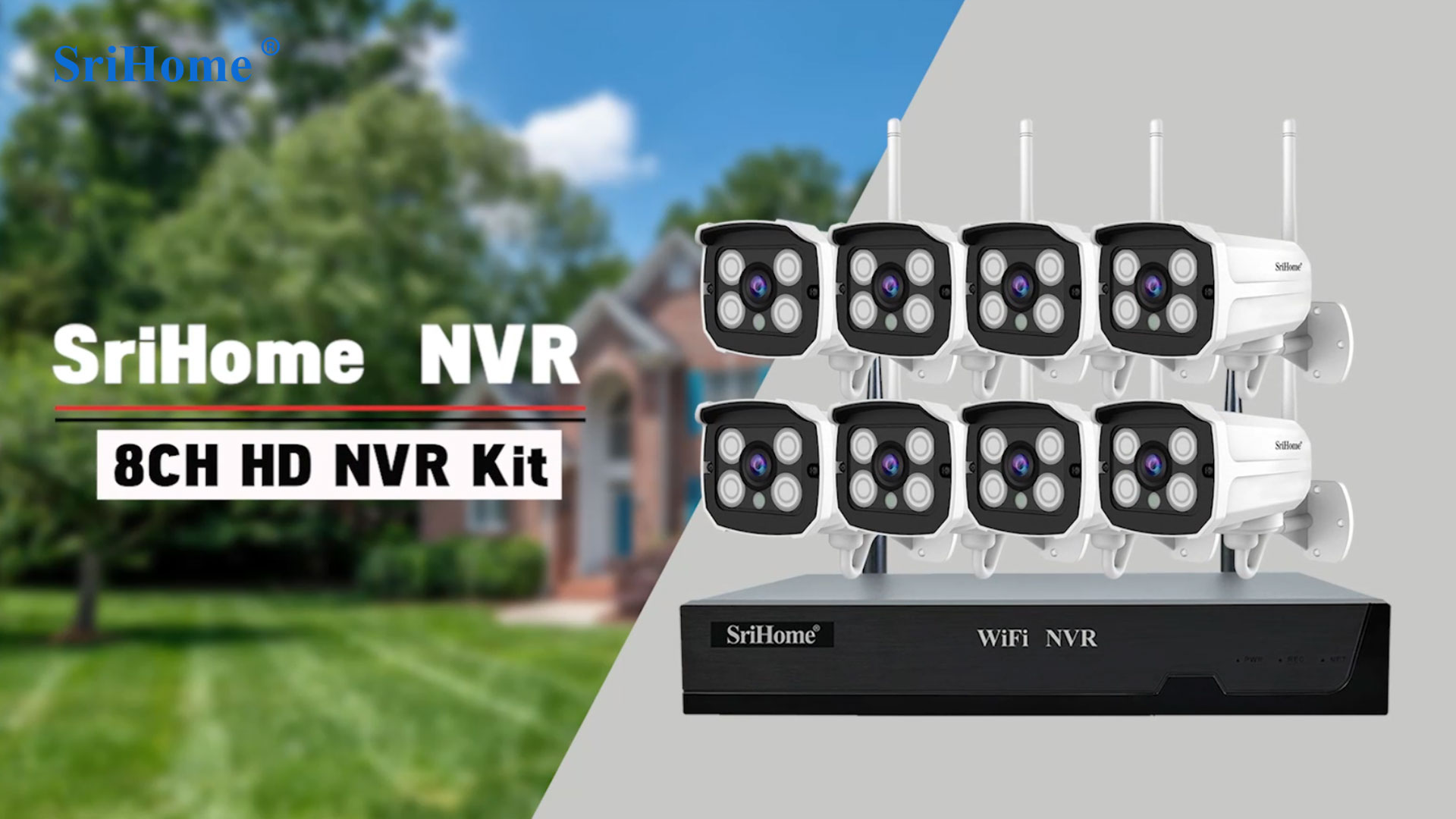 SriHome/Sricam 2MP 8CH NVR Kit NVS001
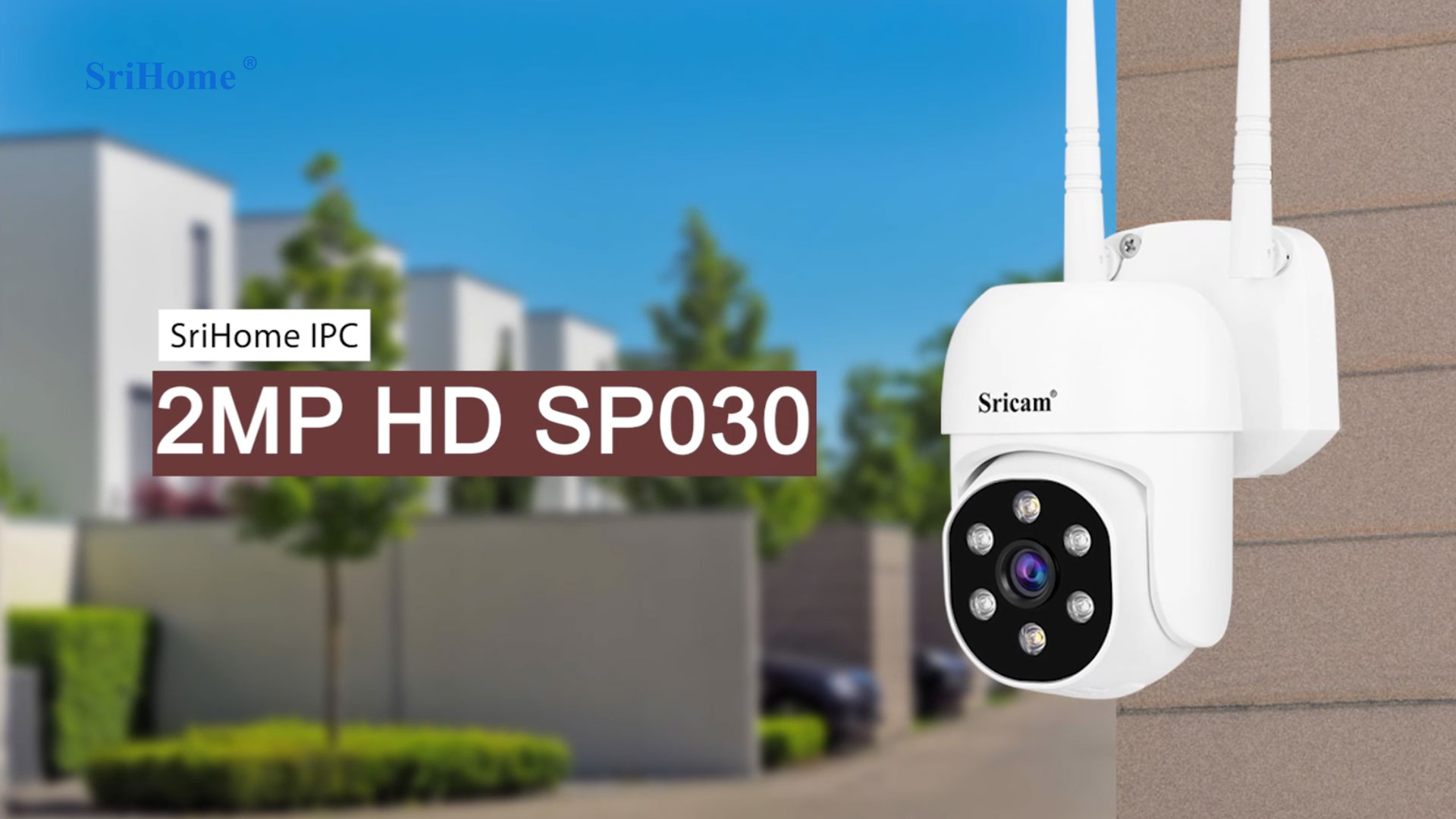 SriHome/Sricam 2MP HD Outdoor Camera SP030
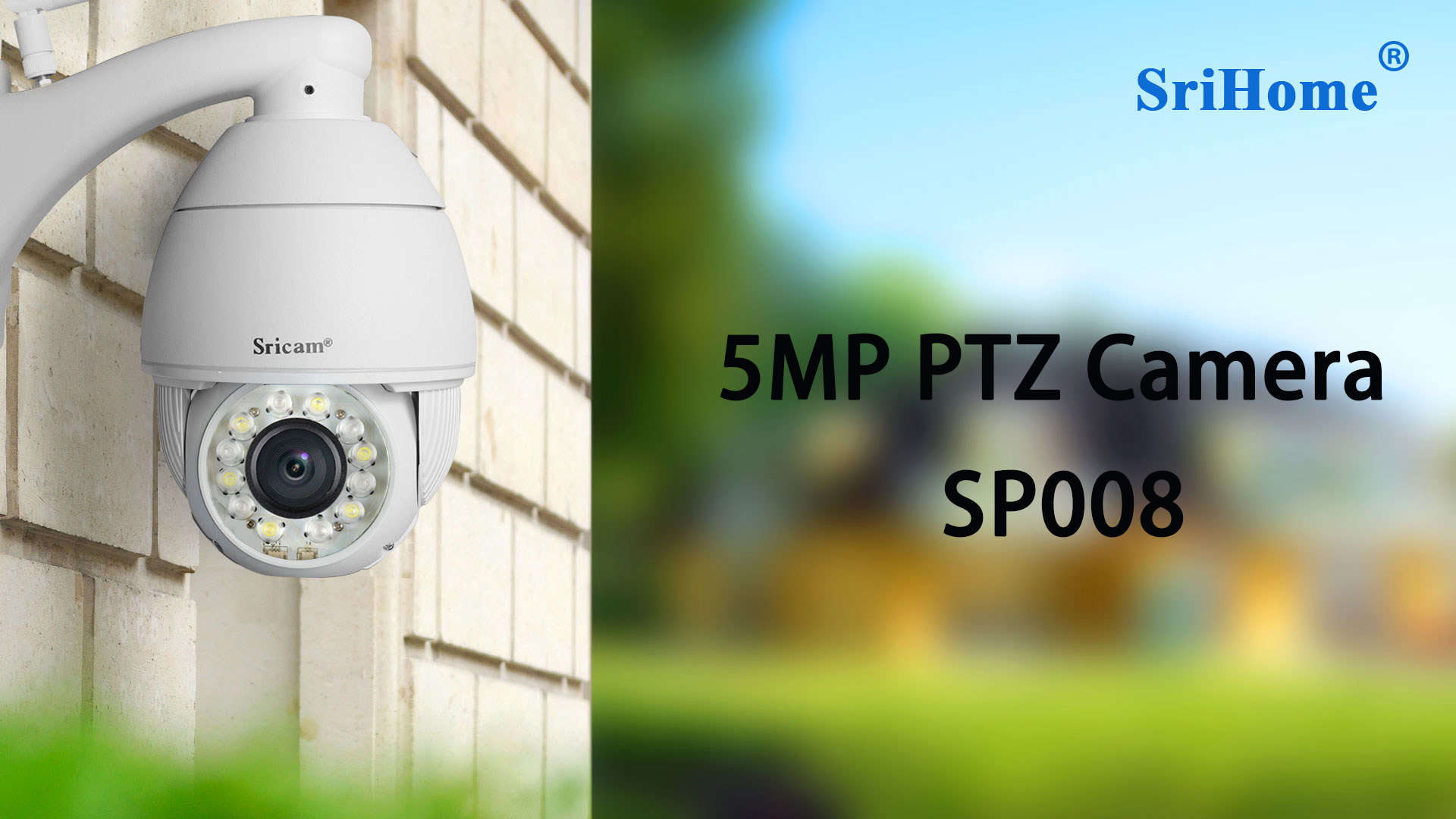 SriHome/Sricam 5MP PTZ Camera SP008
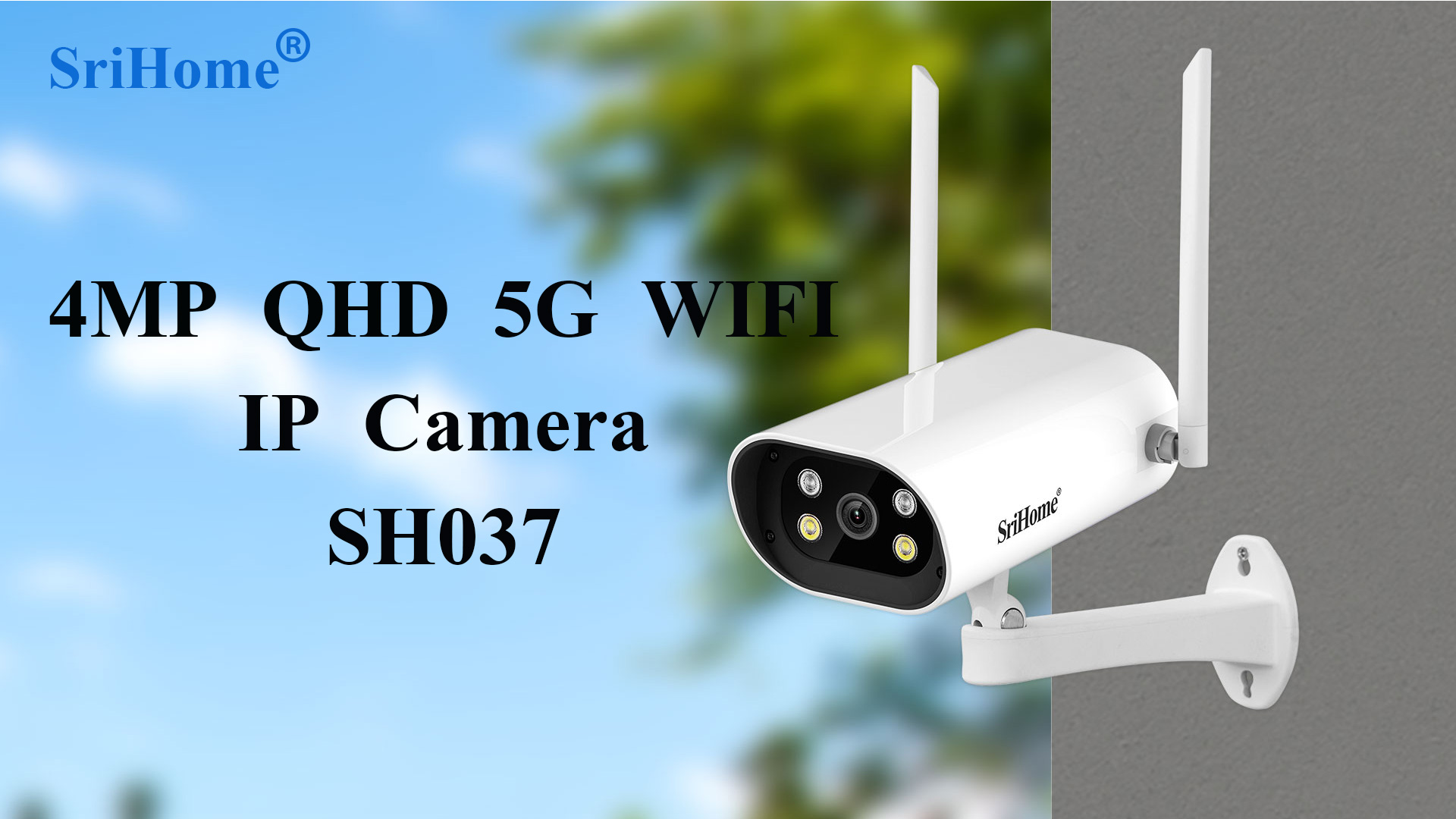 SriHome 4MP 5G WiFi IP Camera SH037
 SriHome/Sricam PC Webcam Operation Video
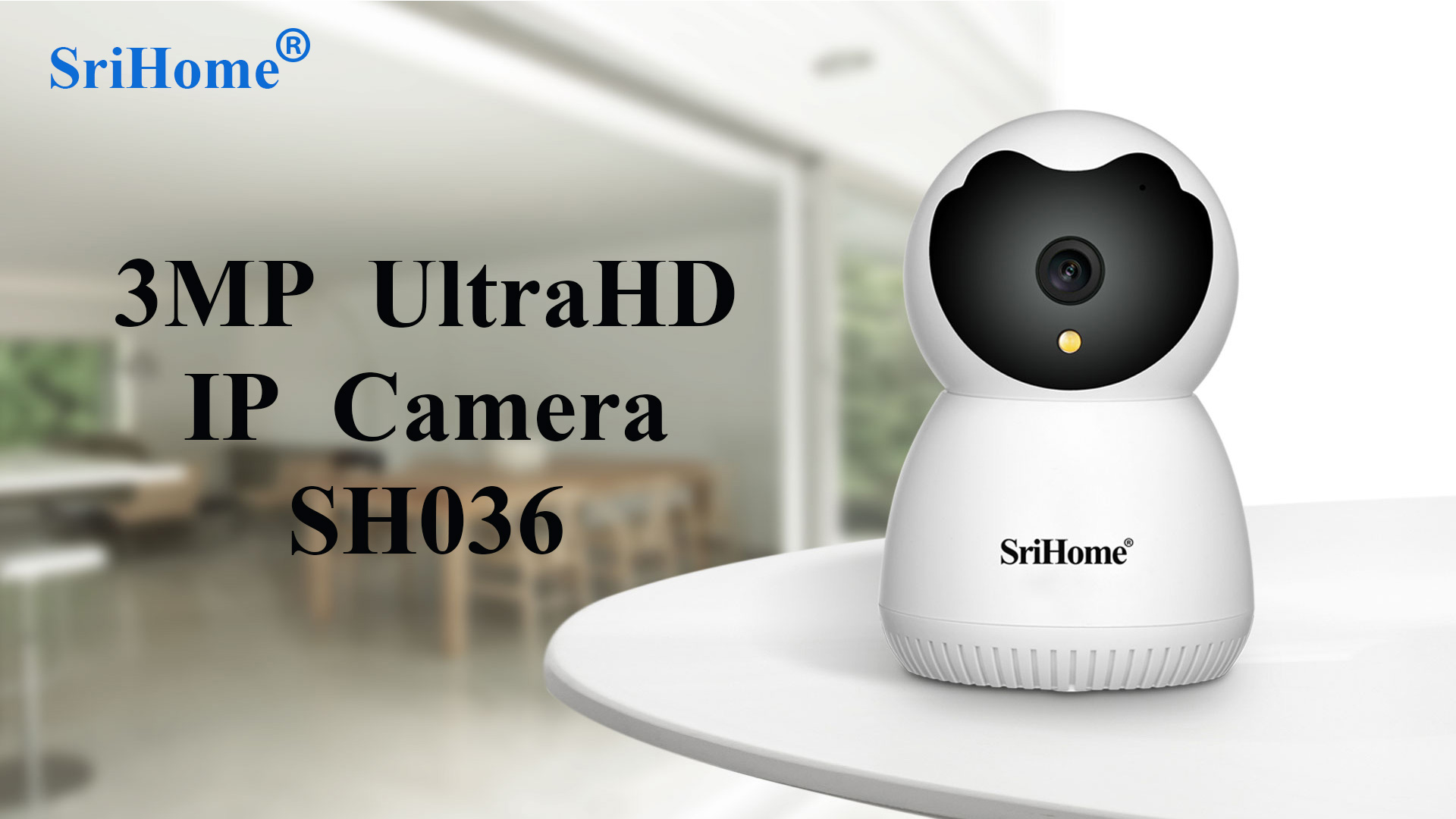 SriHome 3MP UltraHD IP Camera SH036
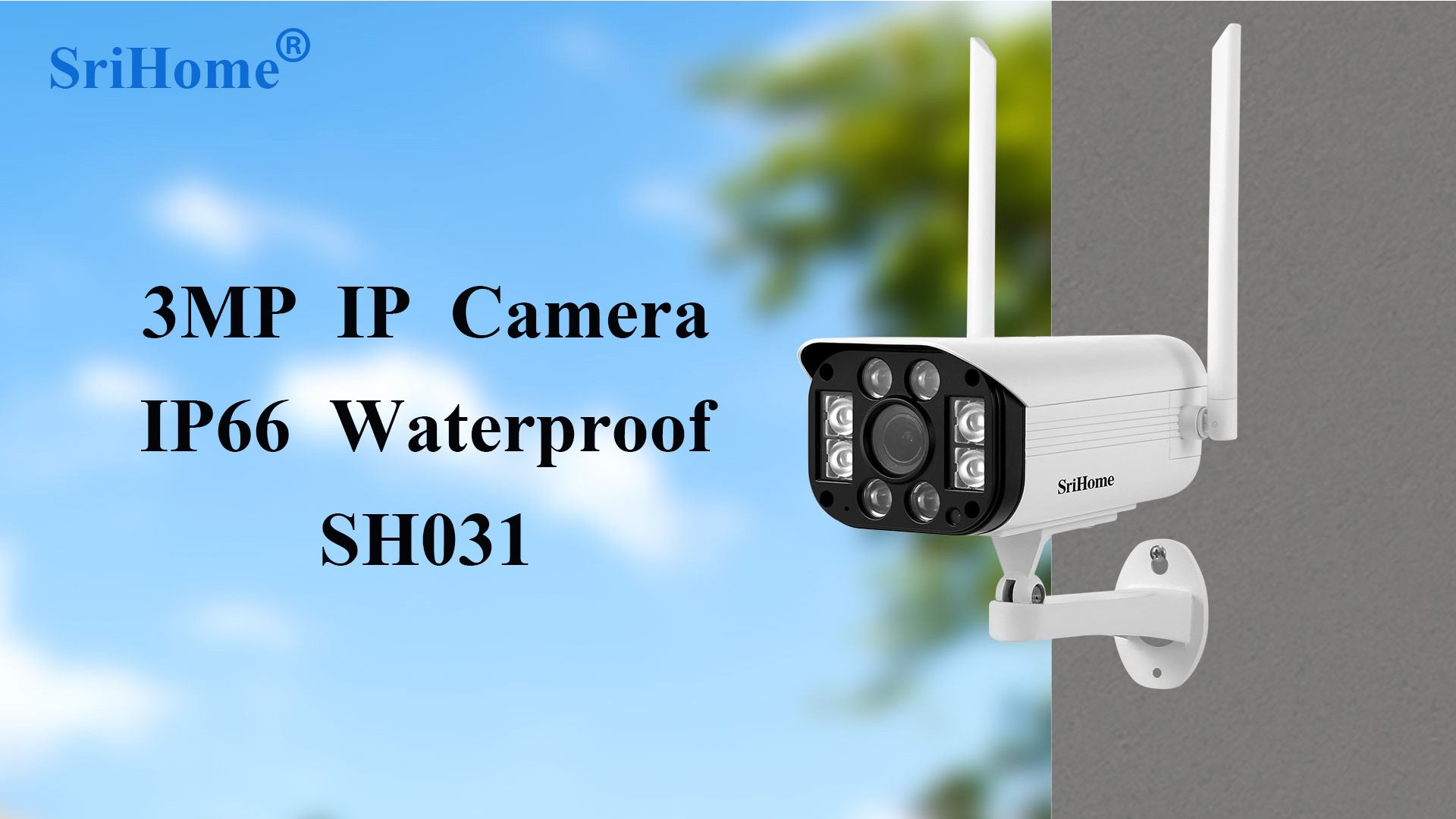 SriHome 3MP IP Camera IP66 Waterproof SH031