Views: 44
Blackvue Firmware Download and Upgrade Guide, Why upgrade your dashcam’s firmware ? Firmware upgrades may add functionalities to your dashcam, and/or improve its performance. How to upgrade ? Using an iOS or Android device: download the BlackVue App to use FOTA (Firmware Over The Air) to conveniently update your device without taking out the microSD card. Using a Windows or Mac OS computer: follow the steps below.
Blackvue Firmware Upgrade Guide
Why upgrade your dashcam’s firmware ?
Firmware upgrades may add functionalities to your dashcam, and/or improve its performance.
How to upgrade ?
Using an iOS or Android device: download the BlackVue App to use FOTA (Firmware Over The Air) to conveniently update your device without taking out the microSD card.
Using a Windows or Mac OS computer: follow the steps below.
STEP 1
Access the BlackVue homepage (media.blackvue.com/firmware-download)
from your computer browser.
STEP 2
Download the latest firmware for your model from the DOWNLOADS page (this page)
STEP 3
Unzip the downloaded firmware (Zip file)
STEP 4
Insert the BlackVue SD card in your computer using the USB reader provided with your dashcam.
STEP 5
Format the microSD card in the Viewer. On Mac, after clicking the Format button, choose MS-DOS (FAT) in the Disk Utility.
STEP 6
Copy the BlackVue folder to the SD card.)
STEP 7
Insert the SD card in your BlackVue dashcam and turn the power on to apply the upgrade
STEP 8
The dashcam will reboot automatically after applying the upgrade, and start recording.
IMPORTANT
Using an iOS or Android device: download the BlackVue App to use FOTA (Firmware Over The Air) to conveniently update your device without taking out the microSD card.
About microSD cards
Using an iOS or Android device: download the BlackVue App to use FOTA (Firmware Over The Air) to conveniently update your device without taking out the microSD card.
WHAT’S NEW:
Version 1.005 (2026-01-19):
1. Added Smart Sensitivity (G-sensor settings).
2. Improved video quality, especially in low-light environments.
※ Compatible software versions:
BlackVue App: Android v4.18 / iOS v4.14 and up.
BlackVue Viewer: Video playback and microSD card formatting (Please use the App to configure settings).
FLEETA App: Android v1.18 / iOS v1.15 and up.
FLEETA Web Viewer
Important:
Make sure to use the latest versions of the BlackVue Viewer and App for full compatibility when installing a new firmware version.
Windows / Mac OS
ELITE 10 Firmware
BlackVue DR970X Plus (II) (v.2.008_2026.02.09)
.
WHAT’S NEW:
Version 2.008 (2026-02-09):
※ Compatible software versions:
BlackVue App: Android v4.19 / iOS v4.15 and up.
Fleeta App: Android v1.19 / iOS v1.16 and up.
BlackVue Viewer: Windows v3.24 / Mac v3.24 and up.
FLEETA Web Viewer.
Important:
Make sure to use the latest versions of the BlackVue Viewer and App for full compatibility when installing a new firmware version.
Windows / Mac OS
.
DR970X Plus (II) Firmware – Multilanguage
.
DR970X Plus (II) Firmware – Russian
BlackVue DR970X-2CH LTE Plus (II) (v.2.006_2026.01.28)
.
WHAT’S NEW:
Version 2.006 (2026-01-28):
※ Compatible software versions:
BlackVue App: Android v4.19 / iOS v4.15 and up.
BlackVue Viewer: Windows v3.24 / Mac v3.24 and up.
FLEETA App: Android v1.19 / iOS v1.16 and up.
FLEETA Web Viewer
Important:
Make sure to use the latest versions of the BlackVue Viewer and App for full compatibility when installing a new firmware version.
Windows / Mac OS
.
DR970X-2CH LTE Plus (II) Firmware – Multilanguage
.
DR970X-2CH LTE Plus (II) Firmware – Russian
BlackVue DR970X Box Plus (v.1.010_2026.01.28)
.
WHAT’S NEW:
Version 1.010 (2026-01-28):
※ Compatible software versions:
BlackVue App: Android v4.19 / iOS v4.15 and up.
BlackVue Viewer: Windows v3.24 / Mac v3.24 and up.
FLEETA App: Android v1.19 / iOS v1.16 and up.
FLEETA Web Viewer
Important:
Make sure to use the latest versions of the BlackVue Viewer and App for full compatibility when installing a new firmware version.
Windows / Mac OS
.
DR970X Box Plus Firmware – Russian
.
DR970X Box Plus Firmware – Multilanguage
BlackVue DR770X (II) (v.2.005_2026.02.02)
.
WHAT’S NEW:
Version 2.005 (2026-02-02):
※ Compatible software versions:
BlackVue App: Android v4.19 / iOS v4.15 and up.
BlackVue Viewer: Windows v3.24 / Mac v3.24 and up.
FLEETA App: Android v1.19 / iOS v1.16 and up.
FLEETA Web Viewer
Important:
Make sure to use the latest versions of the BlackVue Viewer and App for full compatibility when installing a new firmware version.
Windows / Mac OS
.
DR770X (II) Firmware – Multilanguage
.
DR770X (II) Firmware – Russian
BlackVue DR770X-2CH LTE (v.1.015_2026.02.02)
.
WHAT’S NEW:
Version 1.015 (2026-02-02):
※ Compatible software versions:
BlackVue App: Android v4.19 / iOS v4.15 and up.
BlackVue Viewer: Windows v3.24 / Mac v3.24 and up.
FLEETA App: Android v1.19 / iOS v1.16 and up.
FLEETA Web Viewer
Important:
Make sure to use the latest versions of the BlackVue Viewer and App for full compatibility when installing a new firmware version.
Windows / Mac OS
.
DR770X-2CH LTE Firmware – Multilanguage
.
DR770X-2CH LTE Firmware – Russian
BlackVue DR770X Box Pro (v.1.008_2026.02.02)
.
WHAT’S NEW:
Version 1.008 (2026-02-02):
※ Compatible software versions:
BlackVue App: Android v4.19 / iOS v4.15 and up.
BlackVue Viewer: Windows v3.24 / Mac v3.24 and up.
FLEETA App: Android v1.19 / iOS v1.16 and up.
FLEETA Web Viewer
Important:
Make sure to use the latest versions of the BlackVue Viewer and App for full compatibility when installing a new firmware version.
.
DR770X Box Pro Firmware – Multilanguage
.
DR770X Box Pro Firmware – Russian
K970X Plus Firmware (v.1.003_2026.01.28)
.
WHAT’S NEW:
Version 1.003 (2026-01-28):
※ Compatible software versions:
BlackVue App: Android v4.19 / iOS v4.15 and up.
BlackVue Viewer: Windows v3.24 / Mac v3.24 and up.
FLEETA App: Android v1.19 / iOS v1.16 and up.
FLEETA Web Viewer
Important:
Make sure to use the latest versions of the BlackVue Viewer and App for full compatibility when installing a new firmware version.
Windows / Mac OS
.
K970X Plus Firmware – English
K770X Firmware (v.1.002_2025.04.01)
.
WHAT’S NEW:
Version 1.002 (2025-04-01):
Added “Delete Video” feature, allowing you to delete recorded files stored on the SD card while the dashcam is operating.
※ Note: recordings will not be deleted if the file is being downloaded or played from the SD card, or if it is being uploaded to the Cloud.
※ Compatible software versions:
BlackVue App: Android v3.66 / iOS v3.59 and up.
BlackVue Viewer: Windows v3.22 / Mac v3.22 and up.
FLEETA App: Android v1.00 / iOS v1.00 and up.
FLEETA Web Viewer
Important:
Make sure to use the latest versions of the BlackVue Viewer and App for full compatibility when installing a new firmware version.
Windows / Mac OS
.
K770X Firmware – English
BlackVue DR750X-3CH Plus (v.1.007_2023.05.30)
.
WHAT’S NEW:
※ Compatible software versions:
BlackVue App: Android v3.46 / iOS v3.44 and up.
BlackVue Viewer: Windows v3.12 / Mac v3.13 and up.
BlackVue Web Viewer (Cloud)
Important:
Make sure to use the latest versions for the BlackVue Viewer and BlackVue App for full compatibility with this firmware version.
Windows / Mac OS
.
DR750X-3CH Plus Firmware – Multilanguage
.
DR750X-3CH Plus Firmware – Russian
Time Setting Program
.
Time Setting Program
This program lets you set up the time and date on any BlackVue.
[Instructions]
[Notes]
Step-by-step firmware (OTA/FOTA) update instructions
Keeping your BlackVue dashcam’s firmware up-to-date ensures you benefit from the latest features, security fixes, and performance improvements. Use the following step-by-step guides to perform a Firmware Over-The-Air (FOTA/OTA) update wirelessly or via SD card.
Note: The process may vary slightly depending on your camera model and app version. Always ensure your dashcam is powered on and do not interrupt the update process to prevent malfunctions.
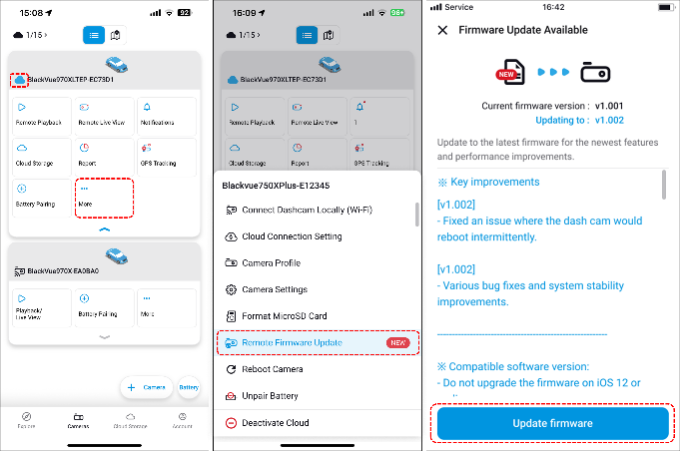
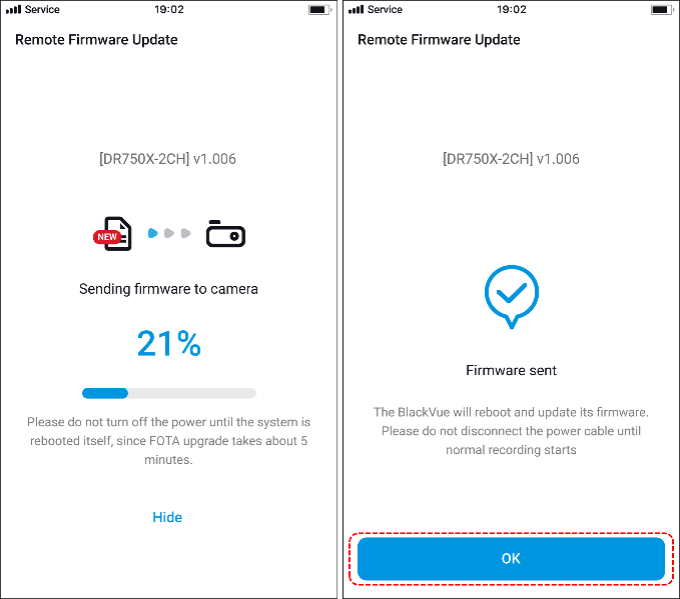
1. Firmware update via OTA/FOTA (wireless, App-based)
A. Through the BlackVue/Fleeta app (Wi-Fi or Cloud connection)
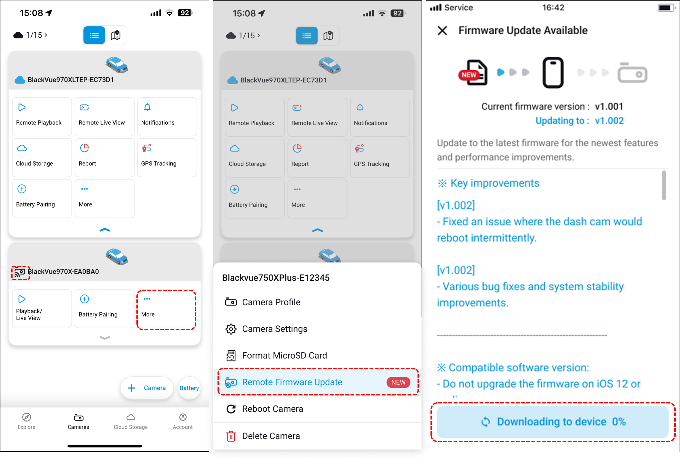
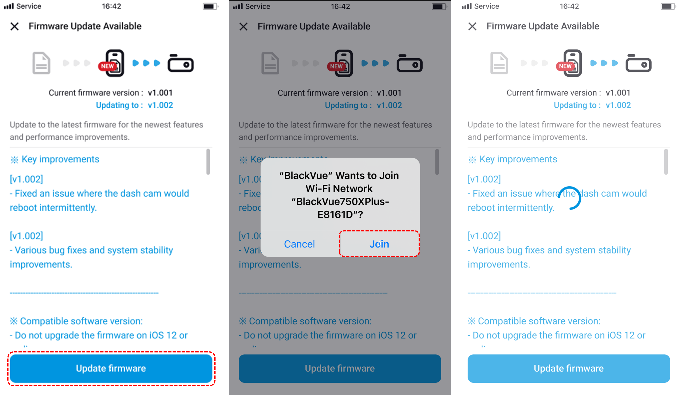
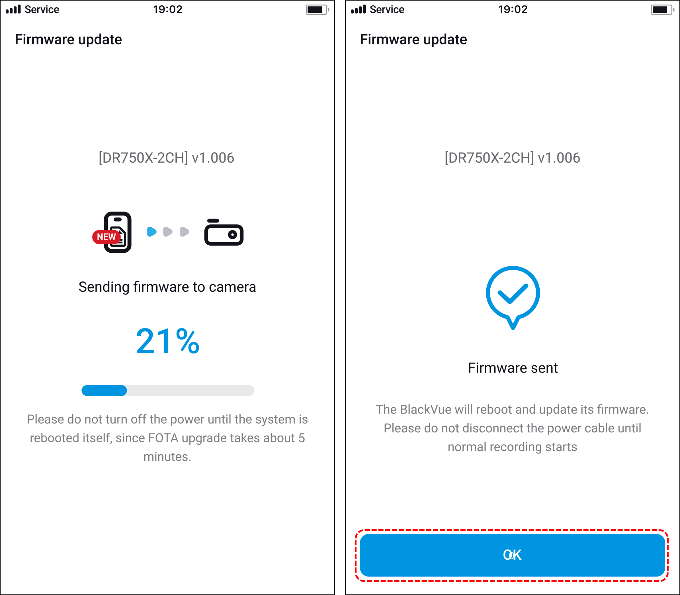
B. Via the Cloud (Cloud FOTA)
2. Firmware update via SD card (manual, using a computer)
Troubleshooting and tips
Regularly updating your BlackVue dashcam’s firmware keeps your device performing optimally, adds new features, and resolves bugs easily—whether wirelessly via the app or manually through SD card.
More_Firmware Update (FOTA Fleeta)
FOTA (Firmware Over The Air) allows you to update dashcam firmware wirelessly—no SD card required.
The method depends on the camera type.
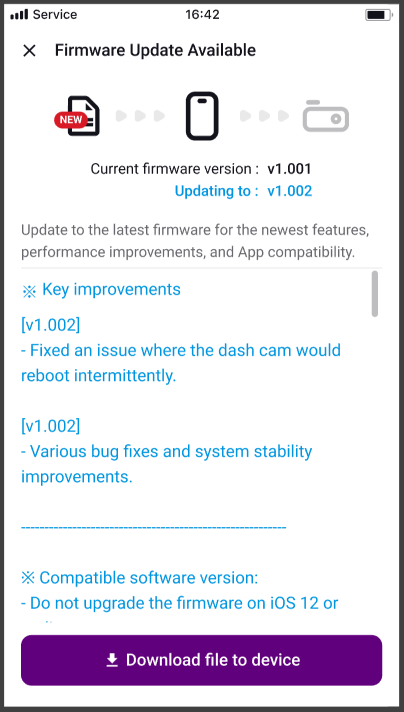
Wi-Fi Cameras (Wi-Fi FOTA)
How to Update
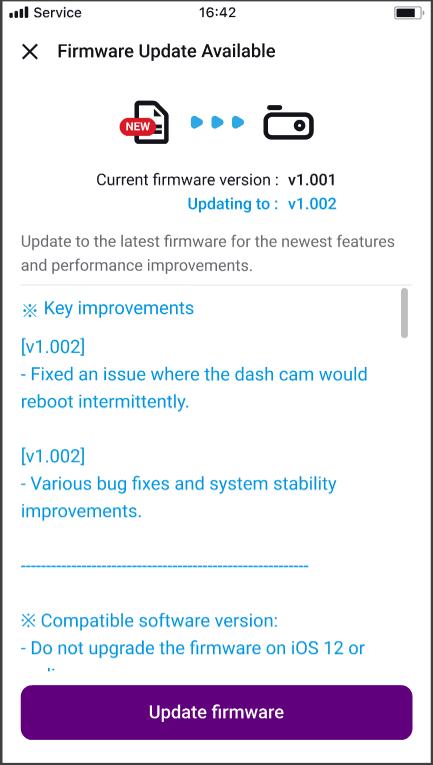
Cloud-connected Cameras (Cloud FOTA)
How to Update
App
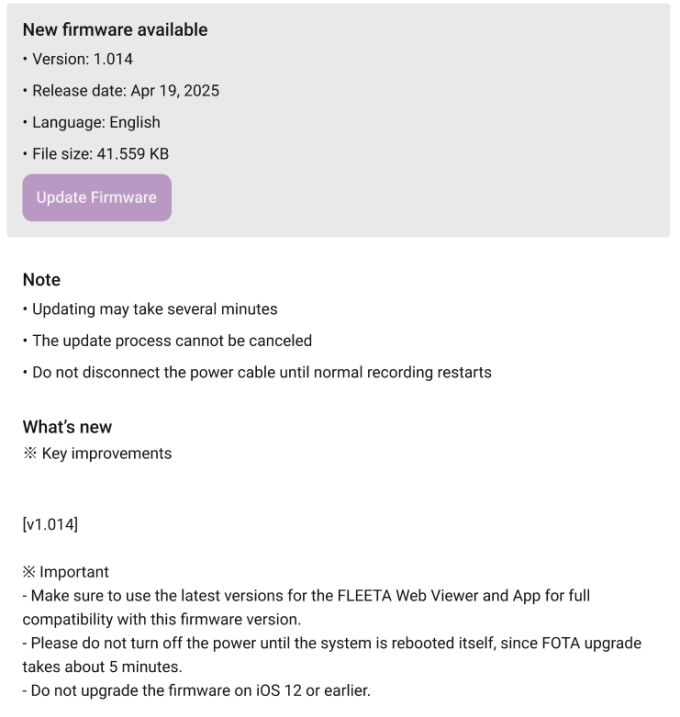
Web Viewer
You can check firmware changes in the Release Notes before updating.
DMC200 Firmware Update (DMS IR Camera)
The DMC200 supports both Wi-Fi and Cloud FOTA.
To update:
How to restore or reset dashcam settings
Resetting or restoring your BlackVue dashcam settings can resolve configuration issues, Wi-Fi problems, or simply help you start fresh. Here’s a comprehensive guide on how to reset your dashcam using PC Viewer, and physical buttons.
Note: Steps may vary by camera model. Always backup important footage before performing any reset or format.
1. Resetting via BlackVue Viewer (PC/Mac)
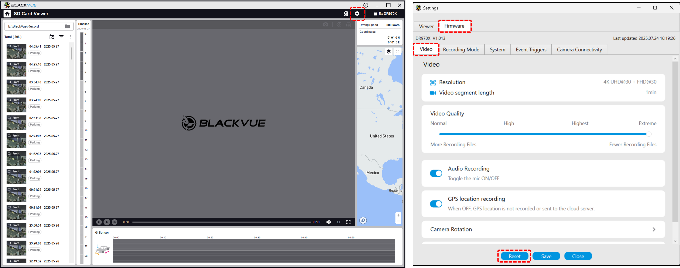
Warning: On some models, restoring image quality or time settings will format the SD card and erase all footage.
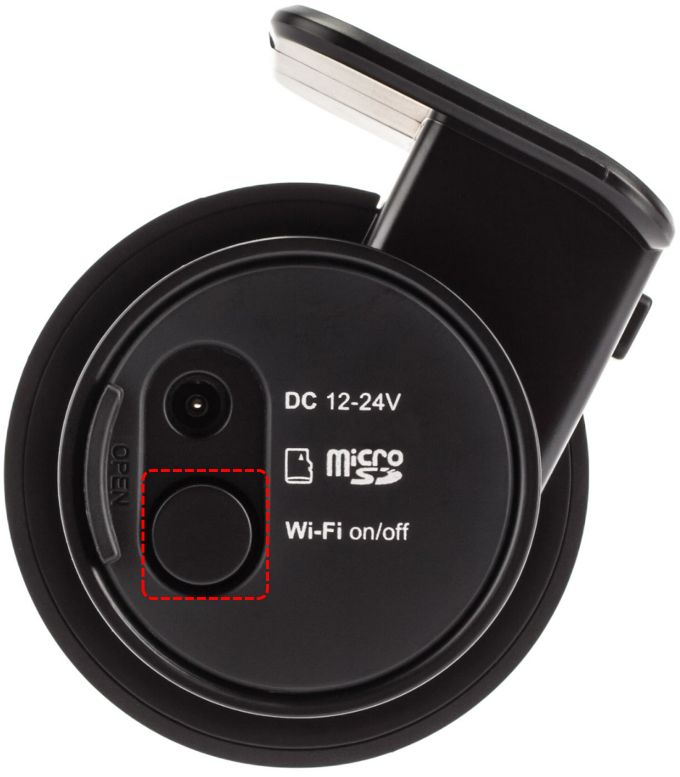
2. Resetting Wi-Fi SSID/password using the dashcam button
For many old BlackVue models (DR750S, DR900S, DR590W, etc.):
3. Troubleshooting and best practices
| Issue | Solution |
|---|---|
| Can’t connect Wi-Fi | Reset via button, use default password |
| Erratic camera behavior | Reinstall firmware, reset settings |
| Settings don’t stick | Try a different, formatted SD card |
| No “factory reset” option | Reset each setting using app/Viewer |
4. Tips
Restoring your dashcam’s settings allows you to resolve persistent issues and start fresh with default options, ensuring reliable recording and connectivity for your BlackVue device.
Correcting date/time errors due to firmware or settings
Date and time errors in your BlackVue dashcam can result in incorrect timestamps, recording confusion, or issues with event logging. Use this step-by-step guide to identify the causes and correct date/time problems, whether they’re related to firmware or misconfigured settings.
Note: Steps may vary slightly depending on your camera model or app version. Always make sure your dashcam is powered on and connected to a reliable power source during any adjustments.
1. Common symptoms of date/time errors
2. Causes of date/time errors
3. Step-by-step solutions
A. Update the firmware
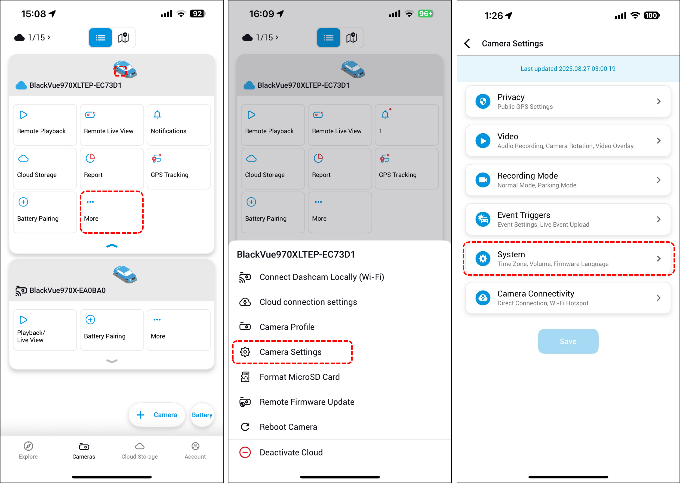
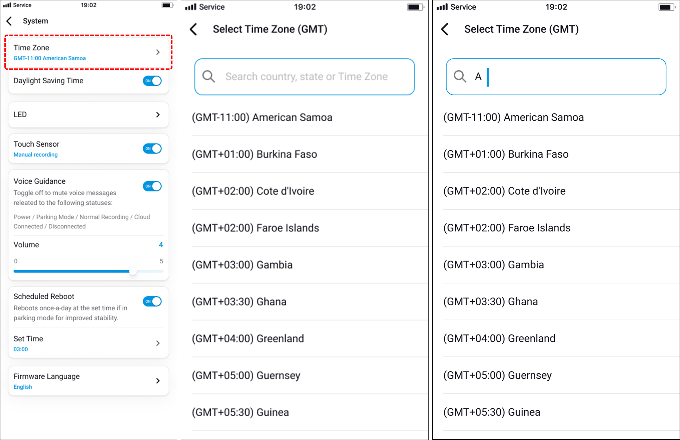
B. Set time settings in the app or viewer
C. Using the Time Setting Program (for PC/Mac)
D. Additional checks for persistent errors
4. Troubleshooting summary table
| Symptom | Solution |
|---|---|
| Time/date incorrect | Update firmware, check/set time zone, enable GPS sync |
| Time keeps resetting | Try new SD card, check RTC battery if older model |
| Sync issues with GPS | Wait 10–15 min driving; check for signal/interference |
| Shows wrong time zone | Confirm time zone & daylight saving in camera/app settings |
5. Tips for best results
Prompt correction and proper setup of your dashcam’s date/time ensure reliable recordings and accurate evidence, especially in emergencies or for insurance claims. For hardware-related timekeeping problems, contact BlackVue support.
.