Views: 204
SimpliSafe Installation Guide All Devices, Installing your Base Station is the first step to getting your system up and running. Watch this video for a hands-on setup experience from our team of experts. The SimpliSafe Home Security app lets you control your SimpliSafe security system from anywhere in the world. Arm and disarm the system, set instant notifications and keep track of everything in an up to the minute timeline. You can even watch and capture live video if you have a SimpliSafe camera.
Install These Products Next
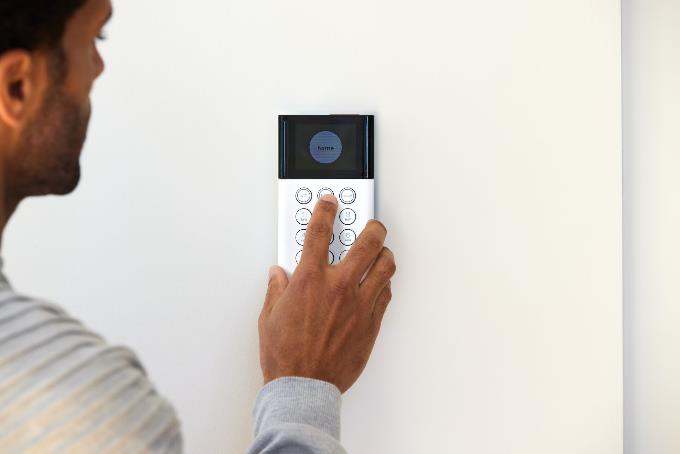
Keypad Installation Guide
Your Keypad can arm and disarm your system in one easy click
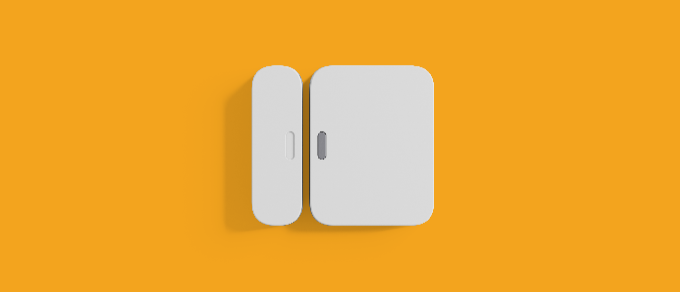
Entry Sensor Installation Guide
Entry Sensors defend your doors and windows from unwanted intruders

How to Install SimpliSafe® Cameras
Indoor and Outdoor Cameras add an extra layer of security for your property
Base Station (Gen 3) Overview and Installation Guide
Overview
The Base Station is the brains of your system. It sends alarm signals to the monitoring center* with built-in cellular and Wi-Fi connections, a battery backup that lasts up to 24 hours, and a 100 dB siren.
When a sensor on your system is triggered, it sends a signal to the Base Station, which sounds the loud, 100 dB siren and notifies you immediately. If the Base Station is unplugged or the power goes out, the backup battery keeps you covered for up to 24 hours. With a monitoring plan, the Base Station will alert the SimpliSafe® monitoring center who will request emergency dispatch if there’s trouble.
Before Getting Started
Before installing your Base Station, you’ll want to download the SimpliSafe® Mobile App on your phone or tablet. If you haven’t already done so, you’ll also need to create a SimpliSafe® Account.
What’s in the Box
Watch this video from our team of experts for a hands-on installation experience
Use the guided flow below for an interactive, step-by-step experience that will help you through the installation process.
Base Station and System Settings
You can access System Settings via your Keypad’s menu, SimpliSafe® Mobile App, or SimpliSafe® Online Account. These settings control your system’s volume, alarm delays, and Wi-Fi setup.
To change the settings for specific devices, please visit our Device and Sensor Settings article.
Status Lights
| Setting | Description | Location | Options | Default |
| Base Station Light | Changes if the LED light on your Base Station will illuminate to indicate system statuses, warning, and similar events. | Mobile App: My System gear on the bottom of the screen > Base Station Settings > Status Lights > Base Station Light Keypad: Menu > System Settings > Base Station Light |
On
Off |
On |
| Wall Power Light | A blue light on the back of the Base Station that remains lit while it is receiving power from the power adapter | Mobile App: My System gear on the bottom of the screen > Status Lights > Wall Power Light
Keypad: Menu > System Settings > Wall Power Light |
On
Off |
On |
| Trouble Light | A warning light that indicates an issue with the system, or a component | Mobile App: My System gear on the bottom of the screen > Status Lights > Trouble Light
Keypad: Menu > System Settings > Trouble Light |
On
Off |
On |
Audio Alerts
| Setting | Description | Location | Options | Default |
| Entry Sensor Chime or Name Announcement | Sets the Base Station chime volume for when an Entry Sensor opens while the system is disarmed or when the sensor is set to “Disabled.” | Mobile App: My System gear on the bottom of the screen > Base Station Settings > Audio Alerts > Entry Sensor Chime or Name Announcement
Keypad: Menu > System Settings > Chime Volume |
Off
Low Medium High |
Medium |
| Voice Prompts | Sets the volume that the Base Station will announce instructions, errors, etc. | Mobile App: My System gear on the bottom of the screen > Base Station Settings > Audio Alerts > Voice Prompts
Keypad: Menu > System Settings > Voice Prompts |
Off
Low Medium High |
Medium |
| Trouble Signal | A warning tone that indicates an issue with the system, or a component. | Mobile App: My System gear on the bottom of the screen > Audio Alerts > Trouble Signal Keypad: Menu > System Settings > Trouble Signal |
Off
Low Medium High |
Medium |
Alarm Siren
| Setting | Description | Location | Options | Default |
| Alarm Siren Volume | Sets the volume of the Base Station siren in the event that an alarm is triggered. | Mobile App: My System gear on the bottom of the screen > Base Station Settings > Alarm Siren > Alarm Siren Volume
Keypad: Menu > System Settings > Siren Volume |
Off
Low Medium High |
High |
| Alarm Siren Duration | Sets the length of time that your Base Station (and Extra Sirens if you have them) will sound in the event of an alarm | Mobile App: My System gear on the bottom of the screen > Base Station Settings > Alarm Siren > Alarm Siren Duration Keypad: Menu > System Settings > Siren Duration |
Between 30 seconds – 8 minutes | 4 minutes |
Exit and Entry Delays
| Setting | Description | Location | Options | Default |
| Exit Delay, Home | The amount of time before the system becomes armed in Home Mode when you press the “Home” button on your Keypad or in the Mobile App | Mobile App: My System gear on the bottom of the screen > Base Station Settings > Exit and Entry Delays > Exit Delay (Home) Keypad: Menu > System Settings > Exit Delay, Home |
Between 0 seconds – 4 minutes and 15 seconds | No delay (0 seconds) |
| Exit Delay, Away | The amount of time before the system becomes armed in Away Mode when you press the “Away” button on your Keypad or in the Mobile App | Mobile App: My System gear on the bottom of the screen > Base Station Settings > Exit and Entry Delays > Exit Delay (Away)
Keypad: Menu > System Settings > Exit Delay, Away |
Between 45 seconds – 4 minutes and 15 seconds | 60 seconds |
| Entry Delay, Home | The amount of time before your system’s siren sounds when an active sensor is tripped in Home Mode. | Mobile App: My System gear on the bottom of the screen > Base Station Settings > Exit and Entry Delays > Entry Delay (Home)
Keypad: Menu > System Settings > Entry Delay, Home |
Between 0 seconds – 4 minutes and 15 seconds | 30 seconds |
| Entry Delay, Away | The amount of time before your system’s siren sounds when an active sensor is tripped in Away Mode. | Mobile App: My System gear on the bottom of the screen > Base Station Settings > Exit and Entry Delays > Entry Delay (Away)
Keypad: Menu > System Settings > Entry Delay, Away |
Between 30 seconds – 4 minutes and 15 seconds | 30 seconds |
Wi-Fi Network
| Setting | Description | Location | Options | Default |
| Wi-Fi Network | Choose the Wi-Fi network that your system is connected to. Learn more about connecting your system to Wi-Fi. | Mobile App: My System gear on the bottom of the screen > Base Station Settings > Wi-Fi Network
Keypad: Menu > System Settings > WiFi Network |
N/A | N/A |
Keypad Overview and Installation Guide
Overview
Your Keypad may be small, but it has a big job – arming and disarming your SimpliSafe® system and controlling all of your devices. You’ll use your Keypad to set your entry and exit delay, siren volume, and more. If you press the Panic Button on top for 2 seconds, it will signal an alarm when under duress, but is also used as the test button when placing your system into Test Mode.
Your Keypad requires a Base Station to function. Need to purchase a system? You can build your system or choose from a pre-built package on our website. Need to purchase an additional Keypad? You can purchase additional Keypads on our website.
Before Getting Started
Before setting up your Keypad, you will need to install your Base Station first.
What’s in the Box
If you want to mount your Keypad on a wall, make sure the surface has been wiped clean and has had time to dry.
If you want to screw mount your Keypad, you will also need your own Phillips Head screwdriver.
Watch the video below for a hands-on experience from our team of experts for the installation process
Use the guided flow below for an interactive, step-by-step experience that will help you through the installation process.
https://sprcdn-assets.sprinklr.com/2088/a2dd8ea3-105d-47f7-a3c5-12e4c157e3fc-3769035.mp4
Keypad Installation Guide
Typing on the Keypad
The Keypad uses ABC mode for typing. In this mode, you’ll cycle through the corresponding characters (numbers, symbols, punctuation, letters) using the keys numbered 0-9 on your Keypad. You can learn more about typing on the Keypad in our How to Type Using the Keypad article.
Preserving the Keypad’s battery life
The Keypad takes 4 AA batteries and has a battery life of 8-12 months, depending on usage. To your Keypad’s batteries, you can enable power saving mode. Turning on power saving mode will turn off the proximity sensor in the Keypad that tells the device to light up when someone gets close to it.
To enable power saving mode:
Keypad Not Powering On After A Power Cycle
Updated
2 months ago
The Keypad takes four (4) AA batteries, which have a life expectancy of 8-12 months depending on your usage and placement of the Keypad. Your system should alert you that the Keypad has low batteries, so you’ll have ample time to change them out. In the event that you notice that your Keypad isn’t powering on, you can try a few quick steps to get the device up and running again.
Before the Keypad can power back on, it’s important to drain all the passive power from the Keypad. To do this:
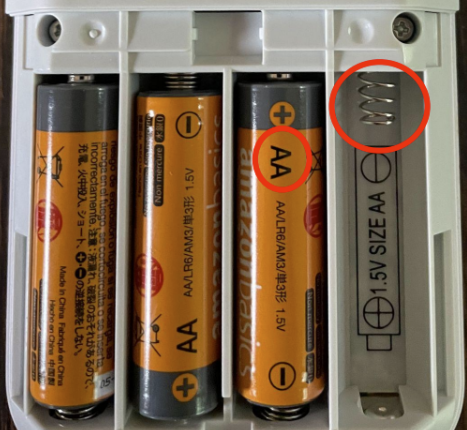
If the Keypad still does not light up, use a known pair of working AA batteries, such as the ones in a remote control. If the Keypad lights up and powers on with these batteries, you’ll want to replace the batteries in your Keypad with a new set.
Entry Sensor Overview and Installation Guide
Overview
Entry Sensors defend your doors and windows. The Base Station will sound a quick chime when a door or window opens while your system is disarmed. Depending on your settings, this can also be set to trigger an alarm.
Entry Sensors are made up of two parts: a sensor (the smaller of the two components) and a magnet. When these are lined up within two inches of each other, the system knows the door or window is closed. When they move more than two inches apart, the system sees it has been opened.
Looking to purchase an Entry Sensor? You can find Entry Sensors available for purchase on our website.
Before Getting Started
Before setting up your Entry Sensor, you will need to install your Base Station.
Prior to placing the sensor, make sure the surface has been wiped clean and has had time to dry.
Additional installation considerations:
This will ensure that your Entry Sensor has the best signal possible to communicate with your Base Station.
What’s in the Box
Watch the following video for a hands-on installation experience from our team of experts
Use the guided flow below for an interactive, step-by-step experience that will help you through the installation process.
Entry Sensor Installation Guide
Looking to customize your Entry Sensors? Use the guided flow below to get started.
Entry Sensor Settings & Customizations
Entry Sensor Offline
Updated
21 days ago
If your Entry Sensor is showing as offline on the SimpliSafe® Mobile App, this could be an indicator that the battery within the device needs to be replaced.
The Entry Sensor takes one Duracell CR-2032 Lithium 3V battery and has a life expectancy of up to 5 years depending on placement and usage.
To replace the battery, slide the sensor off the bracket towards the pairing button. Then replace the lithium battery and slide the sensor back onto its bracket. If your Entry Sensor has a cover over the battery, you’ll need to remove that first. You can refer to our Help Center article for further instructions.
Please note that the error may take up to 24 hours to clear from the SimpliSafe® Mobile App after taking these steps, as the Base Station needs to check back in with the sensor. If you want to bypass that timeframe, you’ll need to follow the steps below to remove the sensor and re-add it to your system.
Remove the Sensor from the System and Reinstall it
To remove your Entry Sensor:
To reinstall your Entry Sensor:
If you need additional instructions or want to watch our installation video, you can find it in our Entry Sensor Overview and Installation Guide.
How to Install SimpliSafe® Cameras
SimpliSafe® has a variety of different cameras that provide additional eyes and ears for both inside and outside your home. The following article will provide you with the resources you need for installing the specific camera to your SimpliSafe® system.
You may use the Guided Flow to choose your camera and install it, or navigate to the collapsible sections below
Installing Your Cameras
HAVING TROUBLE CONNECTING TO WI-FI DURING THE INSTALLATION PROCESS?
Our cameras are designed to connect seamlessly to most Wi-Fi networks, however, some networks may require additional configurations to be compatible. We recommend confirming that your network meets our system requirements. You may also use the guided flow below for an interactive, step-by-step process to troubleshoot network connectivity issues.
Wi-Fi Troubleshooting Guided Flow
Outdoor Security Camera Series 2
Before installing your Outdoor Security Camera Series 2, you’ll want to charge the battery for your Outdoor Camera using the included USB charging cable and your own USB power adapter that outputs 7.5W minimum. It can take up to 6 hours to fully charge your battery. You’ll want to fully charge your battery even if you plan on using the outdoor power cable with SimpliSafe® Active Guard Outdoor Protection.
Watch the video below for a hands-on experience from our team of experts for the installation process
Wireless Outdoor Security Camera
In order to successfully set up the Wireless Outdoor Security Camera, you will need the following:
We also recommend fully charging the battery in your camera prior to beginning the installation process. This will take up to 6 hours for the battery to fully charge. You’ll know it’s charged when all 3 lights on the battery are illuminated, and not pulsing.
Watch the video below for a hands-on experience from our team of experts for the installation process
Use the guided flow below for an interactive, step-by-step experience that will help you through the installation process
Wireless Outdoor Security Camera Installation Guide
Video Doorbell Pro
Video Doorbell Pro is currently compatible with the SimpliSafe® Gen 3 System, and requires an existing wired doorbell setup, a mechanical chime, and a transformer that provides 8-24 VAC, 10-30VA.
To install the Video Doorbell Pro, you’ll need to have your Video Doorbell Pro Kit, which includes a Torx screwdriver. You’ll also need your own Phillips screwdriver.
Watch the video below for a hands-on experience from our team of experts for the installation process
Use the guided flow below for an interactive, step-by-step experience that will help you through the installation process
Video Doorbell Pro Installation Guide
If you notice that your mechanical chime produces a constant buzzing sound, or it doesn’t sound when the Video Doorbell Pro is pressed, you may need a Chime Connector. If you do not have a Chime Connector, please contact our Support team and they will send one to you free of charge.
Smart Alarm Wireless Indoor Security Camera
The Smart Alarm Wireless Indoor Security Camera is a battery-operated security camera that’s designed for indoor use. It records at 1536p and has a wide field of view at 125 degrees. The battery in the Smart Alarm Indoor Camera can also last up to 3 months on a single charge.
You will need the following tools before installing your Smart Alarm Indoor Camera:
Watch the video below for a hands-on experience from our team of experts for the installation process
Use the guided flow below for an interactive, step-by-step experience that will help you through the installation process
Smart Alarm Wireless Indoor Security Camera Installation Guide
SimpliCam® Wired Indoor Camera
The SimpliCam® alerts you the instant it detects motion so you can see what’s happening and take action through its 2-way audio. After taking your camera out of the box, we recommend you thread the cord through the stand, plug it into the camera, put the camera on the stand, and plug it into the power source.
Watch the video below for a hands-on experience from our team of experts for the installation process
Use the guided flow below for an interactive, step-by-step experience that will help you through the installation process
SimpliSafe Installation Guide All Devices
Merhaba SimpliSafe ekibi, bu yazı gerçekten çok ilgimi çekti! Ev güvenliği konusu son zamanlarda benim de çok sık düşündüğüm bir şey. Özellikle
Merhaba SimpliSafe ekibi, bu yazı gerçekten çok yerinde ve bilgilendirici olmuş! Ev güvenlik sistemleri kurmak bazen göz korkutucu ol
Merhaba SimpliSafe ekibi, bu yazıya denk gelmem ne güzel oldu! Ev güvenliği konusu son zamanlarda benim de çok aklımı kurcal