Views: 344
Tuya Spatial App How-To Guides, Tuya Spatial is a mobile app that helps to add smart devices to a cloud project created at Tuya IoT Development Platform > Cloud Development. The sub-devices of Tuya IoT Edge Gateway can also be added. Both the iOS and Android versions are available and can be downloaded from app stores for these operating systems.
What is Tuya Spatial App?
Tuya Spatial is a mobile app that helps to add smart devices to a cloud project created at Tuya IoT Development Platform > Cloud Development. The sub-devices of Tuya IoT Edge Gateway can also be added. Both the iOS and Android versions are available and can be downloaded from app stores for these operating systems.
Scenarios
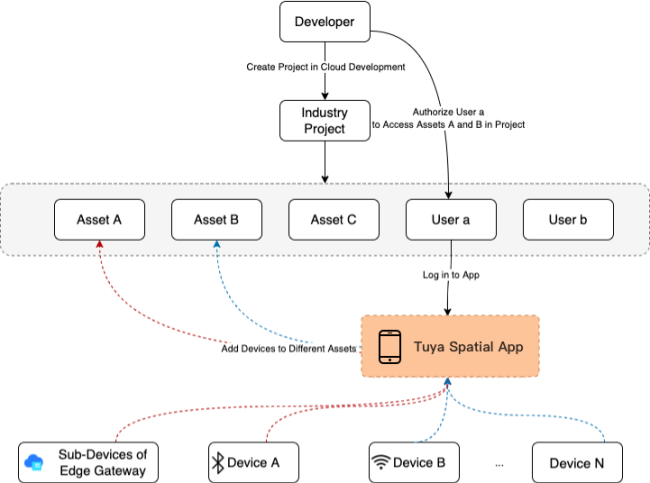
Tuya Spatial helps to add devices or sub-devices of the edge gateway to the required projects. This allows managing devices with different protocols in one place. This way, you can simply subscribe to the required API services to start cloud projects.
The following block diagram shows the process to add the devices to a cloud project by using the app.
Advantages
Capabilities
.
Download App
This topic describes how to download the Tuya Spatial app.
iOS TestFlight version and Android version
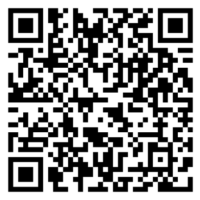
Visit https://smartapp.tuya.com/tyindustry and scan the following QR code to download the Tuya Spatial app.
To use this app for commercial purposes, turn to the OEM app for Tuya Spatial.
.
How-To Guides
You can go to Tuya Developer Platform > Cloud Development, create projects, add assets, and then add and authorize users. Based on these steps, the Tuya Spatial app can be used to scan a project QR code that appears on the platform and allow authorized users to log in to the app. Then, the users can access multiple features on the app. For example, add devices to a specific asset, view and manage the devices, and implement device control and smart scenes.
The how-to guides describe certain important operations. For example, pair devices, update firmware over the air, and replace failed gateways. For more information about how to view, manage, and control devices, switch between accounts, and other operations, see the instructions on the app.
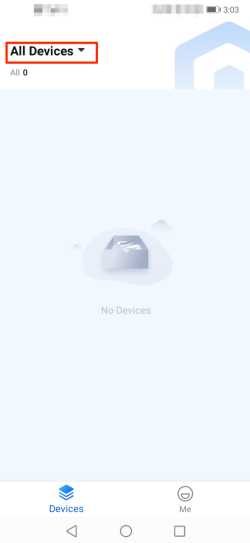
Login to App
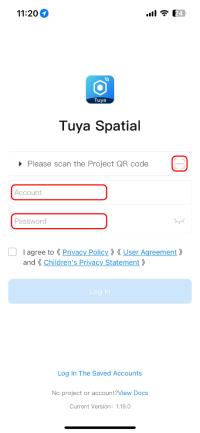
Users can follow instructions in Download App to download the Tuya Spatial app. Then, to log in to the app, they must scan a project QR code to link the project and enter the account and password on the login page.
| User interface | Description |
|---|---|
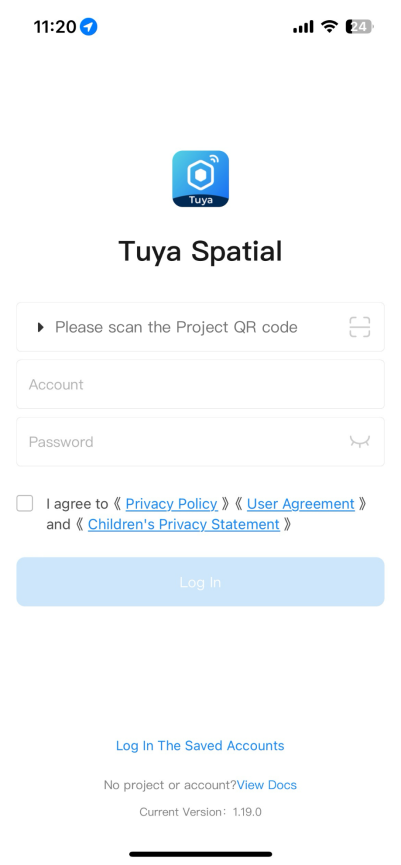 |
Linked Project: a cloud project. A cloud project is a collection of cloud development resources, such as devices, API permissions, and data assets. After you add a user to the project, you can authorize the user to manage specific assets. This allows the user to log in to the project and operate devices for the project. For more information, see subsequent descriptions in this topic. |
| Account: an account that is authorized in the cloud project. After you add a user to the project, you can authorize the user to manage specific assets. Then, the user can log in to the app and add and manage smart devices and edge gateways. | |
| Password: the password of the account that is granted access to the cloud project. |
Step 1: Register a Tuya developer account
Register and create a Tuya developer account and complete the identity verification.
Step 2: Subscribe to a cloud development plan
In the left-side navigation pane of the Tuya Developer Platform, choose Cloud > Project Management to go to the Project Management page, and subscribe to the desired cloud development plan.
To quickly experience cloud development, you can subscribe to the Trial Edition plan. This edition is used for free.

Step 3: Create a cloud project
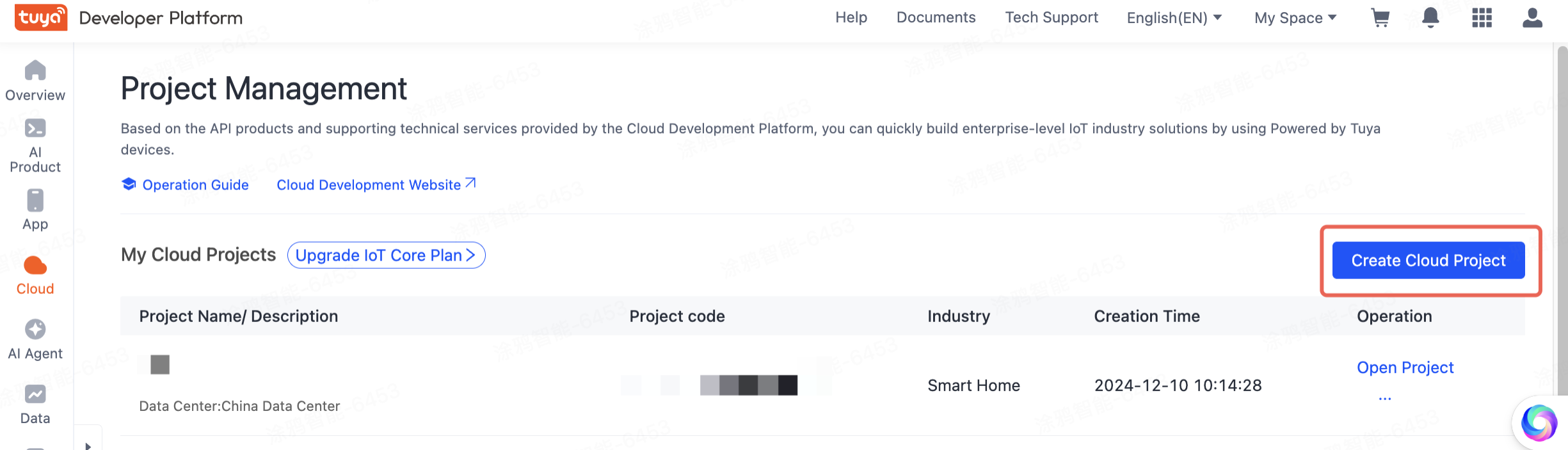
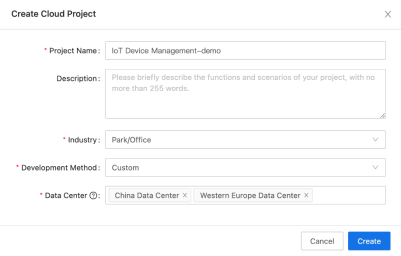
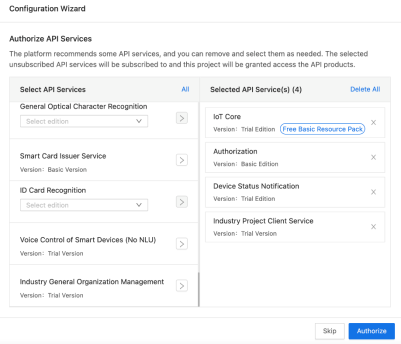
Step 4: Configure the cloud project
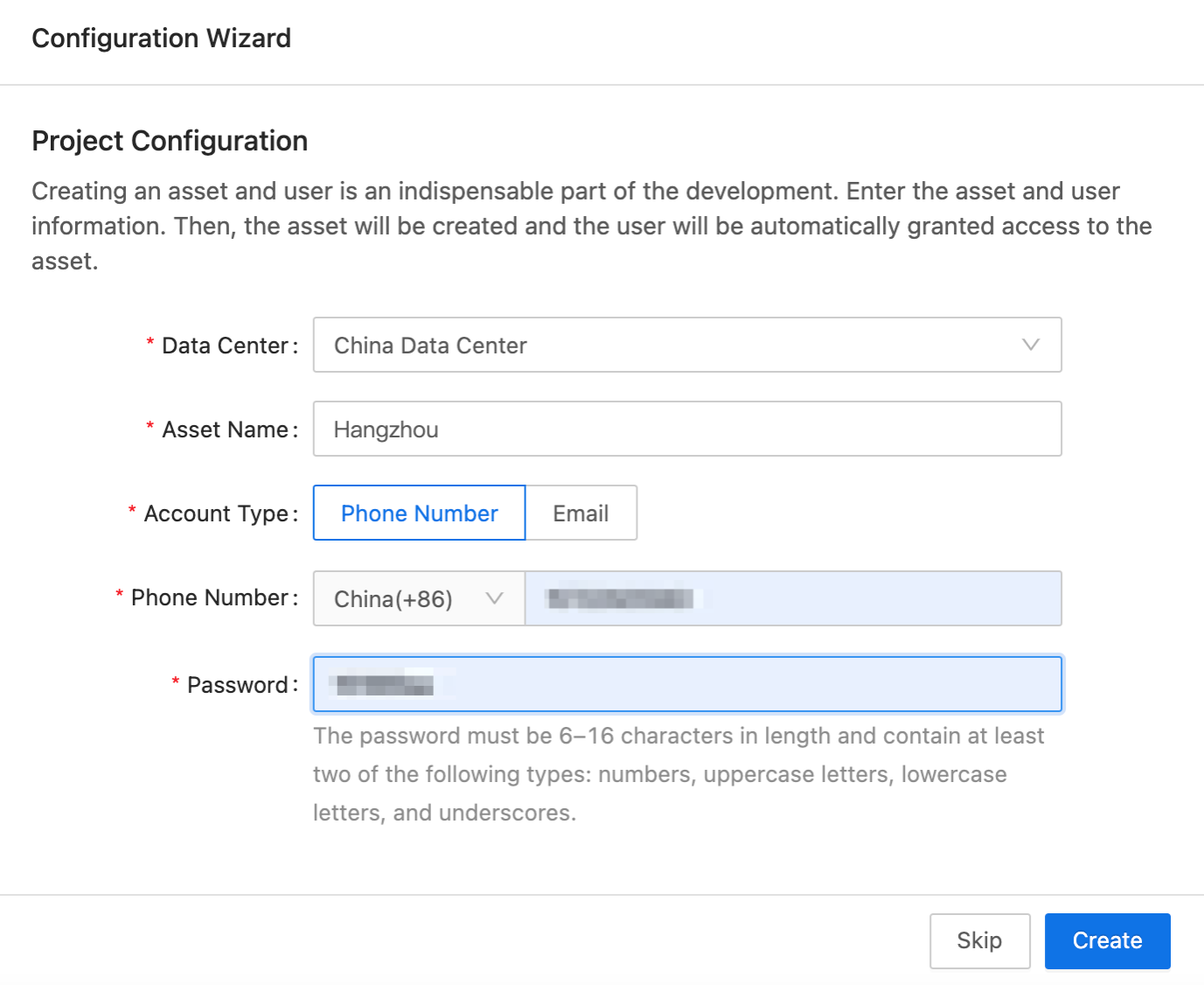
In the configuration wizard, add an asset and a user to the project. Then, the user will be automatically granted access to the asset. Click Create.
Note down the specified user account and password. They will be used in Step 6.
Step 5: Get the project QR code
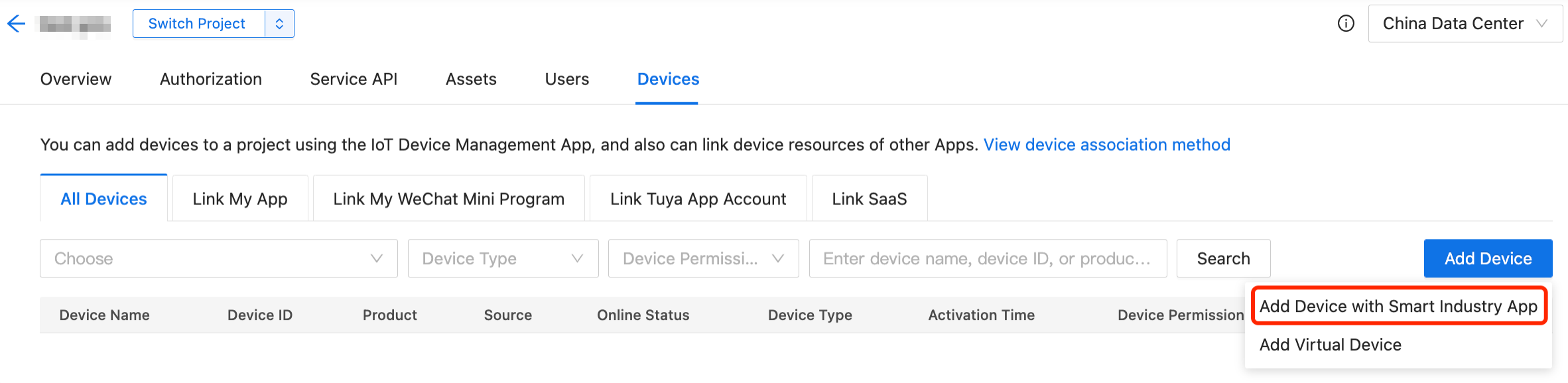
The following figure shows the project QR code that appears.
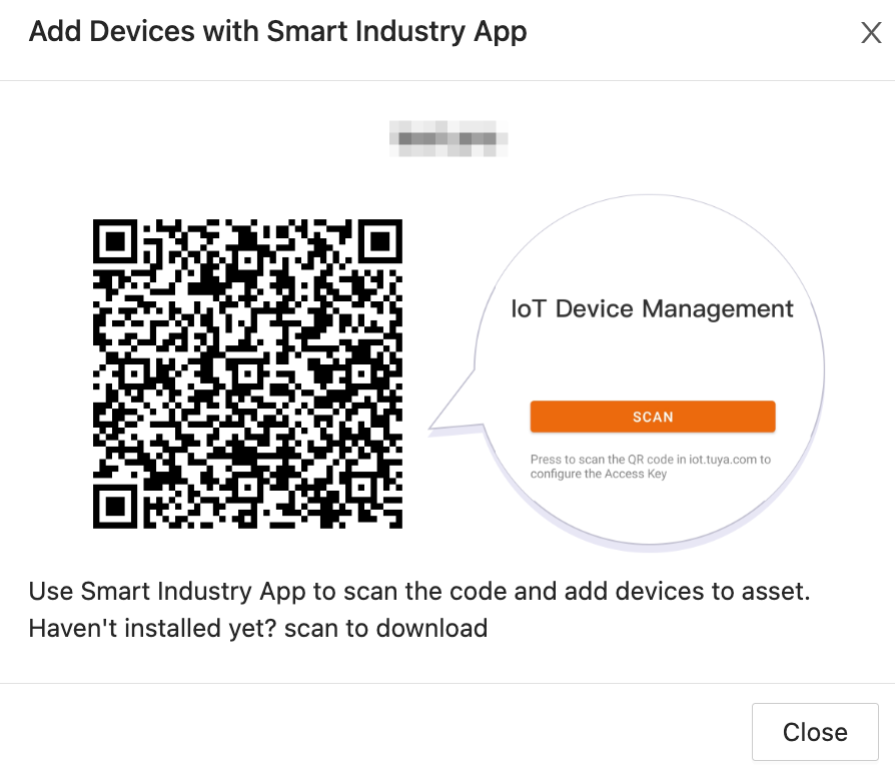
If the project supports the multi-tenant edition, the project QR code contains tenant information. In this case, a multi-tenant user can log in only after the QR code including the respective tenant information is scanned.
Step 6: Scan to configure the cloud project
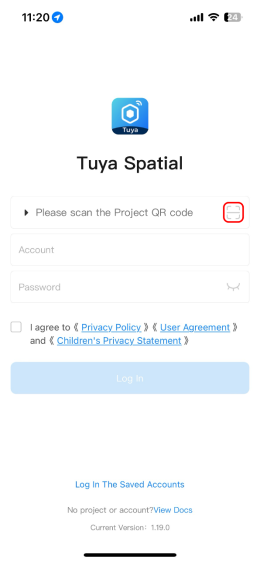
.
Pair Devices
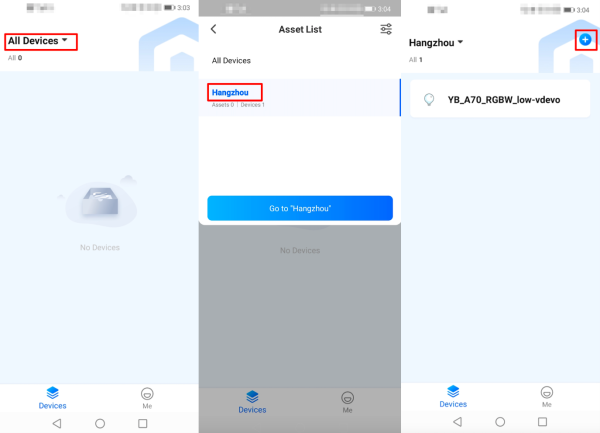
An authorized user can log in to the Tuya Spatial app. This topic describes how the user pairs devices to add them to accessible assets on the app to support different scenarios.
Manually or automatically discover devices
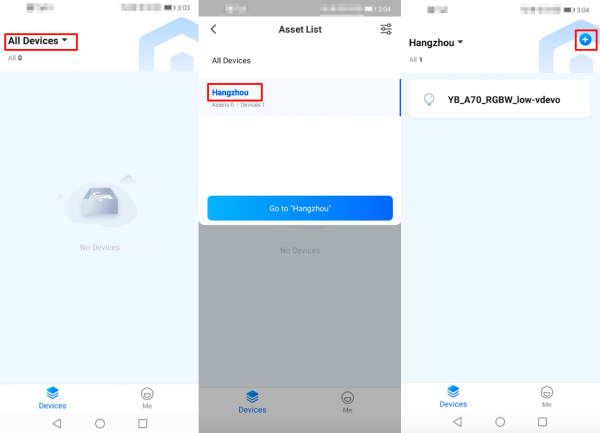
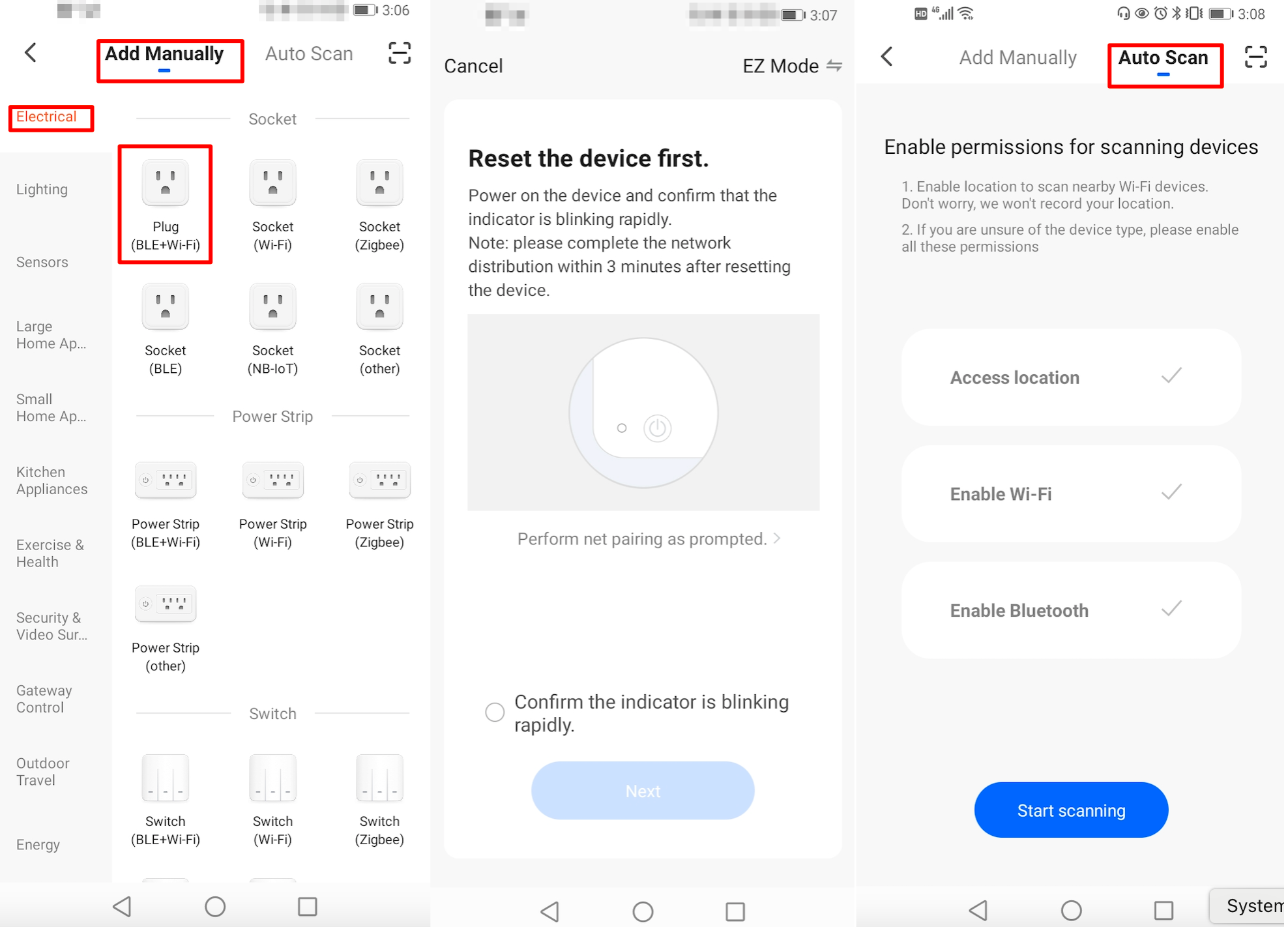
Activate an edge gateway
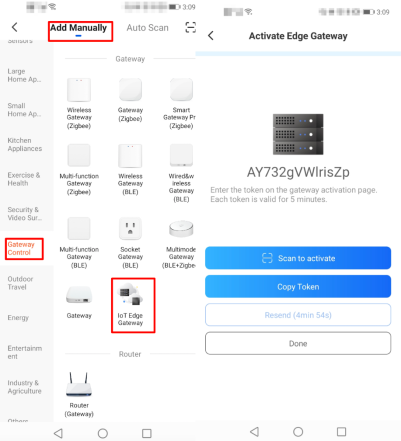
The Tuya Spatial app v1.4.0 allows TuyaLink-based devices to be added after QR code scanning. The QR code scanning entry is located in the top right corner of the pairing page. After a QR code is scanned, the pairing process is automatically started.
.
OTA Firmware Updates
OTA firmware updates are one of the core features supported by IoT devices. The Tuya Spatial app enables firmware updates over common protocols such as Wi-Fi, Bluetooth, Zigbee, and NB-IoT.
Currently, a batch OTA update is not supported. You need to update each device one by one.
Prerequisites
A firmware update is available for a device in the current asset.
Procedure
.
Replace Failed Gateways
Multiple Zigbee gateways and sub-devices can be deployed in the same task for an asset. If one of the gateways failed, users do not need to migrate its sub-devices one by one. Instead, users can replace the failed gateway with a new one. The associated sub-devices will be automatically associated with the new gateway.
Prerequisites
Procedure
.
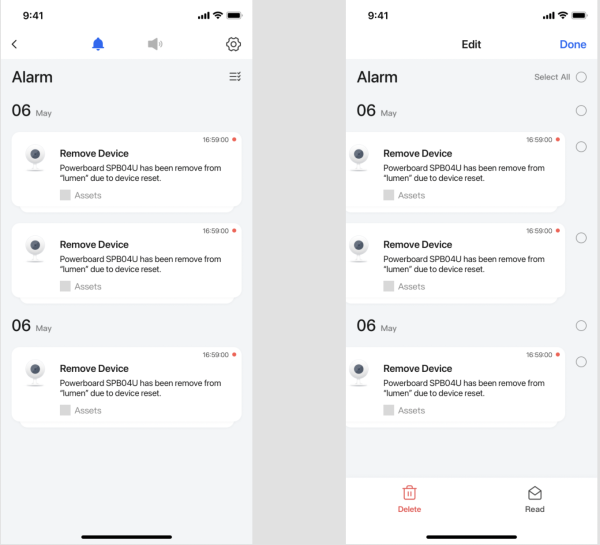
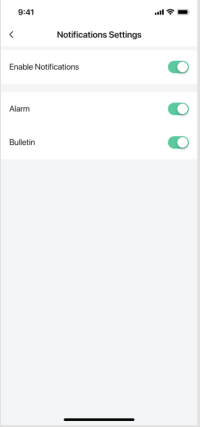
Message Center
The message center serves as one of the basic features supported by the Tuya Spatial
app. This feature allows users to view and manage messages and configure app push notifications, as shown in the following figures.
.
FAQ
I have added assets to a cloud development project on the Tuya Developer Platform. Why does the app not display these assets?
After the assets are added, you must authorize one or more users of the project to access the assets. This way, the users can log in to the Tuya Spatial app and view the assets. For more information, see Add and Authorize Users.
What is and how can users get the data required for the login page of the Tuya Spatial app?
On the login page of the Tuya Spatial app, users must set the following three fields to log in to the app:
User Login
Why is the account registration entry not found? How do I create the account and password for the Tuya Spatial app?
The Tuya Spatial app provides enterprise-level device management services for IoT industry projects. Its account is created and authorized by the system administrator on the Tuya Developer Platform. A user must scan a project QR code to link the project before the user can use the account to log in to the app.
What can I do if I forgot the password for login to the app?
You can contact the system administrator of your industry project. Your password will be reset on the Tuya Developer Platform.
Why is login allowed only after a project QR code is scanned?
The app provides the entry to scan a project QR code for login. This allows the app to be linked with a certain project. A user can log in and access the project only by using an account of the project. For more information about how to create a project, see Login to App.
Merhaba! Tuya Spatial uygulamasıyla ilgili bu rehber yazısı gerçekten ilgimi çekti. Akıllı ev teknolojilerine epeydir meraklıyım
Merhaba! Bu bilgilendirici yazı için çok teşekkürler, tam da aradığım bir konuydu aslında. Tuya ekosistemiyle bir süredir ha