Views: 0
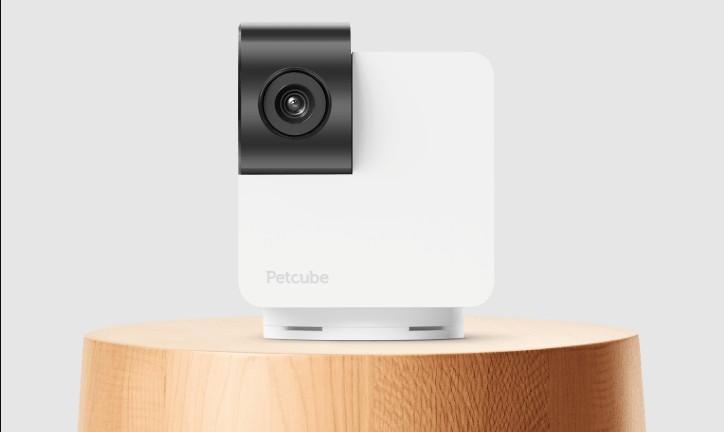
Petcube Cam 360 Setup User Guide, What are some of the features of Petcube Cam 360? Petcube Cam 360 features are 350º horizontal and 55º vertical rotation, 105º wide-angle view, 1080p HD video, 2-way audio, and 8x digital zoom. Does Petcube Cam 360 have a laser pointer for animals to chase and play?
Petcube Cam 360 does not include a laser point functionality. If you are looking for a Petcube device with a laser pointer, consider getting Petcube Play 2.
What is the difference between Cam and Cam 360?
The key difference between Cam 360 and Cam is the ability to rotate the camera. The Cam 360 supports a 350º horizontal and 55º vertical rotation, making it the first Petcube camera ever with a flexible view angle. All the other features are the same as those of the Petcube Cam
Can I get remote access to Petcube Cam using cell data?
You can access Petcube Cam remotely from your cell data without your smartphone connected to Wi-Fi.
Sharing access to your Petcube camera
By default, only you can access your Petcube video stream, but you can share access to your Petcube with your family and friends.
Family members will have almost full control of your camera, being able to connect to your Petcube anytime, change camera and sharing settings and access recorded videos on Petcube Care timeline.
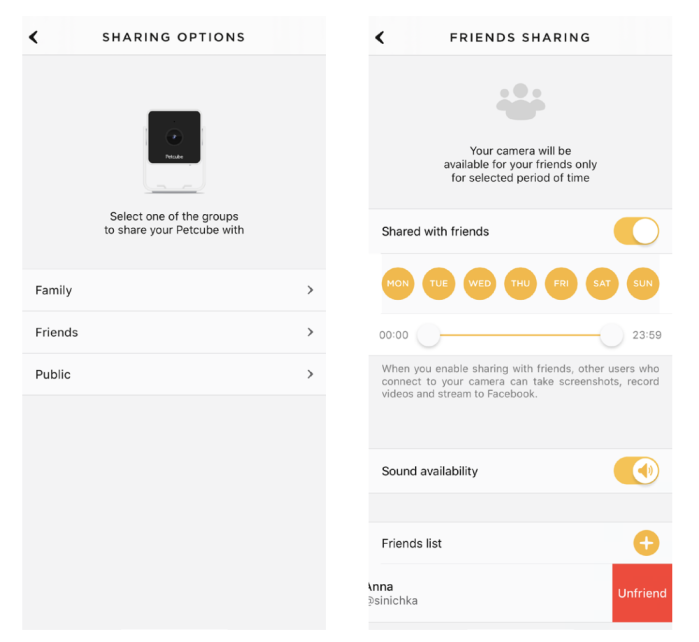
Friend sharing allows you to configure friend sharing access at specifically scheduled times and days as well as configure permission access for the laser and 2-way audio controls.
To share your camera with someone, first ask them to download Petcube app and create their own account.
Petcube Cam 360
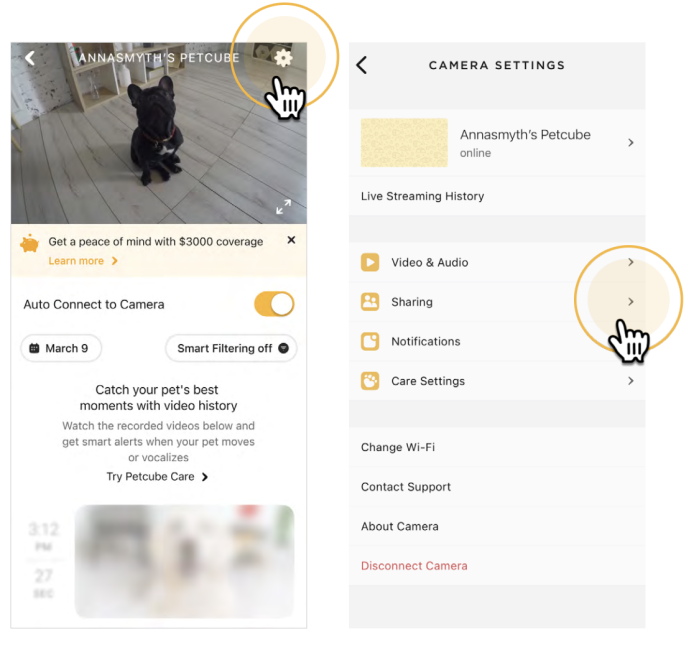
To share access to family members or friends:
To delete a user from your ‘Family’ or ‘Friends’ list:
Camera Offline?
In case your camera is displayed as offline in the app, and you cannot access the live stream while LED is blinking blue/yellow, when you know for a fact that internet connection and WiFi is available at home, then something on the network might have changed and you need to re-setup your Petcube.
This issue may occur if:
To get your Petcube up and running again you will need to set camera up and connect it to your account anew. Follow these steps to do so (Please bear in mind that Petcube only supports 2.4Ghz WiFi network band):
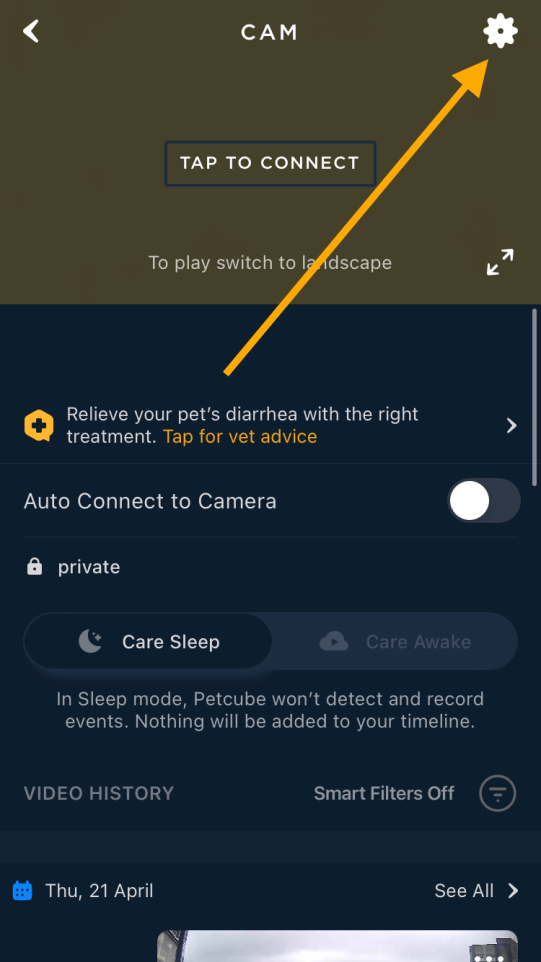
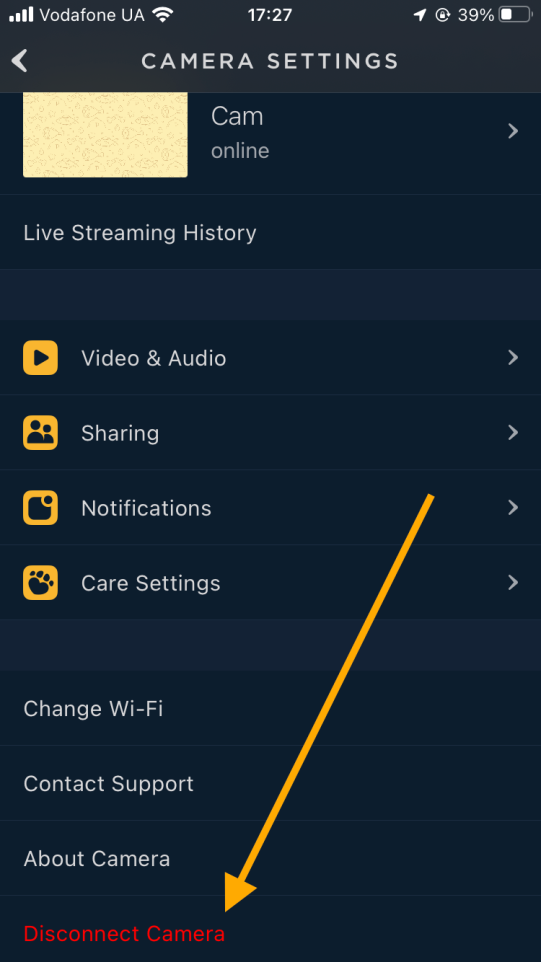
For convenience you can remove the old camera registration from the app by going into camera settings and choosing the “Disconnect Camera” option:
What level of security does Petcube provide
At Petcube we deeply care about our customers’ security. Our engineers continuously improve devices and services protecting your data and your peace of mind.The data transmission is performed via the proven TLS protocol with 128-bit encryption. The firmware distribution is secured via the signed updates. Everything stored on the camera and in the cloud is secured following the best industry practices. The engineers are monitoring the vulnerability reports and new versions of the software components used in our products, and they are updated regularly. Petcube is also performing planned security audits by the independent third-party company with extensive expertise in the domain.
If you are a Petcube customer with security-related concerns, please, contact the support team at support@petcube.com.
We encourage cooperation with external security researchers and appreciate them bringing vulnerability concerns to our attention. If you are a security researcher and believe you have found a vulnerability in Petcube product or service, please contact us at security@petcube.com
We ask you to follow these responsible disclosure rules:
.
.
Why does a red LED light appear in the evening?
The red LED light you see is an infrared light for night vision indicating that your night vision is currently ON.
Petcube comes with an infrared sensor capable of streaming clear black and white video in the pitch dark.
When the sensor detects a low level of ambient light, a Petcube camera will automatically activate the Night Vision mode.
By default, Night Vision is set to Auto mode, but you can default it to always On or Off going to Camera Settings -> Audio & Video
Using QR code to setup your Petcube Cam 360
During the setup, Petcube app will auto generate the QR code with your network information that needs to be scanned by the Petcube’s camera lens.
Make sure the protective film is removed and the lens is clean, increase the brightness on your phone and hold it down steady facing the camera lens at a 5-inch distance until you hear “QR code scanned”.
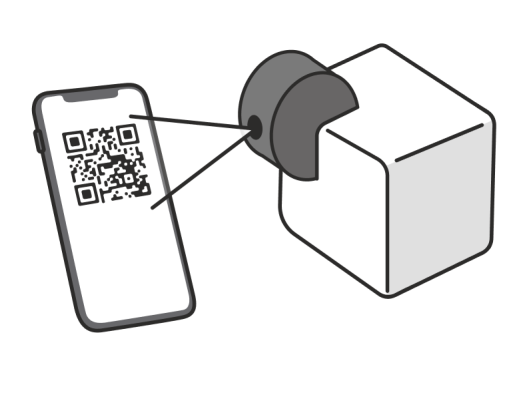
Check the box saying “I heard QR code scanned”, tap next and wait until you see the screen saying “Setup complete”.
If QR code cannot be scanned, try a few tips below:
If your phone has cracks you can also try taking a screenshot of the QR code and saving it to another device like a tablet or laptop/computer. Then scan it there with the Petcube device during the setup process.
.
Camera is not booting and LED light is stuck in Solid Yellow state
In case your camera is not booting, displaying Solid Yellow LED light that doesn’t change within 1 minute after the camera was powered up, you can perform Manual Recovery.
Recovery mode can be activated on cameras with a Firmware version starting from 6.3.8.2227: Petcube Play 2 manufactured in/after 2024, Petcube Cam 360 and upgraded Petcube Cam model.
You can refer to Camera settings → General → Version in the Petcube app to find your device’s Firmware version.
In order to start Manual Recovery, complete the following steps:
1. Power up your camera, if it isn’t turned on. Wait for 60 seconds to make sure it is not booting.
2. Power OFF your camera.
3. Hold the Setup button while powering ON your camera.
4. Keep holding the button until the LED light changes state from Solid Yellow. The camera will go into Recovery mode. Now you can release the button.
5. You should receive notification about Firmware update in your mobile app. It should be finished within 20 minutes.
If you want to reset camera settings such as Wi-Fi credentials, you can perform Factory Reset:
1. Power up your camera, if it isn’t turned on. Wait until LED light changes from Solid Yellow to any other state.
2. Press and hold the Setup button. The camera will play a jingle, ‘Ready for setup’ message and another jingle. Release the Setup button immediately after you hear the second jingle.
3. Proceed to the Petcube app and start the Setup process by pressing the Plus icon  in the top right corner of the Home screen.
4. Follow the steps on the screen.
‼️Important: if you perform Factory Reset and Manual Recovery at the same time, the camera will not be able to go online any longer.
.
LED light doesn’t light up
If your Petcube is powered on but no LED light on your Petcube camera is showing, try unplugging it and plugging it back into the power source.
Make sure that you are using the original power adapter that came with your Petcube and that the power cord is undamaged.
If the issue persists, try using an alternative cable or power adapter but make sure to only use the ones that provide 5V/2A power.
Try a different outlet or try connecting your Petcube directly to a computer/laptop/power bank. If it doesn’t make any difference please reach out to our support team at support@petcube.com
.
Connection Failed
If during setup the LED light on the camera is blinking yellow and you hear the message saying “Cannot find the specified network name” or see the screen saying “Connection failed”, there could be a few reasons why this is happening and here are a few tips on how to sort this out:
If you want to have the firewall on, you need to open the following ports:
(You may not need the UDP ports because they’re rarely blocked, but UDP range should be from 7000 to 7100)
.
Is there a desktop or a web application
At the moment, Petcube application is available for Android and iOS devices only.
We are always looking for ways to make our products easier to use. For now, mobile platforms are our priority for development. Having web access is something that is on our radar though and we are making some small steps in that direction, with the recent launch of web logins and profile management on our website.
.
Audio doesn’t work
Please check if the upload speed of your internet is more than 2mbps. If it is less than 2 mbps the microphone feature can be affected.
Also, Petcube app requires access to the microphone on your mobile device. To grant access to it, open the ‘Settings’ menu on your phone, then go to ‘Privacy’ and then ‘Microphone,’ and make sure you have allowed the Petcube App to use your phone’s mic.
Also, kindly double-check the following settings:
If you still cannot hear or talk to your pet, please contact our support department by starting a chat or email us at support@petcube.com
Does Petcube have an internal battery
Petcube devices have no internal battery and need to be plugged into the power source to work.
.
Will I be able to connect to Petcube if I’m travelling overseas
Absolutely. As long as your mobile device and the Petcube camera are both connected to the Internet, you can play with your pet through Petcube from anywhere in the world.
Keep in mind that Petcube cameras will only connect to private networks protected by passwords with WPA/WPA2 encryption.
.
Is there a desktop or a web application
At the moment, Petcube application is available for Android and iOS devices only.
We are always looking for ways to make our products easier to use. For now, mobile platforms are our priority for development. Having web access is something that is on our radar though and we are making some small steps in that direction, with the recent launch of web logins and profile management on our website.
.
Switching Cam 360 to Setup Mode
Start by downloading and installing the Petcube app to your phone either from the App Store or from the Google Play store. Petcube app requires iOS 11 or greater or Android 7.1.2 or greater.
Remove the protective film from the camera lens and power it up using the included USB cable and power adapter somewhere near your Wi-Fi router.
During the setup, Petcube app will automatically detect the Wi-Fi network your phone is currently connected to, so it’s a good idea to make sure you’re connected to the same network you want to hook up the camera to, and have the Wi-Fi password handy as you’ll be asked to enter it shortly.
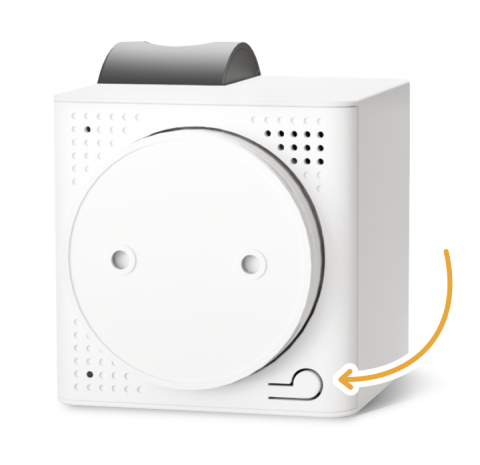
As long as the LED light is flashing on your camera, you’re ready to enable the setup mode. To do that, press and release setup button at the bottom of the camera until you hear a short jingle and a message saying “Ready for Setup”, and tap “I heard “Ready to Connect” on the screen.
At the top, you’ll see the network that you’ll be connecting the camera to, so tap “Next” to continue the setup and enter your Wi-Fi password or “Change network” if you wish to connect it to a different network.
A QR code will be generated on your phone screen. Hold your camera at the 5-inch distance with the lens facing the QR code until you hear a message saying “QR code scanned”, check the box, tap “Next” and wait until you see the screen saying “Setup complete”.
Now you’re ready to use your Petcube Cam 360.
.
Bad live stream quality
The root cause of this issue might be due to the insufficient connection your cube is receiving from the router. This might be caused by a very low UPLOAD speed.
Petcube is a network device and heavily relies on Wi-Fi network and internet performance. Your camera requires a stable connection with at least 2Mbps (4 Mbps highly recommended). Audio/video fidelity is greatly affected by Wi-Fi/internet channel quality and speed. Things like ping, latency and overall Wi-Fi environment greatly influence the way video/audio is reproduced on both cube and phone during the moment of stream
Both phone connection & cube connection quality matter. The better the connection – the better the performance. If your Upload speed is less than 2mbps we highly suggest you reach out to your Internet Service Provider to upgrade your network.
How to find Petcube’s MAC address
In case you are using MAC filtering on your router you will need to specify Petcube’s MAC address in order to setup your Petcube.
You can locate your Petcube’s MAC address specified on the bottom of the camera.