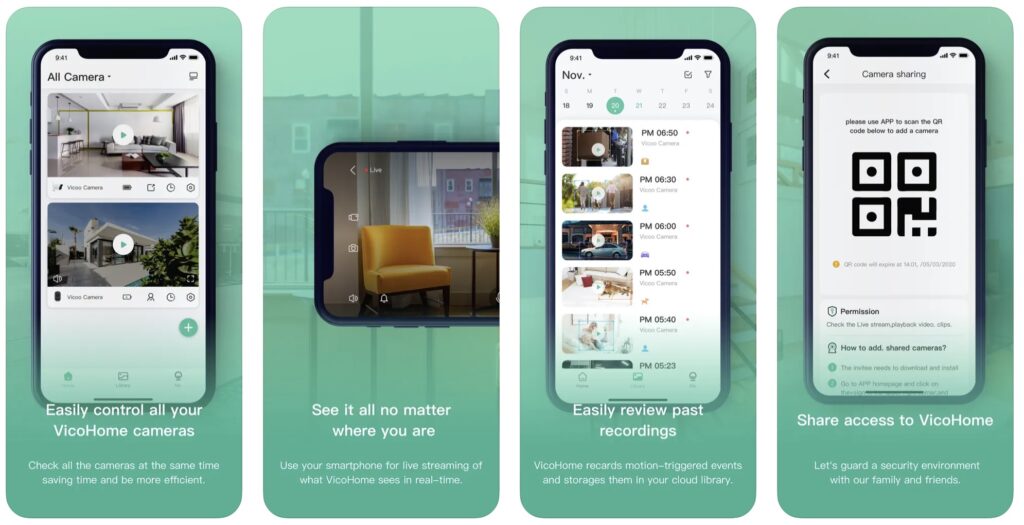
VicoHome 4G Camera Setup Guide, VicoHome with the use of smart camera products, you can always know the real-time video of the house, courtyard, balcony, etc., and also can quickly browse to the video during the automatic monitoring of the camera, and use the application to easily monitor multiple products at the same time or Family use together.
If you’re experiencing issues with your 4G camera’s connection or binding process, this guide is here to help. We address a range of frequent issues and provide detailed solutions to ensure your surveillance system is operational and efficient.
VicoHome 4G Camera Setup Guide
Troubleshooting Tips for 4G Camera Setup
No SIM card in the device
• Ensure the SIM card is correctly seated in the SIM card slot.
• Check the installation direction of the SIM card, and make sure the card is inserted properly.
SIM card can’t connect to the internet
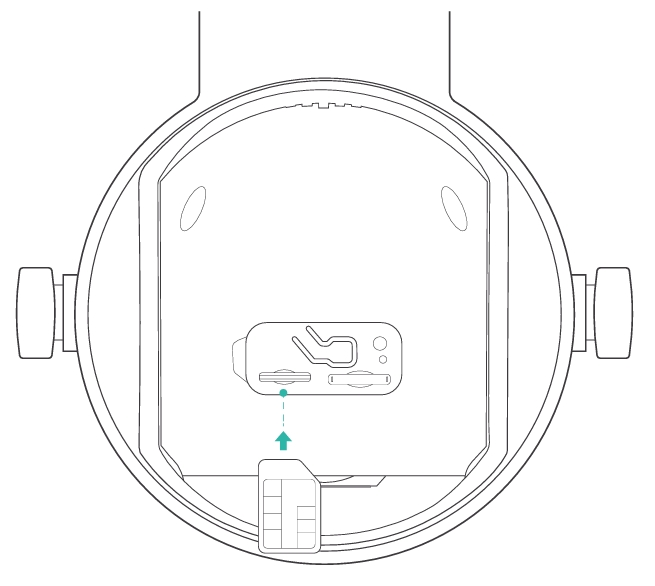
• Make sure the SIM card is inserted properly in the camera’s slot. You can remove the top rubber plug, and insert the SIM card into the slot near the micro-SD, following the arrow until it clicks.Install the rubber plug back to block dust and water.
• Please check if the SIM card is available to connect to the internet. You can insert the SIM card into your mobile phone to see if it can surf the internet.
• If you are not using the provided SIM card, please check whether the data plan has run out.
Weak cellular signal near the device
• Test the signal strength at your camera’s location using another device, such as a smartphone.
1.If the signal is weak on both devices, please try to move your camera to a better location to get a better signal.
2.If only the camera has a weak signal, please try to reposition the camera within the same area, perhaps higher up or near a window, which may capture a stronger signal. Also, you can move the camera to a less obstructed area might enhance signal strength.
Connect device failed
• Please ensure the app has Bluetooth permission enabled.
• Also, check if the device is powered on and emitting a beeping sound and try again.
Device already connected to VicoHome account
• Please remove the device from the previous VicoHome account.
• Then try connecting the device to the app again to see if it works.
Server connection timeout
Please check whether the device is emitting a beeping sound. If silent, double-click the power button or restart the device to enter pairing mode and try again.
Methods to Improve the SIM Card Network Signal
If you encounter poor network signals with your SIM card resulting in an inability to connect to the internet, you can try the following methods to improve the signal:
• Avoid Using in Areas with Weak Signals: Using the camera in areas such as the countryside or basements might cause signal issues. Try moving to an area with a stronger signal.
• Check the Surroundings of the Camera: Ensure there are no large metal objects or other obstacles that might block the signal around the camera.
• Adjust the Camera’s Position: Sometimes, merely changing the placement or orientation of the camera can significantly improve signal strength.
• Check if the SIM card is damaged: Remove the SIM card and inspect it for any scratches or physical damage. If it appears to be damaged, it may need to be replaced.
• Check network coverage: Ensure that your installation area has 4G network coverage. You can take the camera to another location known to have good 4G coverage to test if it can connect to the network.
By following these steps, you can enjoy a seamless network connection experience with your 4G camera. If you encounter more specific issues, you can submit feedback on the app to get further technical assistance.
Introduction to 4G Battery Camera
This 4G battery camera is designed to provide reliable and efficient outdoor surveillance. With advanced features and robust capabilities, it ensures your property is monitored around the clock.
Enhanced Power Consumption
Powered by the next-generation low-power platform, the 4G camera offers superior power efficiency. Its low power consumption makes it perfect for extended outdoor use, providing longer battery life and reducing electricity costs and the need for frequent battery replacements.
Flexible Power Options
The camera supports both DC power and solar panels, offering flexible and sustainable power solutions. Equipped with a 9000mAh battery and a 3W/5W solar panel, the camera ensures uninterrupted operation, even in remote or off-grid locations.
High-Definition 2K Resolution
The 4G camera boasts a high-performance CMOS sensor, delivering stunning 2K HD resolution for fine imaging and detailed video quality both day and night. With a maximum image resolution of 2304×1296 (2K/3MP) at 15 FPS, it captures every detail with sharp and vivid clarity. The camera’s horizontal and vertical pan-tilt functionality allows for a 360° view of your surroundings, ensuring comprehensive coverage and security in any lighting condition.
Night Vision Features
This 4G camera offers advanced night vision with both infrared and white light modes:
• Infrared Night Vision: Provides clear black-and-white images in complete darkness without disturbing the surroundings. Ideal for discreet surveillance.
• White Light Night Vision: Illuminates the night with full-color images and acts as a deterrent to intruders. Perfect for added security.
Ensure high-quality surveillance with our versatile night vision capabilities.
Reliable 4G Network Connectivity
The 4G camera operates on a 4G network, ensuring reliable connectivity even in areas without WiFi coverage. It supports 4G LTE connectivity and can operate in truly off-grid situations using its battery power mode. This allows for remote monitoring and real-time video streaming through cellular data. With a 4G module, it can be placed anywhere.
Regional Compatibility and Carrier Support
Due to the regional specificity of the 4G module (based on the Qualcomm platform), the 4G camera is currently limited to use in North America. It supports multiple carriers, including Verizon, AT&T, and T-Mobile, and automatically connects to the optimal network available.
No WiFi Required
The 4G camera operates exclusively on a 4G LTE network in North America, eliminating the need for WiFi. As long as the SIM card has a stable signal, you can enjoy seamless data transmission and communication, making it ideal for remote and off-grid locations. Enjoy uninterrupted surveillance without the constraints of WiFi connectivity.
Local Storage with High Capacity
The 4G camera prioritizes secure and reliable local storage. It comes with a pre-installed SD card, providing ample space for standard recording needs. For users requiring more storage, the camera supports Micro SD cards up to 128GB, ensuring extensive recording without relying on network access. While cloud storage is not currently supported, future versions will include this feature, offering even greater flexibility.
Efficient Motion Detection
The 4G camera is equipped with advanced motion detection, efficiently identifying and recording moving objects within its view. This feature ensures that you capture important activity without the need for constant monitoring. Additionally, all detection is processed locally, with no reliance on cloud-based AI detection, ensuring privacy and faster response times.
In summary, the 4G camera is an ideal solution for outdoor surveillance, offering low power consumption, flexible power options, high-definition 2K resolution, and reliable 4G network connectivity. With local storage and efficient motion detection, it ensures comprehensive security and peace of mind, even in remote locations.
4G Camera Unlimited Data Plan Guide
Introduction to the Unlimited Data Plan
The Unlimited Data Plan for the 4G Camera provides constant internet connectivity, allowing you to stream live video and receive alerts without worrying about data limits. This plan ensures seamless operation of your 4G camera, making it ideal for continuous monitoring and frequent remote access.
Key Benefits:
• Unlimited Data: Stay connected all the time with no data limits.
• Always Max Speed: Enjoy buffer-free live views and instant alerts.
• Multi-Carrier Support: Compatible with major carriers like AT&T, T-Mobile, and Verizon (only with pre-installed SIM cards).
How to Subscribe to the Unlimited Data Plan?
1.Check the SIM Card: Ensure you are using an officially supported SIM card, such as any AT&T, T-Mobile, or Verizon SIM card that comes pre-installed with your 4G camera at the time of purchase.
2.Add the 4G Camera to the App: Follow the in-app instructions to add your 4G camera to the app.
3.Access the Data Plan:
1.Launch the app.
2.Tap on the “User” tab at the bottom of the screen.
3.Locate the data plan card, then tap on “Try Now” or “Upgrade Now.”
4.Purchase the Data Plan: Follow the in-app instructions to subscribe to the data plan. If you have never claimed the 7-day free trial before, you can opt to try the plan for 7 days for free before making a purchase.
5.Confirmation: Once successfully subscribed, the data plan card will no longer appear on the User page. Instead, you will see a “4G Data Plan” section for checking your plan.
Unable/Failed to Purchase the Unlimited Data Plan?
• Check the SIM Card: Ensure you are using an officially supported SIM card. Only AT&T, T-Mobile, or Verizon SIM card that comes pre-installed with your camera are supported.
• Verify the Camera Compatibility: Make sure the camera you are trying to purchase the plan for is a 4G camera and is compatible with the app.
• Check App Store Account: Currently, only in-app purchases through the App Store (iOS) and Google Play Store (Android) are supported. Ensure you are logged in to your Google Play or Apple ID account and a valid payment method is added to your account.
• Check Purchase Limits: The app supports purchasing data plans for up to 8 cameras. If you have already reached this limit, you will not be able to purchase additional plans.
The Unlimited Data Plan Not Activated After Purchase?
• Check App Store Account: Ensure you are logged in to the same Google Play or Apple ID account used at the time of purchase.
• Check Your App Account: Ensure you are logged in to this app with the same account used at the time of purchase.
• Verify the Camera: Ensure that the camera you are trying to use is the one for which the data plan was purchased.
• Check Network Connection: If the above steps are confirmed, check and ensure your phone has a stable network connection.
Want to Cancel the Subscription?
The Unlimited Data Plan is a monthly subscription that automatically renews each month. The charges are billed to your payment method associated with your Google Play or Apple ID account. If you no longer wish to use the plan, you can cancel your subscription at any time. For detailed instructions on how to cancel your subscription, please follow the official guides:
• For Android users, please visit Cancel a subscription on Google Play
• For iOS users, please visit Cancel a subscription from Apple
Want to Request a Refund?
If you wish to request a refund for your Unlimited Data Plan subscription, please follow the official guides from Google Play or Apple:
• For Android users, please visit Request your Google Play refund
• For iOS users, please visit Request a refund for an App Store purchase
Will Charges Continue If the Official SIM Card Is No Longer Used?
The Unlimited Data Plan is tied to the 4G camera, and charges will continue unless the auto-renewing subscription is actively canceled. Simply removing the SIM card from the camera will not stop the charges. To stop charges, follow the instructions in the “Want to Cancel Your Subscription?” section.
How to Purchase a Data Plan for a Third-Party SIM Card?
Our app only supports data plans for the officially supported SIM cards (AT&T, T-Mobile, or Verizon) that come pre-installed with your 4G camera. If you are using a third-party SIM card, you will need to purchase a data plan directly from your SIM card provider.
If you have any questions or need assistance, please reach out through the app’s Feedback channel or email us at support@vicohome.io with any necessary details.
Troubleshooting Weak Signals in 4G Cameras
Dealing with weak signal issues in your 4G camera can be crucial for maintaining effective surveillance. Below, we address the most common causes of weak signals and provide targeted solutions to enhance your camera’s signal reception.
1.Avoid Using it in Areas with Weak Signals
• Using the 4G camera in areas with poor signal strength, such as basements or remote locations, can lead to connectivity issues and reduced reception. Please avoid placing the camera in these signal-poor locations.
• Additionally, check if there are any signal jamming stationsnearby, such as government buildings, medical facilities, cinemas, and theaters, which can interfere with the signal.
2.Check the Surroundings of the Camera
• Ensure there are no large metal objects, thick walls, or other obstacles near the camera that might block the signal. These physical barriers can interfere with signal transmission, causing weak connectivity.
• Clearing the area around the camera can help improve signal reception.
3.Adjust the Camera’s Position
• Sometimes, merely adjusting the placement, height, or orientation of the camera can significantly improve signal strength. Experiment with different angles and elevations to find the optimal position for the best signal reception.
4.Check if the SIM Card is Working
• Remove the SIM card from the camera and inspect it for any scratches, dirt, or physical damage. A damaged SIM card can cause signal issues. If the SIM card appears to be damaged, it may need to be replaced with a new one to ensure proper connectivity.
• Ensure the SIM card is inserted correctly, following the markings on the device. The SIM card should be fully inserted into the slot without protruding.
• Additionally, ensure that your SIM card has not expired and has an active data plan.
5.Check for Device Status
• Inspect the camera for any physical damage, such as the SIM card slot, water ingress, or antenna, which can severely impact signal reception. Water damage can severely affect the camera’s performance, and a broken or damaged antenna can reduce signal reception.
• Perform regular checks and maintenance on your camera. If damage is found, professional repair or replacement of the affected parts might be necessary.
6.Check Network Coverage
• Ensure that your installation area has sufficient 4G network coverage. You can test this by taking the camera to another location known to have good 4G coverage and seeing if it can connect to the network. This helps determine if the issue is with the network coverage at the initial location.
7.Weather Conditions
• Signal quality may temporarily degrade due to severe weather conditions such as storms, heavy snow, or dense fog. Place the camera in protected areas to minimize the impact of harsh weather conditions.
By following these steps, you should be able to improve the network signal for your 4G camera and resolve connectivity issues. If you continue to experience problems, please submit feedback on the app for further assistance. Thank you for choosing our 4G camera for your remote monitoring needs!
Troubleshooting 4G Camera Offline Issues
If your 4G camera encounters offline issues, this guide is here to help. We cover a range of common offline causes and provide corresponding solutions to ensure your surveillance system remains operational and efficient.
Common Causes and Solutions
Cause 1: Check the 4G Camera Power Supply Status
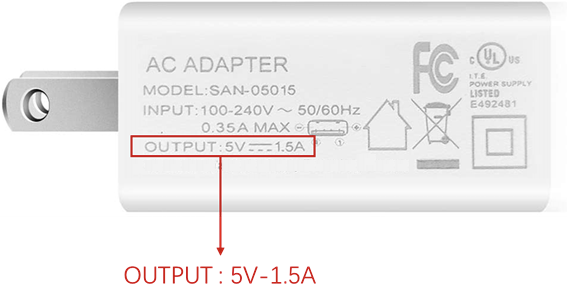
• Battery and Power: Ensure the camera has enough battery and is turned on. If the device can’t be turned on by holding the power button and the indicator light is flashing red, it means that the device is in low battery mode. In this case, please use a USB Type-C cable to plug into the 5V/1.5A charger to fully charge it first.
In general, it will take about 15 hours for a full charge. The 4G camera indicates a yellow light for charging and a green light for full charge.
Cause 2: Check for Firmware Updates
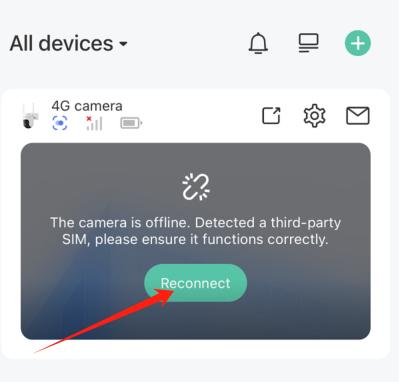
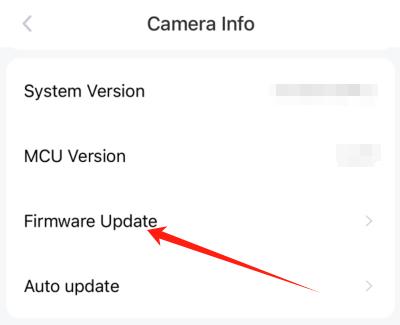
• Outdated firmware: Click “Reconnect” on the home page to see if it can restore the connection. If successful, check if the camera’s firmware version is up to date and update it. Regular updates can fix bugs and improve performance.
Cause 3: Using Your Own SIM Card rather than the Pre-installed Card
• SIM card status: If you have replaced another SIM card, ensure the SIM card is not suspended or deactivated. Contact your mobile network provider to resolve any issues with the SIM card status.
• Incorrect SIM card installation: Ensure the SIM card’s insert direction is right as the picture shows, and the SIM card is inserted fully into the slot.
• Incorrect APN settings: Ensure the APN configuration of the SIM card is correct. Please reconnect your camera and reconfigure the APN settings according to your mobile network provider’s instructions.
• Run out of data: Regularly check the SIM card’s data plan to ensure it has sufficient data available. Recharge the data plan if necessary.
Cause 4: Signal and Carrier Issues
• Weak signal area: Use your mobile phone to check the signal strength at the camera’s location to assist in judgment. If the signal is weak, consider relocating the camera to a location with stronger signal reception. Avoid areas with thick walls or other obstructions.
• Service Carrier Issue: Contact your mobile network carrier to inquire about any known issues or maintenance activities that might be affecting the network. Wait for the carrier to resolve any temporary service interruptions.
Cause 5: Others
• Restart the camera: Sometimes, simply restarting your 4G camera can resolve offline issues. Turn off the camera by long pressing the power button for 5 seconds, and then turn it back on. This simple step can often help re-establish the network connection and get your camera back online.
We hope this guide has helped you troubleshoot your 4G camera offline issues. If you continue to experience problems, please submit feedback on the app for further assistance. Thank you for choosing our 4G camera for your remote monitoring needs!
Related Posts
No related posts.
2 thoughts on “VicoHome 4G Camera Setup Guide”
Merhaba VicoHome ekibi! Bu yazı tam da aradığım bir konuya değinmiş, çok teşekkür ederim. Ev güvenliği ve özellikle uzaktaki m
Merhaba VicoHome ekibi! Bu yazı tam da aradığım bir konuya değinmiş, çok teşekkür ederim. Ev güvenliği ve özellikle uzaktaki m
Merhaba! Bu yazıyı görünce hemen dikkatimi çekti, zira ev güvenliği konusu son zamanlarda benim de gündemimde. Özellikle komşumuzun başına gelen